47
Troubleshooting
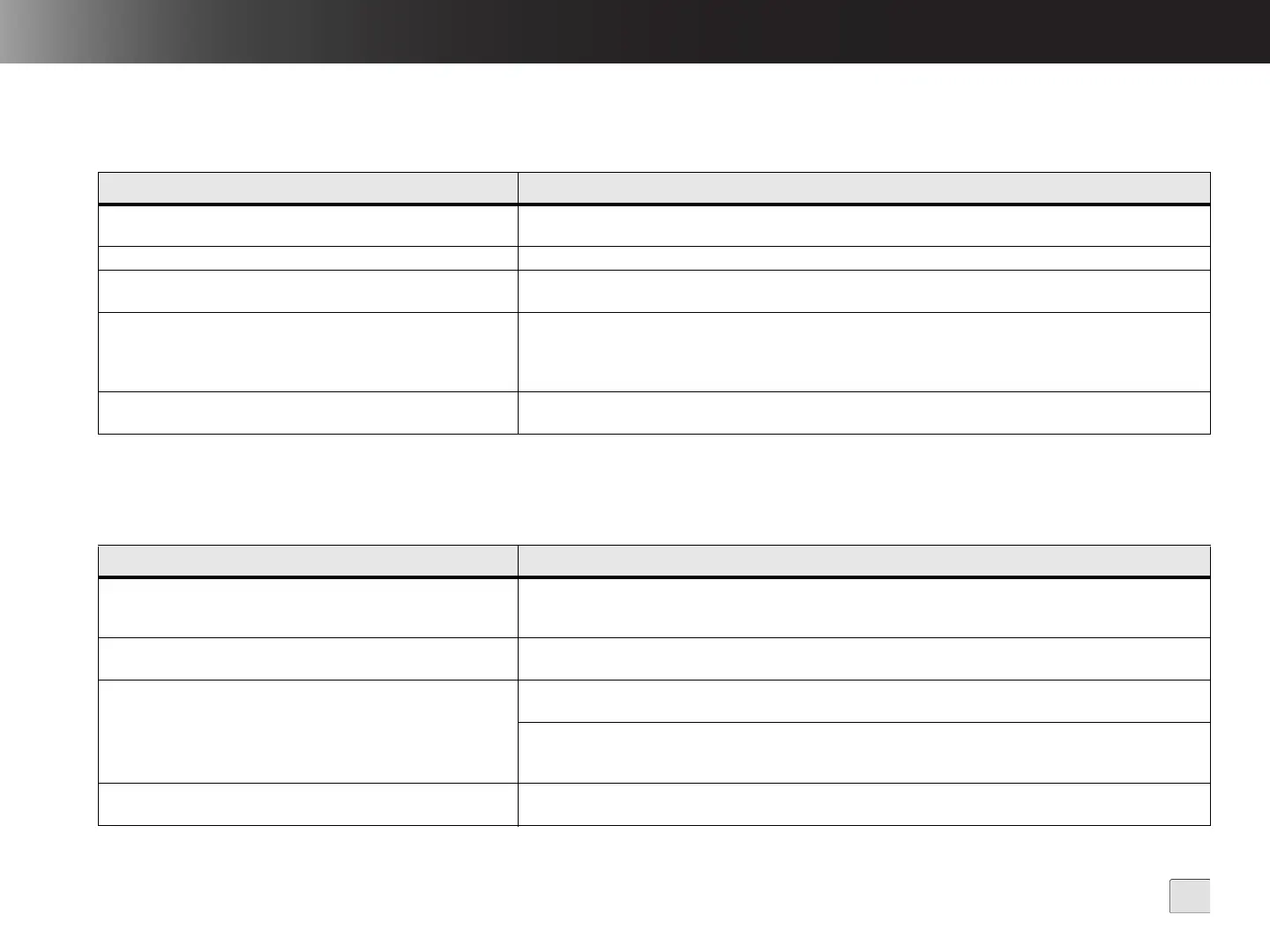
VisionView Troubleshooting
In-Sight Sensor Troubleshooting
Table 7-1: VisionView Troubleshooting
Problem Cause/Resolution
Unable to Establish VisionView Network Connection
If VisionView is configured to obtain an IP address automatically and connected directly to a PC, verify that the PC
is not configured as a gateway device.
Slow Image Update Rate
Disabling the filmstrip may increase VisionView's image update rate when the sensor is Online.
Invalid Timestamp
The VisionView Operator Interface Panel does not provide a valid timestamp when saving images from the filmstrip
to a USB drive.
Partial Image File on USB Drive
If the VisionView Operator Interface Panel is powered down while an image file is being saved, a partial image file
still appears in the file system; deleting the file does not free the disk space. Using a Windows PC, perform a check
disk operation on the USB drive. Prior to performing the check disk, enable the Automatically fix file system errors
checkbox to recover the lost disk space.
Japanese, Chinese and Korean Languages Appear as Invalid
Characters When Using the VisionView PC Software
When using the VisionView PC software, you must install East Asian language support on the PC to properly
display Japanese, Chinese and Korean characters.
Table 7-2: In-Sight Sensor Troubleshooting
Problem Cause/Resolution
Missed Acquisition Triggers
If VisionView is connected to a sensor running firmware version 3.4.2 or earlier and executing a job file, then the
sensor is logged on to from In-Sight Explorer, the sensor may momentarily stop executing the job and one or more
triggers may be missed.
Filmstrip is Not Displayed
The filmstrip is supported on sensors running firmware 3.4.0 and later. The filmstrip is only displayed if the filmstrip
is enabled on the sensor, which must be configured using In-Sight Explorer.
Job Pass/Fail Status is Not Displayed
For sensors running firmware version 3.4.0 or 3.4.1, the Results Queue must be enabled in In-Sight Explorer to
display the job pass/fail status from VisionView.
For sensors running firmware version 4.1.0 and higher, the Job Pass/Fail Cell must not defined in the Job Pass/Fail
Setup dialog and the filmstrip must be enabled in In-Sight Explorer to display the job pass/fail status from
VisionView.
Image is Not Displayed for an In-Sight 3400 Sensor
To display the image for an In-Sight 3400 sensor, you must set the sensor’s Default Host to None from the
Customize dialog in the In-Sight 3400 sensor’s graphical user interface.


 To Next Page