31
Run Mode
Pan/Zoom Mode
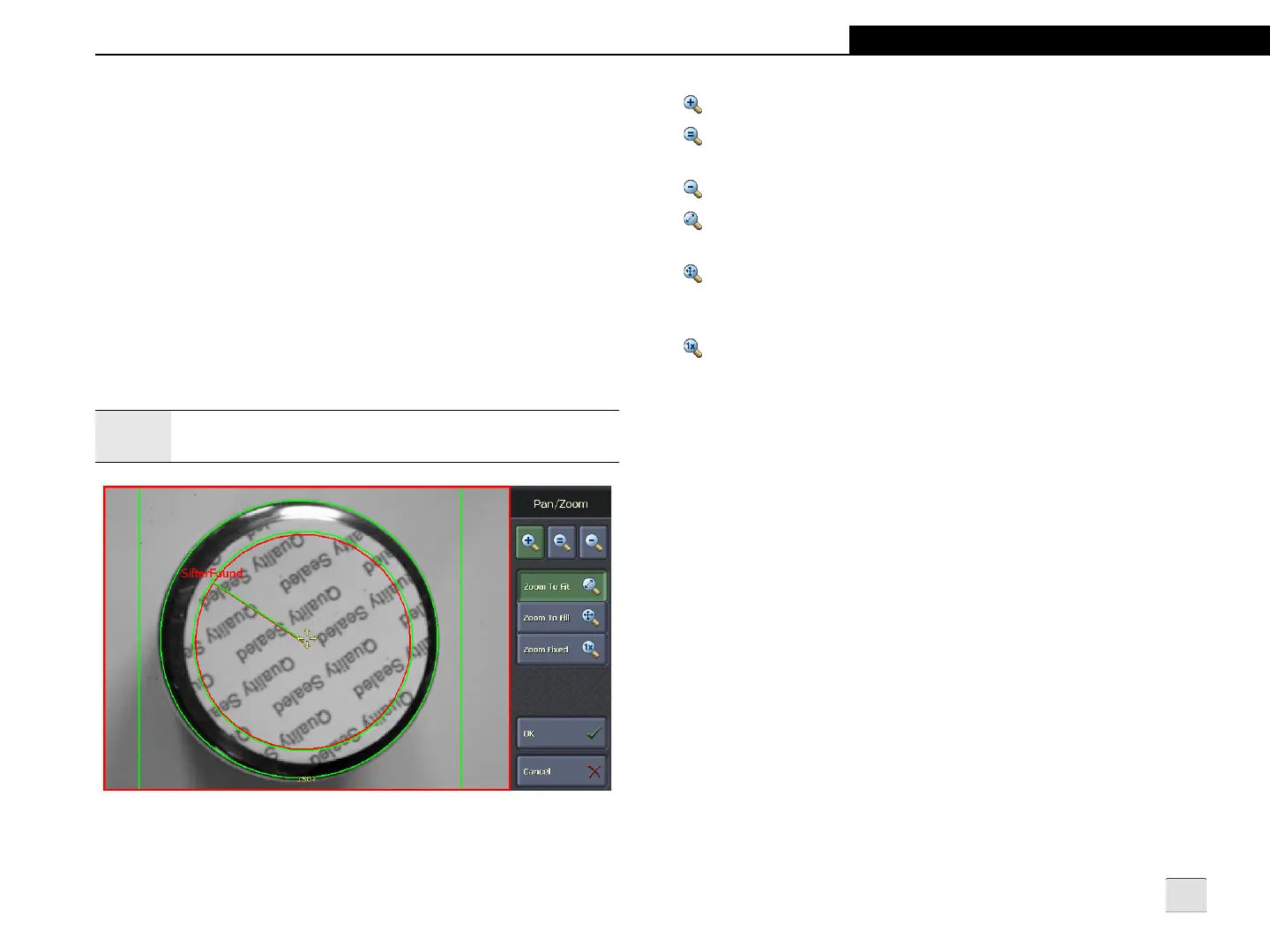
When in Pan/Zoom Mode, the operator can pan or zoom the image.
A cross-hair indicates the center of the image area and text at the
bottom of the image area indicates the current zoom magnification
(20% - 800%). The default zoom magnification is determined by the
selected zoom mode (Zoom To Fit, Zoom To Fill or Zoom Fixed),
the sensor’s resolution and the display size.
To pan the image, touch the image and drag it to the appropriate
location. To zoom in or out, press the Zoom In or Zoom Out button
once to activate the zoom mode. Then, to achieve the desired
zoom level, either repeatedly click the Zoom In or Zoom Out
button, tap the image area, or if using a mouse, left- or right-click
the image area.
Figure 4-7: Pan/Zoom Mode
Note:
When in Pan/Zoom Mode, no failed inspection images will be
automatically saved for the active sensor.
Zoom In: Increases zoom magnification on the image.
Zoom Reset: Resets the image to the default pan location and
zoom magnification.
Zoom Out: Decreases zoom magnification on the image.
Zoom To Fit: Fits the image to the display, with the entire image
visible. Empty space may exist around the image.
Zoom To Fill: Fills the entire display with the image. No empty
space will appear around the image, but portions of the image may
not be visible.
Zoom Fixed: The image will represent a 1:1 pixel mapping
between the image and the VisionView display. The default zoom
magnification is 100%.


 To Next Page