33
Run Mode
sensor. Selecting a new job in VisionView will change the
sensor’s startup job.
• Save: Allows you to save changes made to the active job
file.
• Save As: Allows you to rename the active job file.
Renaming a job in VisionView will change the sensor’s
startup job.
VisionView Setup: Exits Run Mode and enters Setup Mode. If
prompted, enter the VisionView Administrator Password to
transition to Setup Mode.
Clear Alerts: Clears AutoSave Failure icons for all sensors.
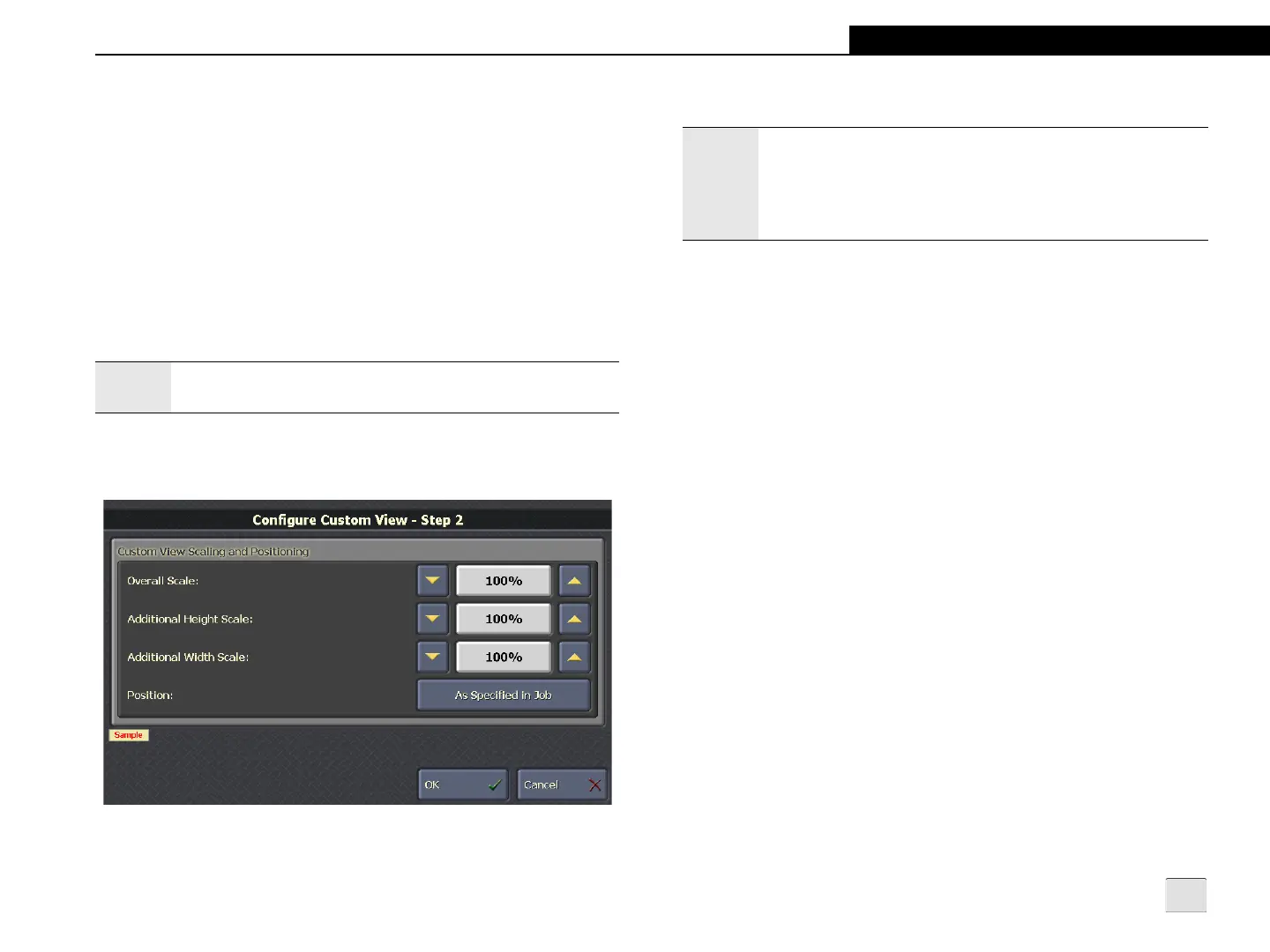
Configure Custom View
Figure 4-9: Configure Custom View Screen
Note:
The Clear Alerts button is always present on the Options
screen, even if it is not supported by the active sensor.
Custom View Scaling and Positioning
• Overall Scale: Proportionally adjusts the font size, height
and width of the Custom View. (20% - 1000%;
default = 100%)
• Additional Height Scale: Adjusts the height of the Custom
View. (20% - 1000%; default = 100%)
• Additional Width Scale: Adjusts the width of the Custom
View. (20% - 1000%; default = 100%)
• Position: Specifies the position of the Custom View on the
VisionView display. (As Specified in Job, Upper Left, Upper
Right, Lower Left, Lower Right, Centered, Below Image,
Next to Image)
Notes:
• The settings are sensor-specific, and apply to all Custom
Views on the sensor.
• Touching a scale percentage opens Numeric Entry Mode,
allowing the values to be manually entered. For more
information, refer to Numeric Entry Mode on page 40.


 To Next Page