In-Sight Custom View and EasyView
39
Handle Edit Button
Displays the current position, size, rotation or bend of the active handle. Pressing a Handle Edit button opens Numeric Entry Mode, allowing
the operator to manually enter the value for the active handle. For more information, refer to Numeric Entry Mode on page 40.
Pan/Zoom Button
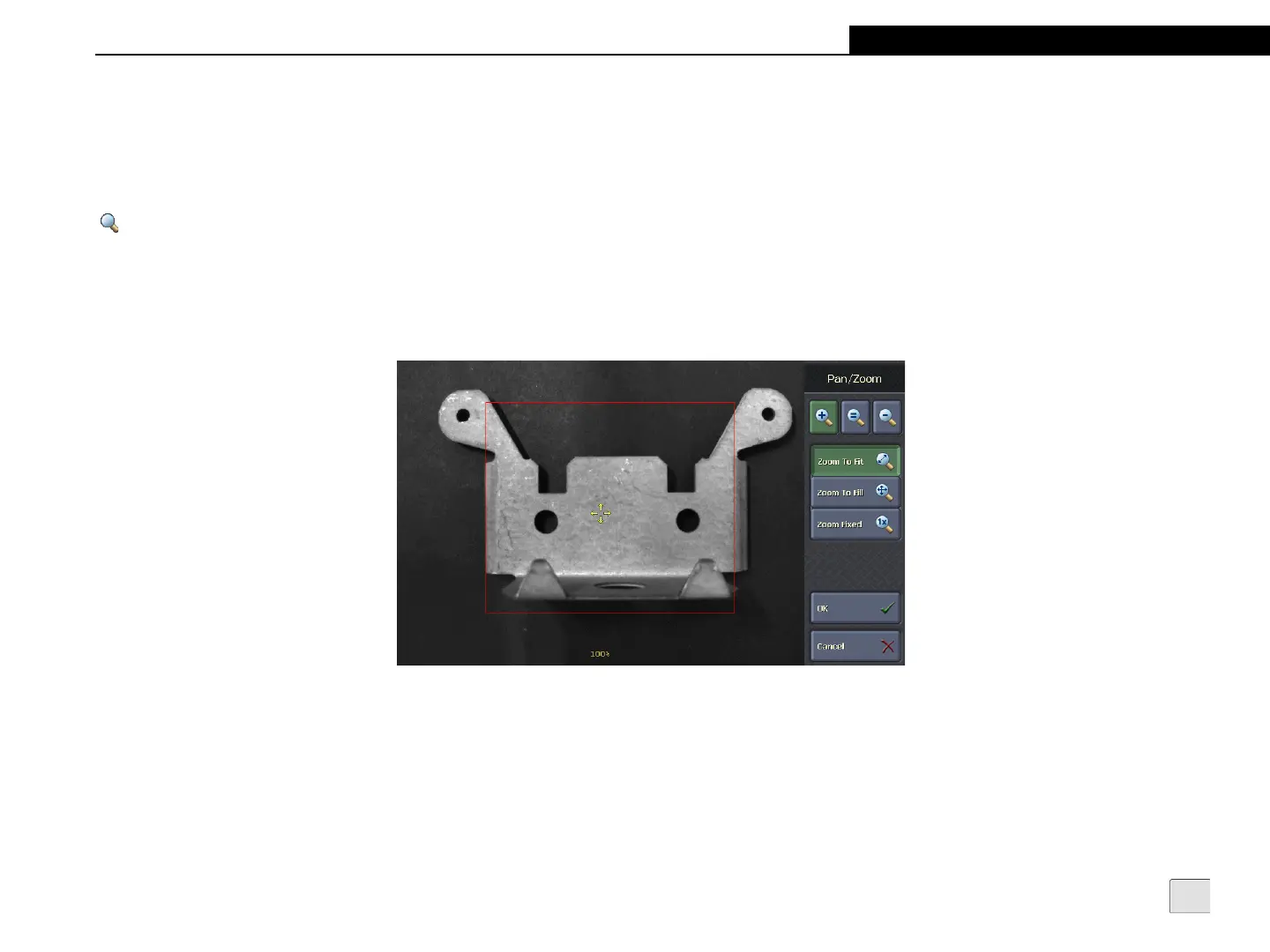
When in Interactive Graphics Mode, the operator may need to pan or zoom the image to make adjustments to the interactive graphic. To enter
Pan/Zoom Mode, press the Pan/Zoom button. Interactive Graphics Mode is replaced by the image, the region of interest and the Pan/Zoom
panel; the handles (Move, Resize, Rotate and Bend) are not visible. Adjust the pan and zoom as needed. The Pan/Zoom settings are discarded
upon exiting Interactive Graphics Mode. For more information, refer to Pan/Zoom Mode on page 31.
Figure 5-4: Pan/Zoom Mode


 To Next Page