22
Network Settings
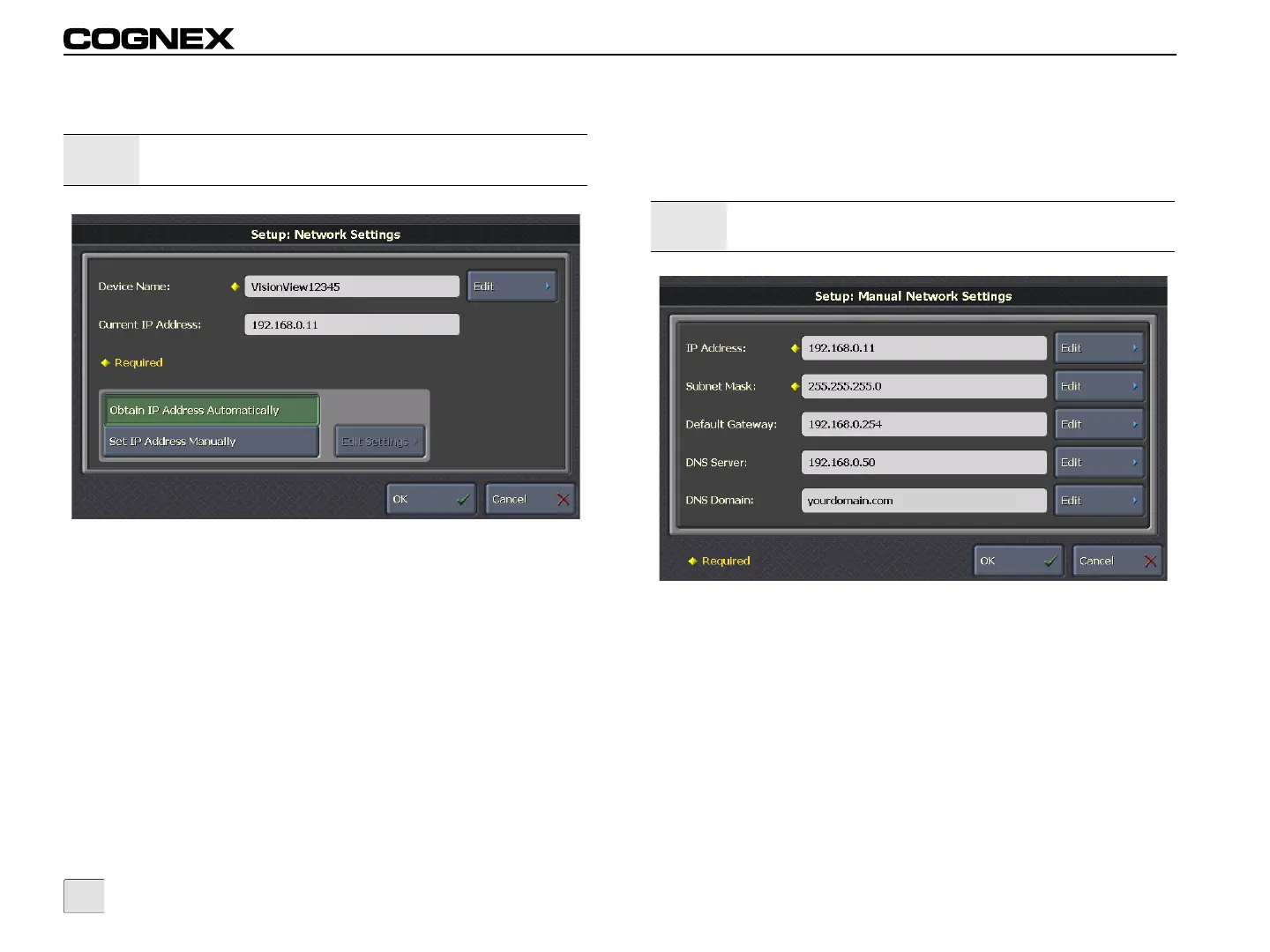
Figure 3-18: Network Settings Screen
Device Name: Click Edit to define the name of the VisionView
device as it should appear on the network. Each VisionView has its
Device Name set automatically the first time it boots. For example,
the default Device Name is “VisionViewxxxxx”, where “xxxxx” are
the last 5 characters of the VisionView's unique MAC address.
Current IP Address: Displays the IP address currently assigned to
the VisionView device.
Obtain IP Address Automatically (default): The VisionView
device is configured to use DHCP to acquire an IP address at
startup. This option is also useful if VisionView is used in a
standalone network configuration (refer to page 5).
Note:
The Network Settings screen is not available when using the
VisionView PC software.
Set IP Address Manually: Click Edit Settings to open the Manual
Network Settings screen to manually configure the IP Address,
Subnet Mask and Default Gateway of the VisionView device.
Manual Network Settings
Figure 3-19: Manual Network Settings Screen
IP Address: Click Edit to assign a unique identifier for the
VisionView device, which must be consistent with the IP address-
numbering scheme of the local network.
Subnet Mask: Click Edit to define which part of the IP address
refers to the network and which part refers to the host. The network
part of the IP address is the same for all hosts on the same subnet,
and the remainder is unique to each host. In order to detect sensors
on the network, VisionView must reside on the same subnet as the
sensors. VisionView can connect to sensors on another subnet,
provided the network infrastructure supports it.
Note:
The Manual Network Settings screen is not available when
using the VisionView PC software.


 To Next Page