10
Run: Launches Run Mode, logging on to the selected sensors and
displaying the specified operator controls. The Run button is
disabled if there are no sensors in the Selected Sensors list.
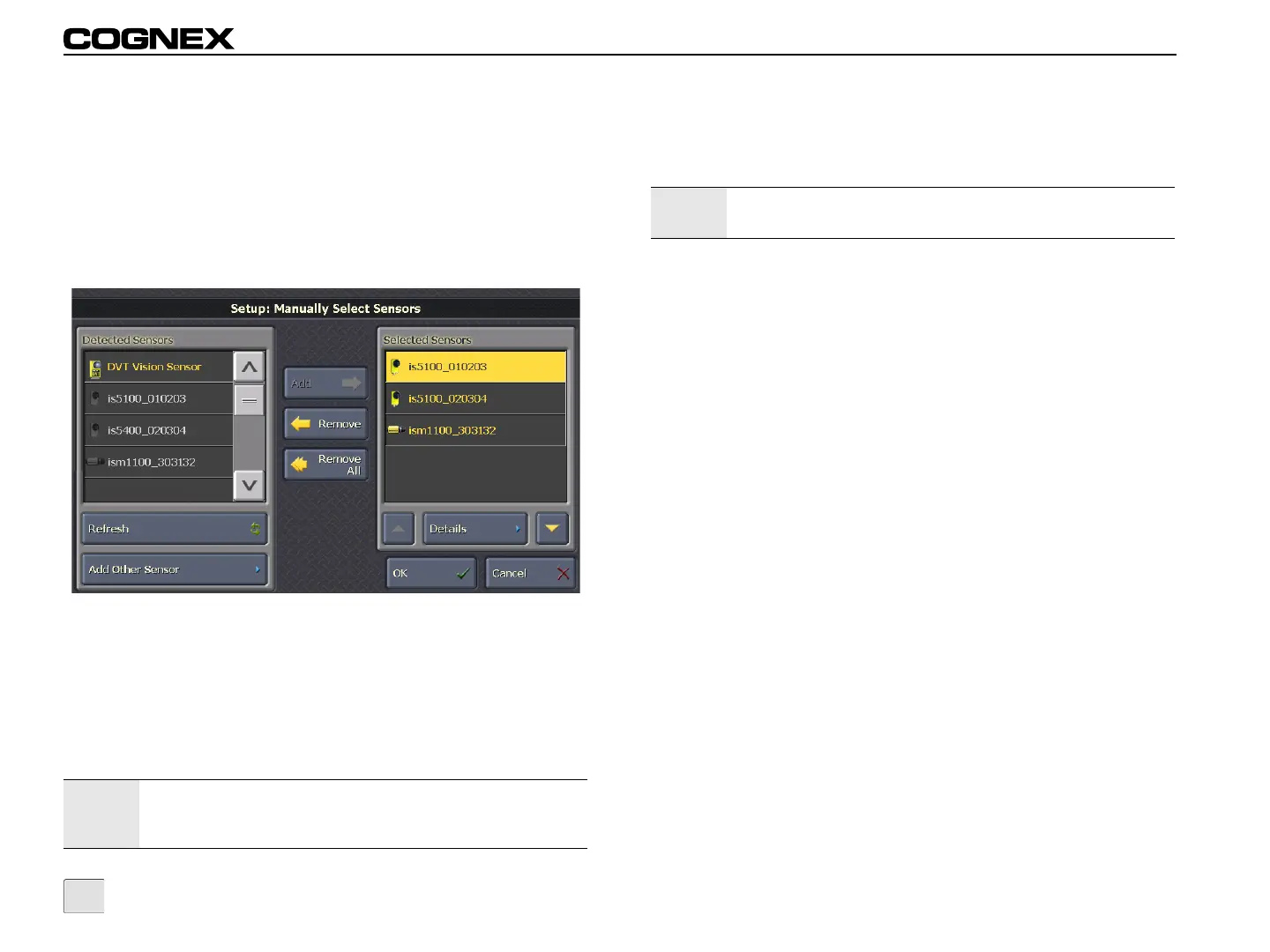
Manually Select Sensors
This screen allows the administrator to manually select sensors and
the order the sensors are displayed during Run Mode.
Figure 3-2: Manually Select Sensors Screen
Detected Sensors: Displays a list of all sensors detected on the
network. VisionView will only detect sensors that are on the same
subnet as VisionView (refer to Network Settings on page 22).
VisionView can connect to sensors on another subnet, but the
sensors must be manually added using the Add Other Sensor
button.
Note:
When using the VisionView PC software, if a local emulator is
detected, it is automatically displayed in the Detected
Sensors list.
Selected Sensors: Displays all sensors or emulators that have
been added by the administrator (either from the Detected Sensors
list or the Add Other Sensor screen) in the order the sensors will be
displayed during Tiled Image Mode.
Add: Moves the highlighted sensor or emulator from the Detected
Sensors list to the Selected Sensors list. This button is only enabled
if there are less than 9 sensors or emulators in the Selected
Sensors list.
Remove: Removes the highlighted sensor or emulator from the
Selected Sensors list.
Remove All: Removes all sensors and emulators from the
Selected Sensors list.
Refresh: Repopulates the Detected Sensors list to account for any
sensors or emulators that have been added or removed from the
network.
Add Other Sensor: Opens the Add Other Sensor screen to
manually add a sensor or emulator from a different subnet to the
Selected Sensors list. This button is only enabled if there are less
than 9 sensors or emulators in the Selected Sensors list.
Move Up: Moves the highlighted sensor or emulator up in the
Selected Sensors list.
Details: Opens the Sensor Details screen for the highlighted
sensor or emulator, allowing the administrator to manually change
the sensor or emulator’s Display Name.
Move Down: Moves the highlighted sensor or emulator down in the
list.
Note:
To manually add an emulator to the Selected Sensors list,
click the Add Other Sensor button.


 To Next Page