30
Filmstrip Buttons/Indicators:
The result status for each inspection.
The yellow highlighting indicates the
result currently selected in the
filmstrip. The gray rectangle
indicates the portion of the filmstrip
currently displayed.
Click Freeze to review results.
Click Continue to resume filmstrip
updates.
Clear the filmstrip of results.
Manually save result image(s) as a
bitmap file to the specified storage
location.
Go to the previous set of images in
the filmstrip. This button is only
displayed if the number of images
exceeds the amount of filmstrip
space available.
Go to the next set of images in the
filmstrip. This button is only
displayed if the number of images
exceeds the amount of filmstrip
space available.
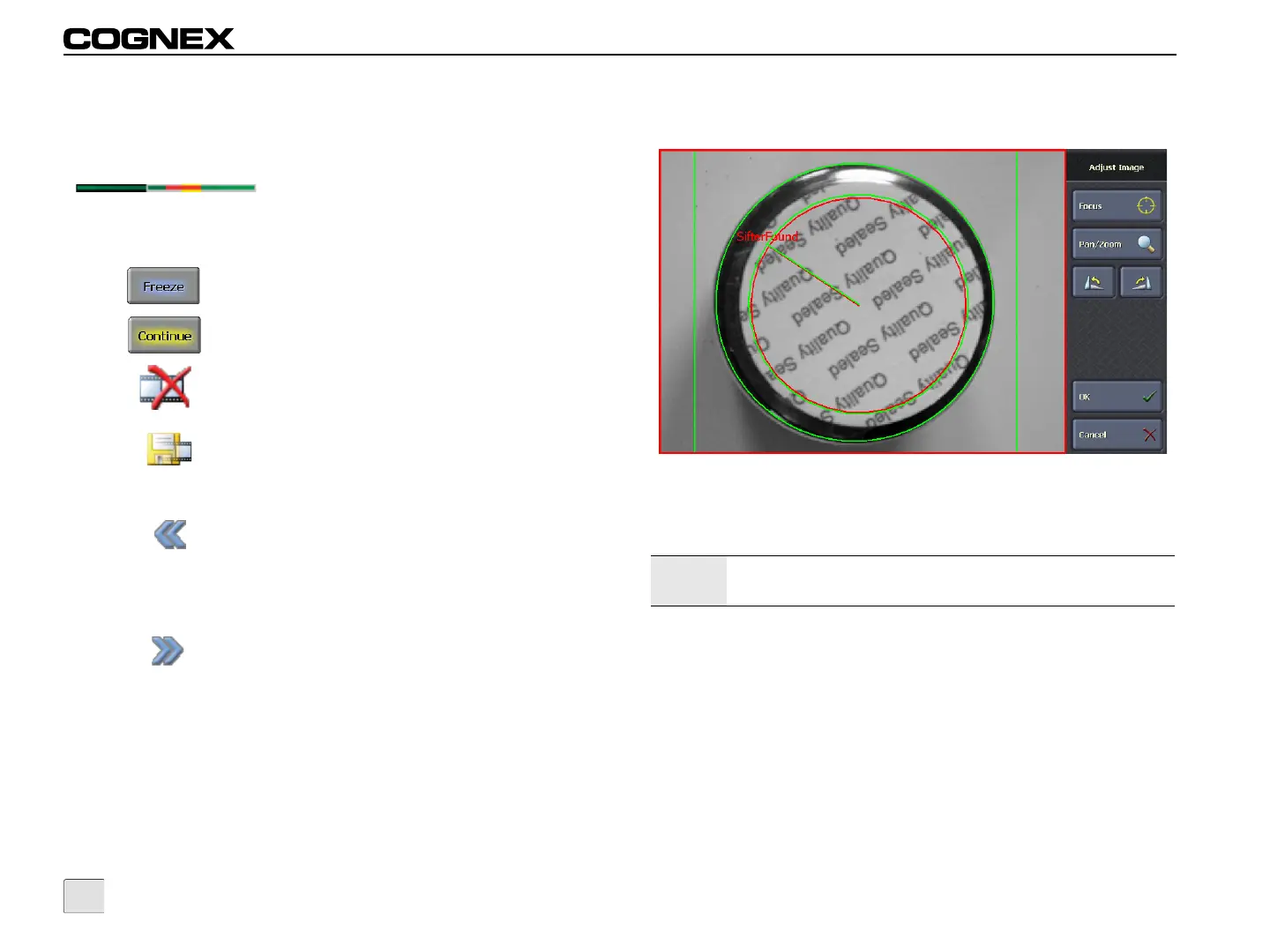
Adjust Image
Figure 4-6: Adjust Image Screen - Single Image Mode
Focus: Displays a live image to use when making adjustments to
the sensor's lens and field of view.
Pan/Zoom: Enters Pan/Zoom Mode, allowing the operator to pan
and zoom the image.
Rotate Left: Rotates the image counter-clockwise in 90-degree
increments.
Rotate Right: Rotates the image clockwise in 90-degree
increments.
Note:
To pan or zoom a live image, first click the Focus button and
then click the Pan/Zoom button.


 To Next Page