21
Setup Mode
• Fixed Window: The application’s title bar and frame are
hidden, and the application cannot be resized.
Image Settings
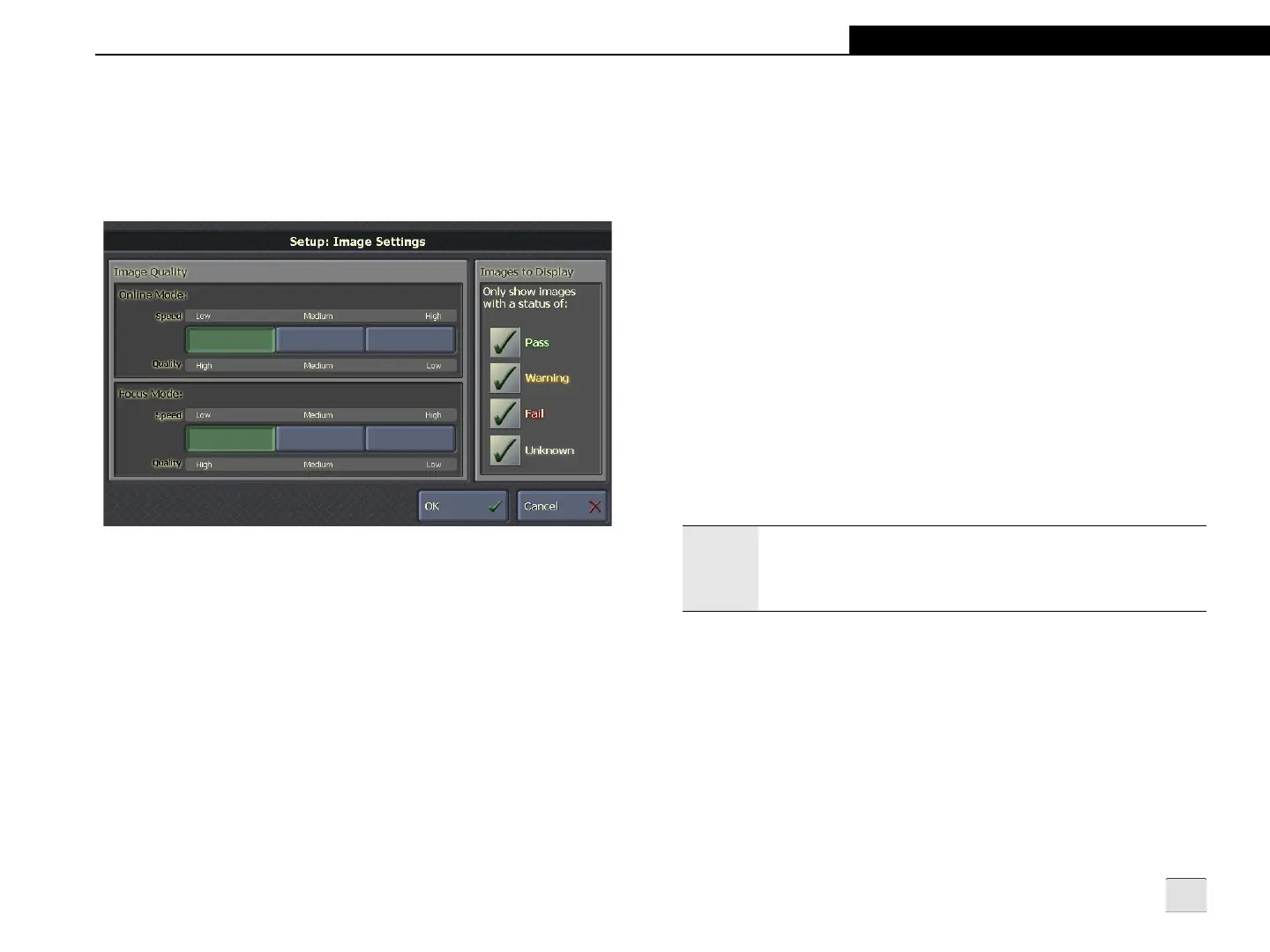
Figure 3-17: Image Settings Screen
Image Quality
Online Mode: Specifies the image quality and frame rate of images
when the sensor is Online.
• Low Speed & High Quality (default): Best possible image
quality with a reduced frame rate.
• Medium Speed & Medium Quality: Partially reduced
image quality with an increased frame rate.
• High Speed & Low Quality: Reduced image quality with
the fastest possible frame rate.
Focus Mode: Specifies the image quality and frame rate of images
when the sensor is in Focus Mode.
• Low Speed & High Quality (default): Best possible image
quality with a reduced frame rate.
• Medium Speed & Medium Quality: Partially reduced
image quality with an increased frame rate.
• High Speed & Low Quality: Reduced image quality with
the fastest possible frame rate.
Image to Display
Only Show Images with a Status of: Specifies the type of images
to display during Run Mode. This setting is applied to all sensors
displayed from VisionView, and is in effect in both Online and
Offline mode.
• Pass: Displays images that receive a passing status.
• Warning: Displays images that receive a warning status.
• Fail: Displays images that receive a failing status.
• Unknown: Displays images that have an unknown status.
Note:
After the initial configuration of VisionView, all acquired
images will be displayed until an image that meets the
defined criteria is acquired. VisionView will then only display
images that meet the defined criteria.


 To Next Page