Product Manual — Doc. 8559B 4-Series™ Control Systems • 121
o
Select Add to add a new port mapping rule into the table.
o
Enter the following information for each entry:
n
Enter the external port in the External Port text field. This is the port number
that users outside the LAN must specify to connect to the service on the
internal network.
n
Enter the internal port in the Internal Port text field. This is the port number
for the specified service on the internal network.
n
Enter the IP address or host name of the target control system in the
IPAddress/Hostname text field.
n
Use the Protocol drop-down menu to specify the connection type that will be
accepted from machines outside the LAN.
o
To remove an entry, fill the checkbox to the left of the table entry, and then select
Remove.
Web Server
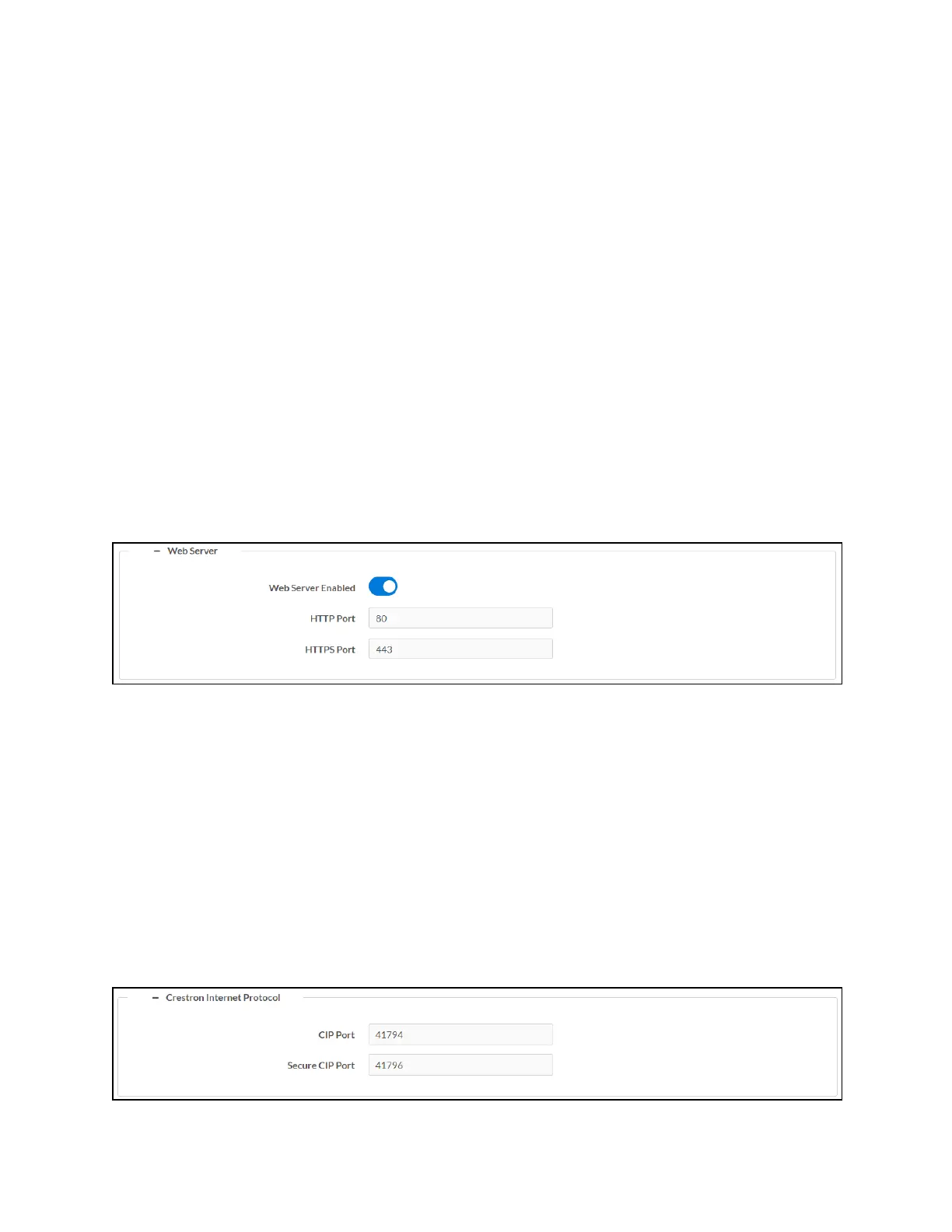
Select the + (plus)icon next to Web Server to display the following control system web server
settings.
Settings Tab - System Setup (Web Server)
l
Turn on the Web Server Enabled toggle to turn on the web server for the control system.
The control system web server allows for users to upload web pages and mobility projects
to a control system.
l
If Web Server Enabled is turned on, enter an HTTPport to use for the web server in the
HTTPPort text field. Port 80 is used by default.
l
If Web Server Enabled is turned on, enter an HTTPSport to use for the web server in the
HTTPSPort text field. Port 443 is used by default.
Crestron Internet Protocol
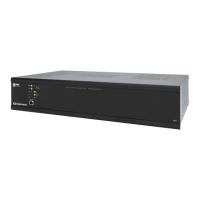
Select the + (plus)icon next to Crestron Internet Protocol to display the following Crestron
Internet Protocol (CIP)port settings.
Settings Tab - System Setup (Crestron Internet Protocol)



 To Next Page