Image library (cont.)
Section 4A
Image Library - Search/Insert Images
Section 4A Page 2
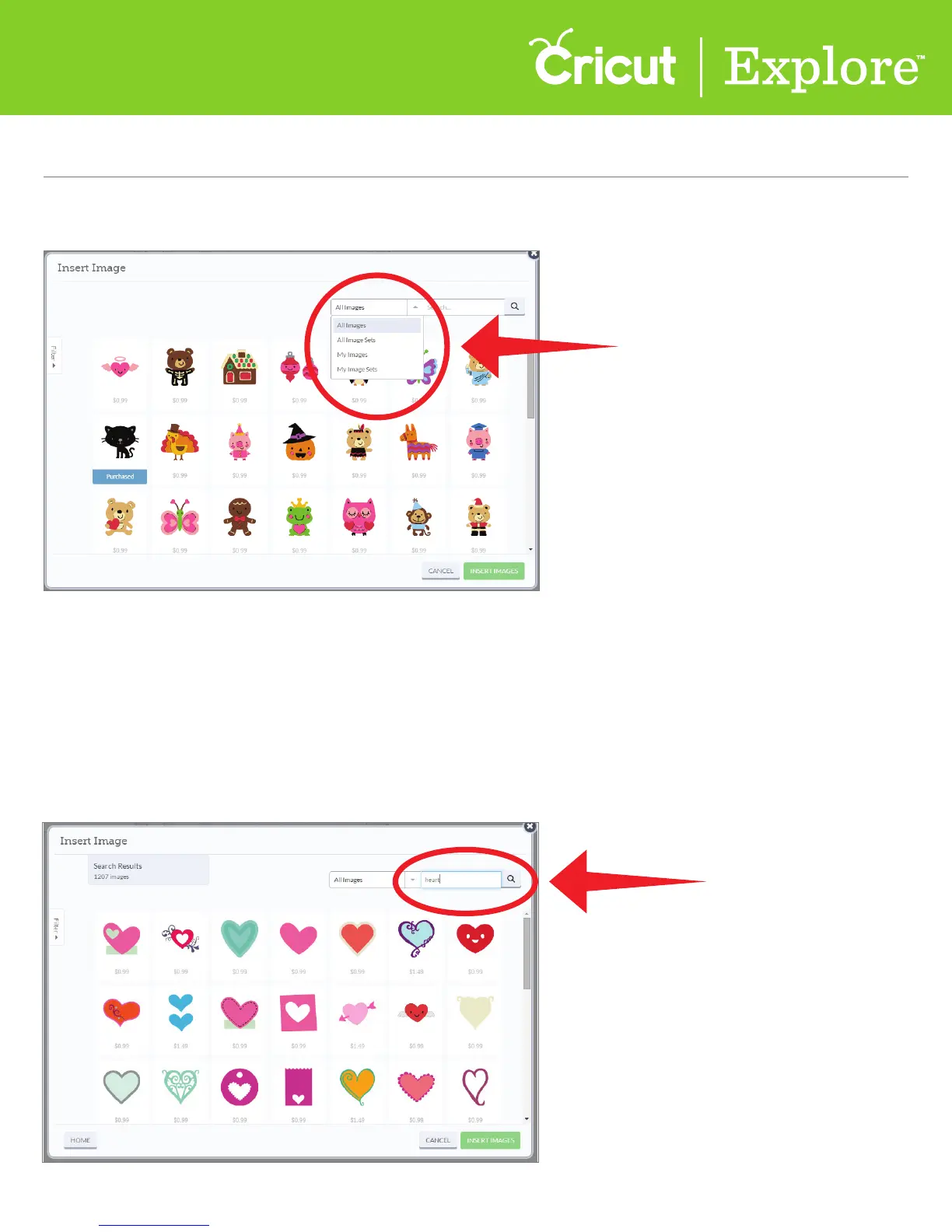
Step 2 Using the drop-down menu at the top of the window, select the image group you
would like to work with.
Step 3 Search for a specific image by typing in a key word or phrase into the search box and
clicking the magnifying glass. This will narrow down the number of items you have to choose from.
• All Images: displays all images in the Cricut Design Space® Image Library
• All Image Sets: displays all image sets or cartridges in the Cricut Design Space® Image library
• My Images: displays all images you’ve purchased, plus free images, images from linked cartridges,
and images included in your subscription plan (if you have subscribed)
• My Image Sets: displays all coordinated image sets or cartridges you’ve purchased including free
images, linked cartridges, or images included in the subscription plan (if you have subscribed)













 To Next Page