Image library (cont.)
Section 4A
Image Library - Search/Insert Images
Section 4A Page 4
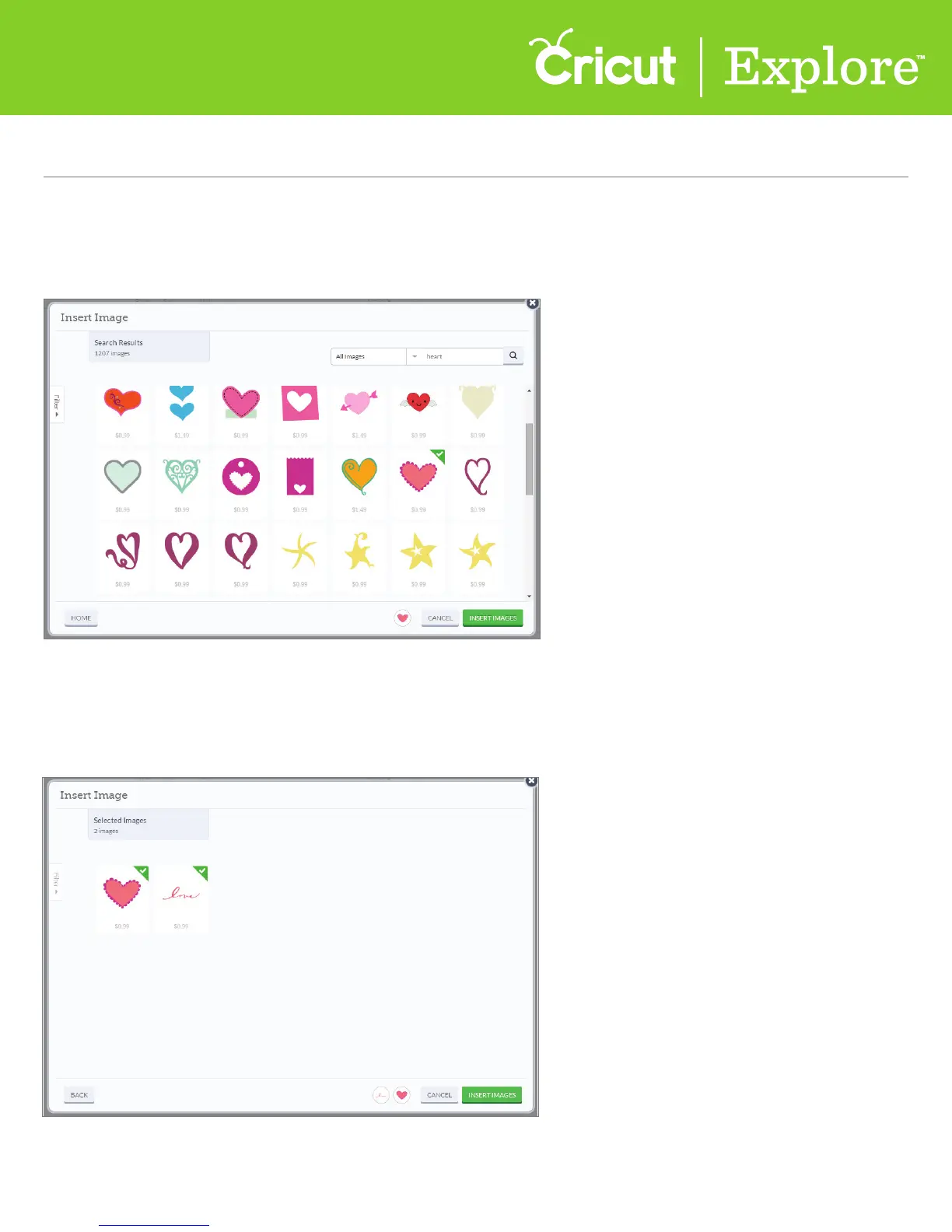
Step 5 To select one or more images and add them to the design screen, click on each image you would
like to use. A green check mark will appear in the top right corner of the tile to indicate you’ve selected
it, and a thumbnail of the image will appear in the image queue near the bottom of the Insert Image
window. When you’re finished select images, click the “Insert Images” button.
Tip: To view images which have been selected, click anywhere in the queue at the bottom of the window.
You can now see all images prior to inserting them onto your canvas. If you would like to deselect
an image, simply click on the image again and it will be removed from your queue.













 To Next Page