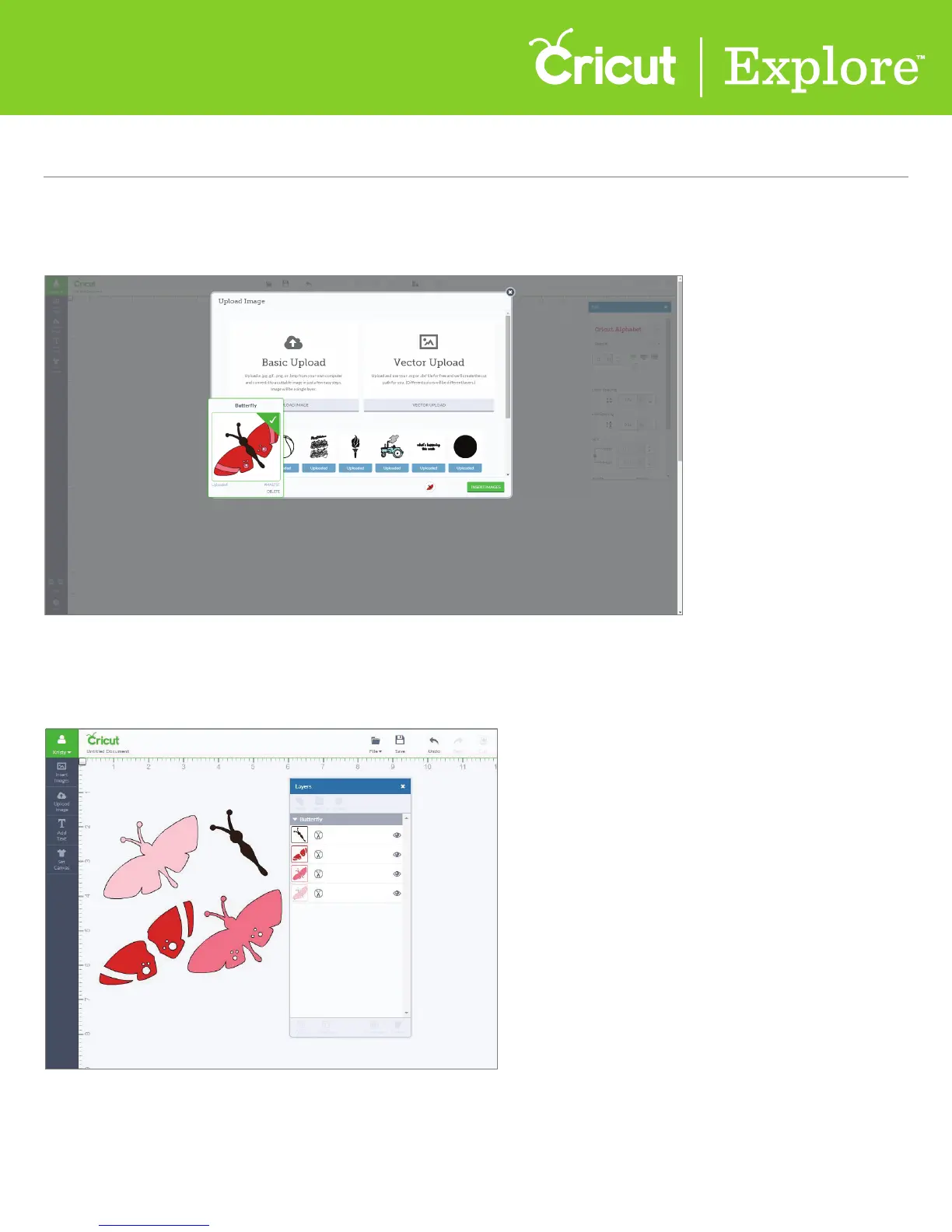
Step 5 You will return to the Upload Image window. Click on your image and a green check will
appear indicating it is selected. Click “Insert image” to add to your canvas.
Step 6 Vector images will appear on your canvas as a grouped image. If ungrouped, the image layers
can be moved and resized independently.
Section 6B Page 3
Section 6B
Cutting Your Own Images - Vector Upload (.svg or .dxf files)
Cutting Your Own Images (cont.)













 To Next Page