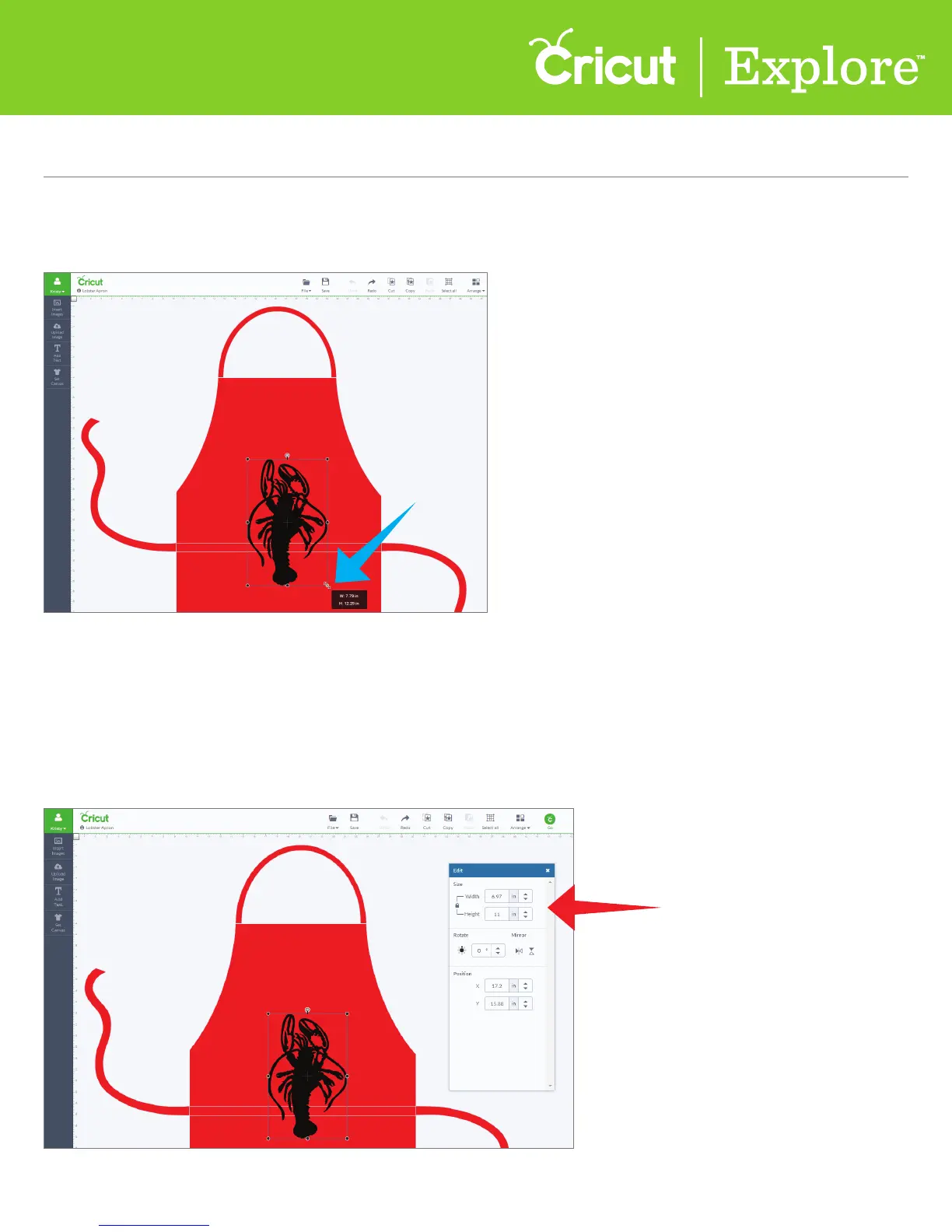
Option 3 Change both the width and height of your image at the same time by dragging the handle
bars found on any of the corners. This will maintain the size ratio, which means the image will not
be stretched as it grows or shrinks.
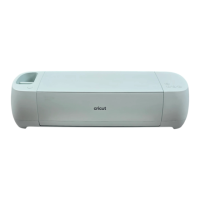
Option 4 You can also use the Edit panel to specify an exact size for your image.
Working with images/Edit panel (cont.)
Section 7B
Working with images/Edit panel - Sizing images
Section 7B Page 2
Step 1 Select the image and open the Edit panel.
Step 2 Click in the box to enter an exact measurement or use the arrow buttons to increase
or decrease the image size.













 To Next Page