EasyManua.ls Logo

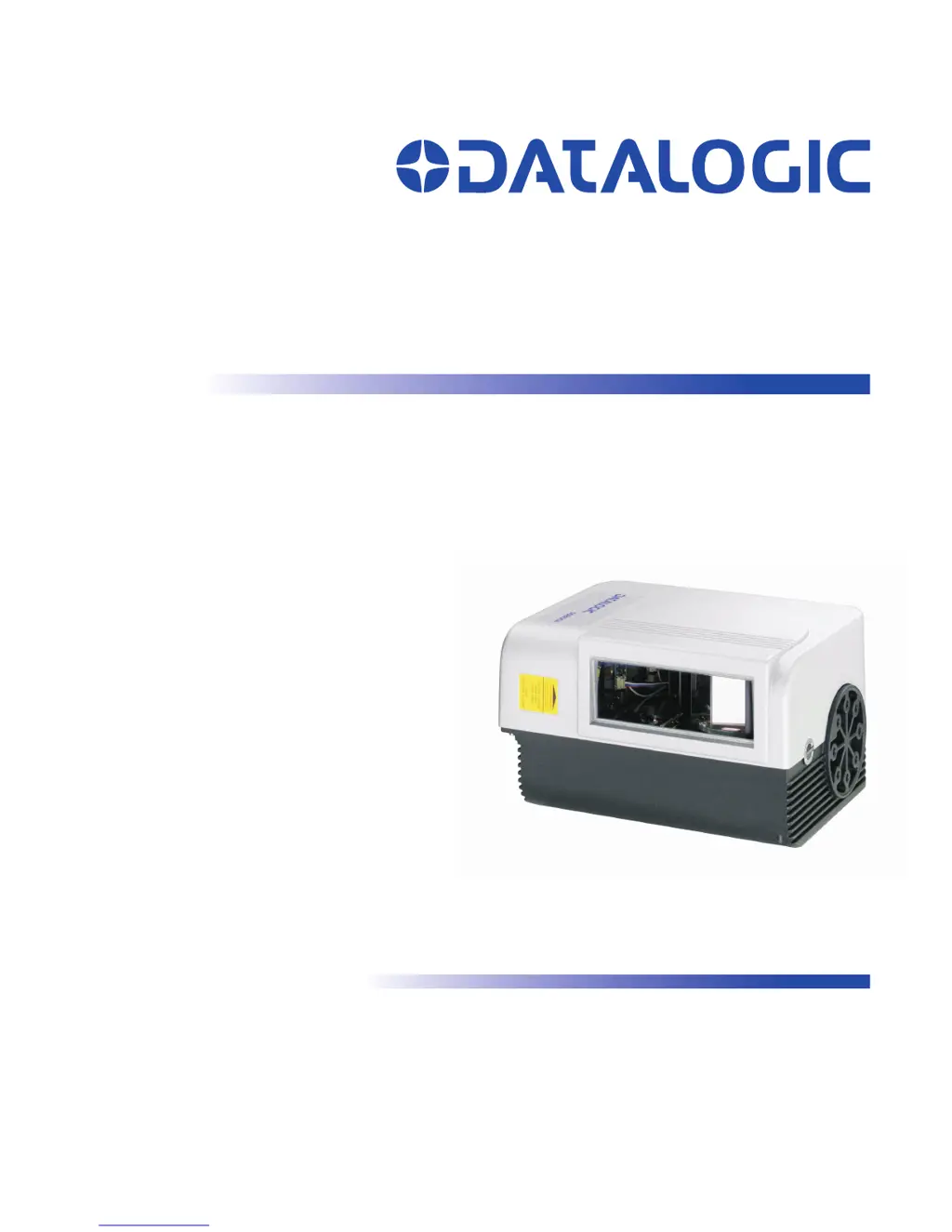
Datalogic DS8100A - User Manual

Datalogic DS8100A
141 pages
Print Icon
To Next Page IconTo Next Page
Loading...
DS8100A
Reference Manual

Table of Contents

Questions and Answers

  • E
    Elizabeth ThorntonAug 27, 2025
    What to do if my Datalogic DS8100A isn't reading barcodes?
    • T
      thomasfrancoAug 27, 2025
      If your Datalogic Barcode Reader consistently returns 'No Read', verify the synchronization between the reading pulse and the object. Ensure the scan line is correctly positioned, placing the barcode in the center, and try TEST MODE via Genius™. Also, check if the reading distance and tilt angle are within the allowed range, and if the skew angle is less than 10°. Enable various code types (excluding Pharmacode) and set LENGTH to Variable. Check the barcode quality. If using PackTrack™ mode, confirm the coordinates, especially the Y axis, are correct.
  • T
    Tina RossAug 27, 2025
    What to do if Datalogic DS8100A cannot read the target barcode?
    • S
      Scott SnowAug 27, 2025
      If your Datalogic Barcode Reader consistently returns 'No Read,' verify the synchronization between the reading pulse and the object. Ensure the scan line is correctly positioned and the barcode is centered within it. Use the TEST MODE in Genius™ to troubleshoot. Also, check if the reading distance is within the allowed range, the tilt angle is not too large, and the skew angle is less than 10° for direct reflection. Enable various code types (except Pharmacode) with Variable LENGTH under the CODE tab. Ensure the barcode quality is sufficient. If issues persist, use the BARCODE TEST CHART. For PackTrack™ mode, confirm the coordinates, especially the Y axis, are correct.
  • T
    tammygouldAug 25, 2025
    What to do if Datalogic Scanner 'Power On' LED is not lit?
    • G
      Gina KaneAug 26, 2025
      If the “Power On” LED is not lit on your Datalogic Scanner, check the following: * Is the power connected? * If you're using an external power supply (like PWR-120), is it connected to the AC source? * If you're using rail power, does the rail have power? * If you're using C-BOX 100, does it have power (check the switch and LED)? Also, make sure you're checking the correct connector (26-pin or C-BOX 100 spring clamp connectors). Measure the voltage at pin 13 and 25 (for the 26-pin connector) or at spring clamp 1 and 2 (for C-BOX 100).
  • A
    Alexis HarrisAug 23, 2025
    What to do if Datalogic Scanner 'Phase On' LED is lit but nothing happens?
    • G
      Gina GrahamAug 25, 2025
      If the Master’s “Phase On” LED is correctly lit but you're not getting any reading results from your Datalogic Scanner, ensure that the software configuration aligns with the actual application conditions, including the operating mode. Use the OPERATING MODES folder in the Genius™ software configuration program to verify relevant parameters.

Summary

COMPLIANCE

Electrical Safety

Conformance to European electrical safety standards.

Laser Safety

Guidelines for safe operation and potential hazards of laser emission.

CE Compliance

Conformance to European Union directives, including EMC and LVD.

GUIDE TO INSTALLATION

Point-to-Point Installation

Steps for setting up a basic point-to-point scanner connection.

Master;Slave Lonworks Installation

Instructions for installing the scanner in a Lonworks master/slave network.

CBX ELECTRICAL CONNECTIONS

Power Supply

Details on connecting power to the scanner via CBX.

RS232 Main Serial Interface

Pinout and connection details for the RS232 main serial interface.

RS485 Full-Duplex Main Serial Interface

Pinout and connection details for RS485 full-duplex interface.

RS485 Half-Duplex Main Serial Interface

Pinout and connection details for RS485 half-duplex interface.

FIELDBUS CONNECTIONS

Ethernet Interface

Connecting the scanner via its Ethernet interface.

TYPICAL LAYOUTS

SOFTWARE CONFIGURATION

Genius Installation

Guide to installing the Genius™ scanner configuration software.

Rapid Configuration Guide

Step-by-step guide for initial scanner setup using Genius™.

Network Setup Procedures

Procedures for configuring Lonworks networks via Genius™ (Net-Autoset, Express, Wizard).

READING FEATURES

Advanced Code Reconstruction (ACR 4)

Technology for reconstructing damaged or tilted barcodes.

PackTrack

Patented mode for reading and assigning codes on multiple packs.

MAINTENANCE

External Memory Backup & Restore

Procedures for backing up and restoring scanner configurations.

Automatic Scanner Replacement (ASR)

Procedure for automatic scanner replacement in Lonworks networks.

TROUBLESHOOTING

Troubleshooting Guide

Common problems and suggested solutions for the DS8100A scanner.

TECHNICAL FEATURES

ALTERNATIVE LAYOUTS

Datalogic DS8100A Specifications

General IconGeneral
BrandDatalogic
ModelDS8100A
CategoryBarcode Reader
LanguageEnglish

Related product manuals