EasyManua.ls Logo

Datalogic DS2400N - User Manual

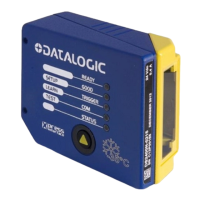
Datalogic DS2400N
85 pages
Print Icon
To Next Page IconTo Next Page
Loading...
DS2400N
REFERENCE MANUAL

Table of Contents

Other manuals for Datalogic DS2400N

Questions and Answers

  • E
    Emily DuncanAug 12, 2025
    What to do if Datalogic DS2400N Barcode Reader doesn't transmit to host?
    • N
      nstevensonAug 12, 2025
      If your Datalogic Barcode Reader isn't transmitting data to the host, verify the serial cable connection and wiring. Ensure that the serial host settings match the device settings. If you're using a C-BOX 100, make sure the RS485 termination switch is set to OFF.
  • M
    Michael DavisAug 16, 2025
    What to do if Datalogic Barcode Reader transfers incorrect data?
    • A
      Andrea HernandezAug 16, 2025
      If the data transferred to the host from your Datalogic Barcode Reader is incorrect, corrupted, or incomplete, use the Genius™ program to check the HEADER, TERMINATOR, SEPARATOR, and FILL CHARACTERS values in the DATA FORMAT tab. Also, verify the CODE FIELD LENGTH value and ensure that the COM port parameters are correctly assigned.
  • A
    Aaron SampsonAug 20, 2025
    Why Datalogic DS2400N is not triggered in serial on line mode?
    • L
      Laura MeyersAug 20, 2025
      If your Datalogic Barcode Reader is not triggered in serial on line mode, use the Genius™ program and check if serial on line is enabled as operating mode in the OPERATING MODE tab. Also, verify that the Start – Stop characters are correctly assigned and that the serial trigger source is correctly connected and configured.
  • T
    Terri TurnerAug 23, 2025
    How to find serial number of Datalogic DS2400N Barcode Reader?
    • W
      wleeAug 25, 2025
      The serial number of your Datalogic Barcode Reader is printed on a label affixed to the body of the reader. The serial number consists of 9 characters: one letter, 2 numbers, another letter, and then 5 numbers.
  • M
    Maurice CarterAug 27, 2025
    What to do if Datalogic DS2400N Barcode Reader EXT TRIGGER LED is not lit?
    • C
      Christian KellerAug 27, 2025
      If the EXT TRIGGER LED on your Datalogic Barcode Reader is not lit when the external trigger activates, verify the sensor connection to the EXT TRIG pins (18 and 19 for the 25-pin connector). Ensure power is supplied to the photo sensor and to EXT TRIG+ (for NPN output), and that EXT TRIG- is grounded (for PNP output). Check for correct polarity, ensuring current flows from EXT TRIG+ to EXT TRIG-. Also, check that the photo sensor LEDs are working correctly and that the sensor/reflector system is aligned.
  • D
    Dalton LeeAug 31, 2025
    Why Datalogic DS2400N Barcode Reader EXT TRIGGER LED lit, but nothing happens?
    • B
      Brandon HarrisAug 31, 2025
      If the EXT TRIGGER LED on your Datalogic Barcode Reader is correctly lit, but no reading results occur, ensure that the software configuration is consistent with the application conditions, such as the operating mode. Check related parameters in the OPERATING MODE tab of the Genius™ program.
  • J
    Jack BrownSep 4, 2025
    What to do if Datalogic DS2400N Barcode Reader always returns Reader Failure Character?
    • T
      Timothy JordanSep 4, 2025
      Contact your local Datalogic office, Datalogic Partner, or ARC, because either a Motor or Laser failure has occurred. Make sure to note the exact model and Serial Number of the device.
  • S
    Sergio GutierrezSep 7, 2025
    How to troubleshoot Datalogic Barcode Reader if power on LED is not lit?
    • D
      Daniel RamirezSep 7, 2025
      If the “Power On”/”Ready” LED on your Datalogic Barcode Reader is not lit, check the following: * Is the power connected? * If using a power adapter (like PG 220), is it connected to a wall outlet? * If using rail power, does the rail have power? * If using C-Box 100, does it have power (check switch and LED)? Measure the voltage either at pin 13 and pin 25 (for a 25-pin connector) or at spring clamp 1 and 2 (for C-BOX 100).

Summary

REFERENCES

CONVENTIONS

Basic rules for document reading.

REFERENCE DOCUMENTATION

List of related manuals and guides.

SERVICES AND SUPPORT

Information on Datalogic support and services.

PATENTS

Information on product patents.

SAFETY REGULATIONS

LASER SAFETY

Safety precautions for laser operation.

STANDARD REGULATIONS

Compliance with general safety standards.

GENERAL VIEW

DS2400 N COMPONENT IDENTIFICATION

Overview of scanner parts and their functions.

RAPID CONFIGURATION

CONNECTING THE SYSTEM

Instructions for connecting the scanner system.

C-BOX 100;150 PINOUT

Pin configuration for the C-BOX 100/150.

MOUNTING AND POSITIONING

Guidance on physically installing and orienting the scanner.

X-PRESS CONFIGURATION

Using the X-PRESS interface for setup.

AUTO LEARN AND AUTO SETUP

Procedures for automatic barcode learning and parameter optimization.

GENIUS CONFIGURATION

Installing and configuring the scanner using Genius™ software.

TEST MODE OPERATION

Using test mode to verify scanner performance.

ADVANCED SCANNER CONFIGURATION

HOST MODE PROGRAMMING

Configuring the scanner via host commands.

ADVANCED GENIUS CONFIGURATION

Detailed configuration using Genius™ Parameter Explorer.

ALTERNATIVE LAYOUTS

ID-NET NETWORKS

High-speed scanner interconnection.

RS232;RS485 LAYOUTS

Point-to-Point, Pass Through, Master/Slave configurations.

ID-NET LAYOUTS

Synchronized, Multidata, and Multiplexer network configurations.

INTRODUCTION

PRODUCT OVERVIEW AND FEATURES

General description and key features of the DS2400N.

INDICATORS AND X-PRESS INTERFACE

Scanner LEDs, X-PRESS interface, and its functions.

ID-NET TECHNOLOGY

Description and setup procedures for the ID-NET interface.

ACCESSORIES

List of available accessories for the DS2400N.

INSTALLATION

PACKAGE CONTENTS AND MECHANICAL INSTALLATION

Items included and physical mounting guidelines.

ELECTRICAL CONNECTIONS

Wiring and pinout details for various interfaces.

INPUT AND OUTPUT CONFIGURATION

Setting up scanner inputs and outputs.

SCANNER POSITIONING AND TYPICAL LAYOUTS

Optimal placement and common system configurations.

READING FEATURES

ADVANCED CODE BUILDER (ACB)

Feature for stitching partial reads and important conditions.

LINEAR AND RASTER READING

Factors affecting linear reading and raster scan details.

SCANNING MODES

Step-Ladder and Picket-Fence scanning techniques.

PERFORMANCE AND READING DIAGRAMS

Model performance specs and reading range diagrams.

MAINTENANCE

CLEANING

Instructions for cleaning the scanner window.

TROUBLESHOOTING

GENERAL GUIDELINES

Basic troubleshooting advice and best practices.

TROUBLESHOOTING GUIDE

Table of common problems and their solutions.

TECHNICAL FEATURES

ELECTRICAL AND OPTICAL SPECIFICATIONS

Power, interfaces, light source, and safety class details.

READING CAPABILITIES

Scan rate, resolution, and reading distance specifications.

USER INTERFACE AND SOFTWARE FEATURES

LEDs, buttons, symbologies, and configuration modes.

ENVIRONMENTAL AND PHYSICAL SPECIFICATIONS

Operating conditions, dimensions, and weight.

Datalogic DS2400N Specifications

General IconGeneral
Type-
Sensor typeLaser
Read rate (max)1000 reads/s
Linear (1D) barcodes supportedCodabar, Code 128, Code 39, Code 93, GS1-128 (UCC/EAN-128), Pharmacode, U.P.C.
2D (matrix & stacked) barcodes supportedNot supported
Standard interfacesRS-232, RS-485
Connectivity technologyWired
Input voltage10 - 30 V
Power source typeDC
Power consumption (typical)5 W
CertificationIEC
Product colorBlue, Yellow
Housing materialAluminum
International Protection (IP) codeIP65
Storage temperature (T-T)-20 - 70 °C
Operating temperature (T-T)0 - 45 °C
Operating relative humidity (H-H)0 - 90 %
Weight and Dimensions IconWeight and Dimensions
Depth34 mm
Width84 mm
Height68 mm
Weight330 g

Related product manuals