Scanning Using the TWAIN Driver
Your printer supports the TWAIN driver for scanning images that supports Microsoft Windows XP, Windows
Server
®
2003, Windows Vista, Windows Server 2008, Windows Server 2008 R2, Windows 7, Windows 8, Windows
Server 2012, Apple Mac OS X 10.5, Mac OS X 10.6, Mac OS X 10.7, Mac OS X 10.8 works with various scanners.
1
Load the document(s) facing up with top edge in first into the DADF.
OR
Place a single document facing down on the document glass, and close the document cover.
For details about loading a document, see "Loading an Original Document."
2
Start the drawing software that supports TWAIN.
3
To set the location where to store the scanned images:
Click
Desktop
→
Folders
.
In the
Folders
panel, specify a destination folder.
4
To set the scanner:
Click
Desktop
→
Scan Settings
→
Select...
In the
Available Scanners
dialog box, select
TWAIN: Dell C2665dnf Color MFP
, and then click
OK
.
5
Make sure that
Display scanner dialog box
check box is selected on the
Scan or Get Photo
panel.
6
Click
Scan
to begin scanning process.
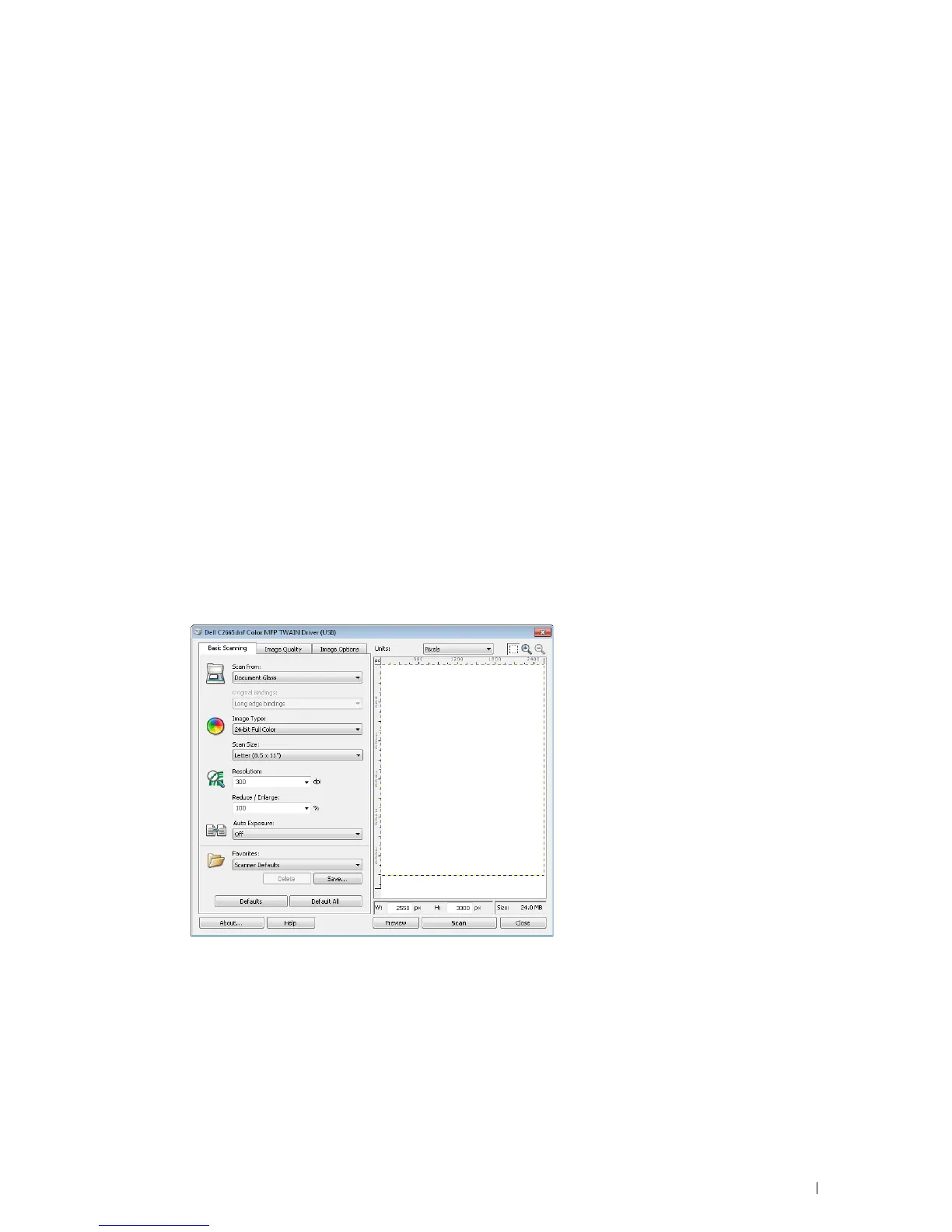
The
Dell C2665dnf Color MFP TWAIN Driver
window appears.
For Microsoft Windows:
Scanning 341















 To Next Page