Next steps
1. If removed, install the PEM.
2. If removed, Install the full length expansion risers.
NOTE: Before installing the full length expansion card risers, install the GPU air shroud.
3. Install the air shroud or install the GPU air shroud.
4. Install the cooling fan cage assembly.
5. Install the air shroud top cover.
6. Install the support bar.
7. Follow the procedure listed in After working inside your system.
8. To verify that the memory module has been installed properly, press F2 during reboot and go to System Setup Main Menu
> System BIOS > Memory Settings. In the Memory Settings screen, the System Memory Size must reflect the updated
capacity of the installed memory.
9. If the System Memory Size is incorrect, one or more of the memory modules may not be installed properly. Shut down the
system and ensure that the memory modules are firmly seated in the correct sockets.
10. Run the system memory test in system diagnostics.
Expansion cards and expansion card risers
NOTE: When an expansion card is not supported or missing, the iDRAC and Lifecycle Controller logs an event. This does
not prevent your system from booting. However, if a F1/F2 pause occurs with an error message, see Troubleshooting
expansion cards section in the PowerEdge Servers Troubleshooting Guide at www.dell.com/poweredgemanuals.
Expansion card installation guidelines
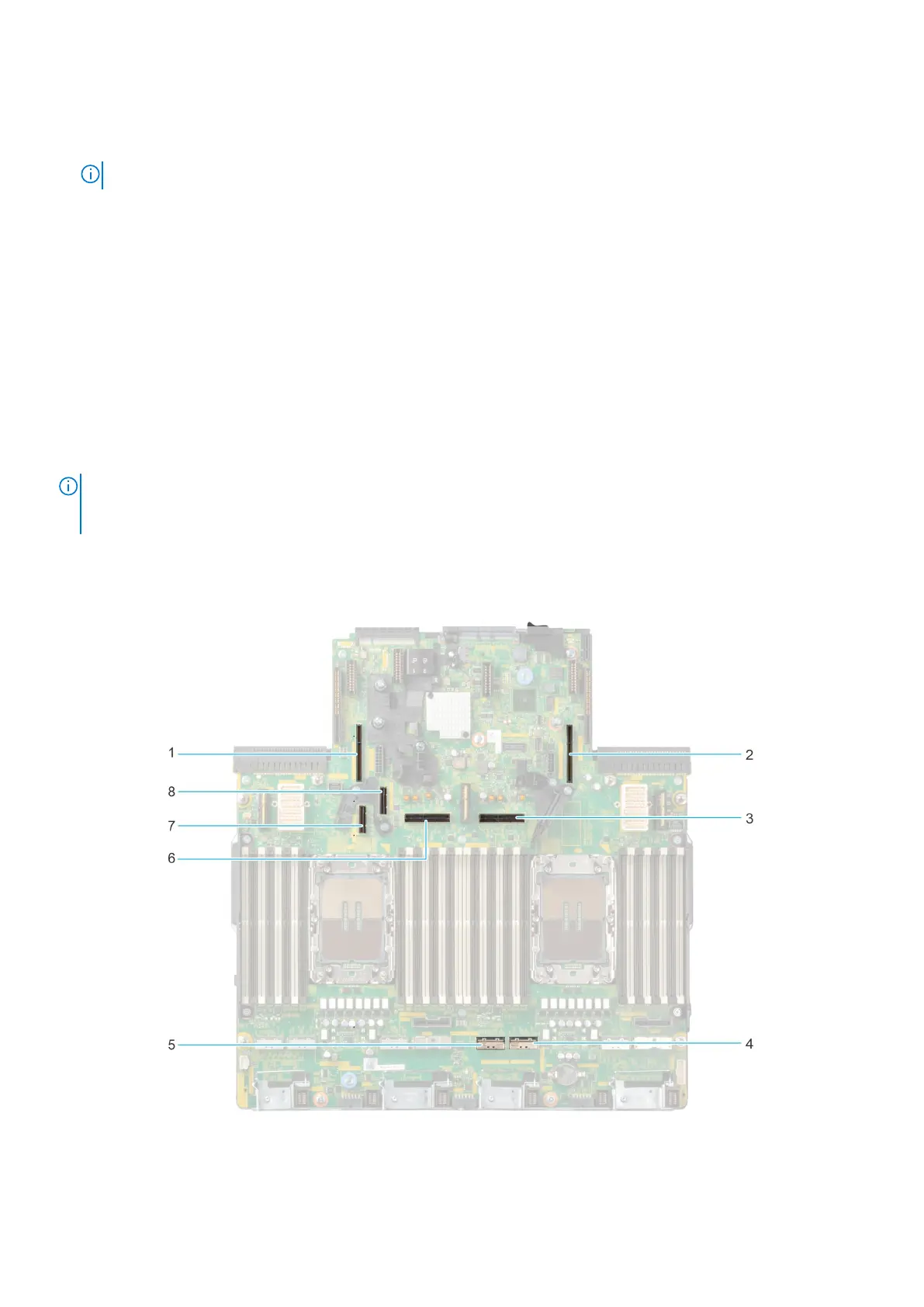
Figure 80. Expansion card riser slot connectors on system board
116
Installing and removing system components






 To Next Page