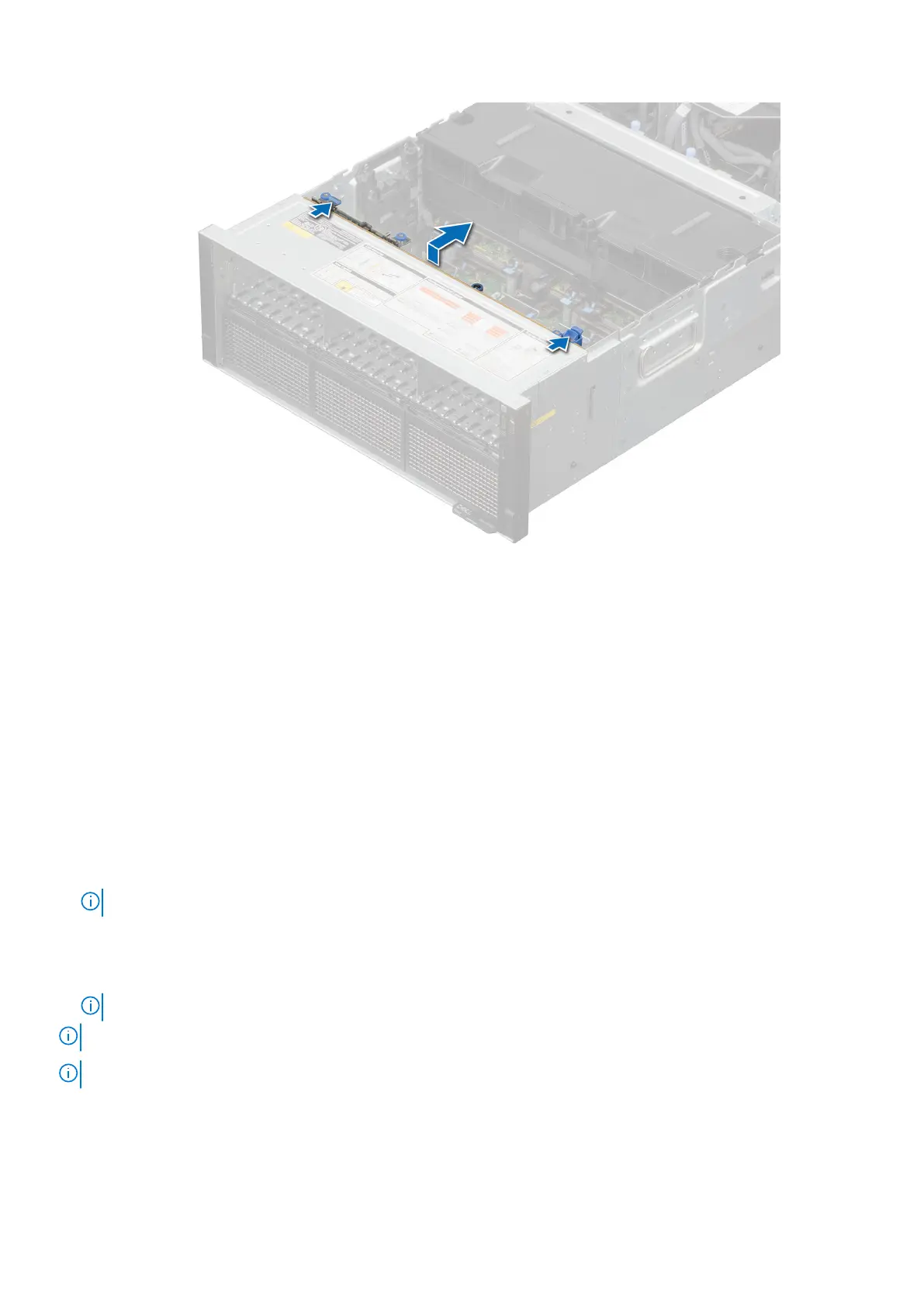
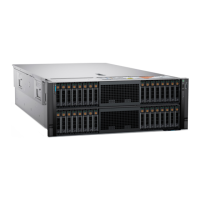
Figure 55. Removing the drive backplane
Next steps
1. Replace the drive backplane.
Installing the drive backplane
Prerequisites
1. Follow the safety guidelines listed in the Safety instructions.
2. Follow the procedure listed in the Before working inside your system.
3. If required, remove the support bar.
4. If required, remove the air shroud top cover.
5. Remove the cooling fan cage assembly.
6. If required, remove the air shroud or remove the GPU air shroud.
NOTE: The GPU air shroud can be removed only after the full length expansion card risers have been removed.
7. Remove the drives.
8. If installed, remove the rear mounting front PERC module.
9. If required, remove the PEM.
10. Observe and disconnect the drive backplane cables from the connector on the system board and backplane.
NOTE: See cable routing section for more information.
NOTE: To avoid damaging the backplane, remove the disconnected backplane cables from the cable routing clips.
NOTE: Route the cable properly when you replace it to prevent the cable from being pinched or crimped.
Steps
1. Align the slots on the drive backplane with the guides on the system.
2. Slide the drive backplane into the guides and lower the backplane until the blue release tab clicks into place.
Installing and removing system components
93






 To Next Page