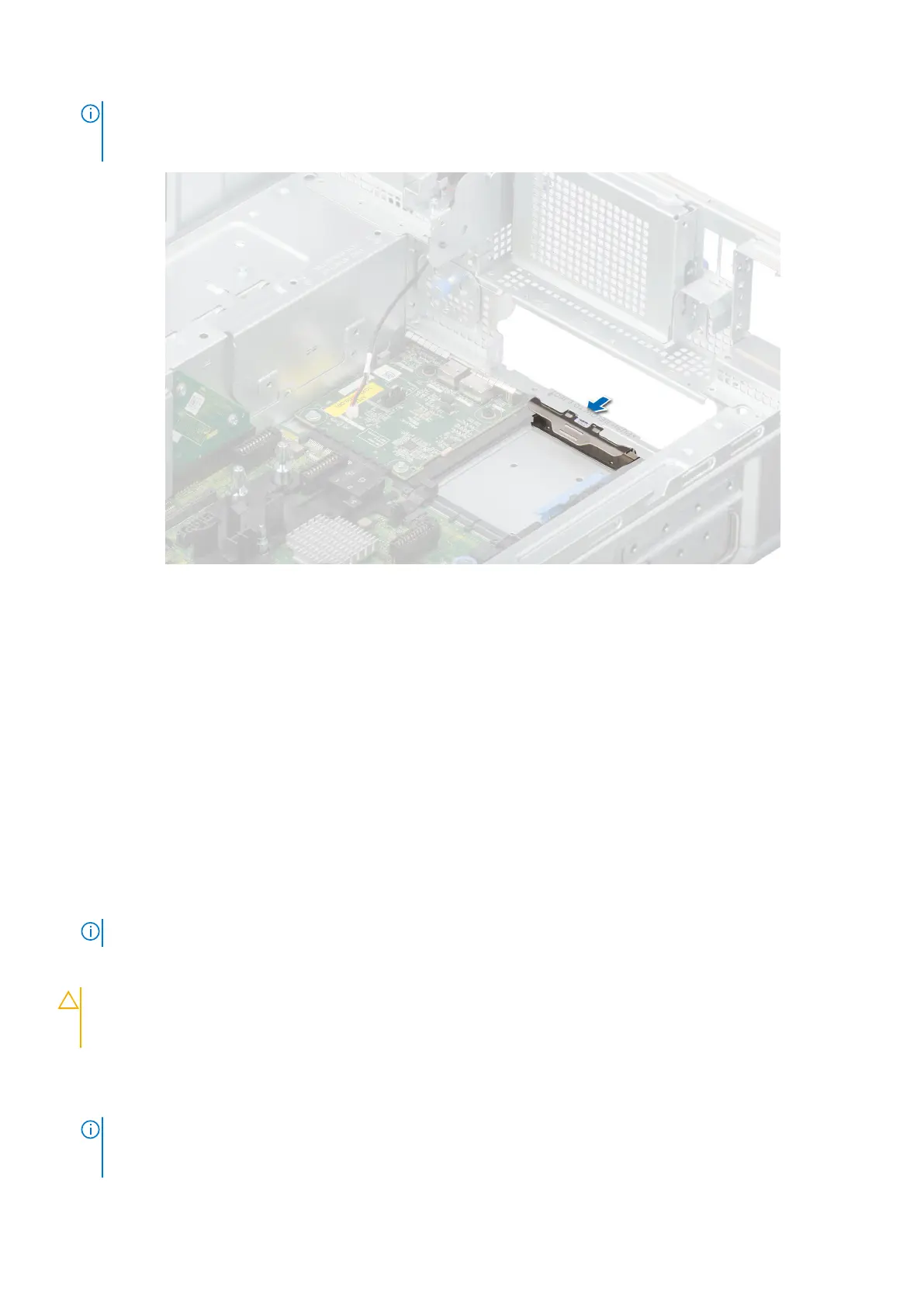
NOTE: You must install a filler bracket over an empty expansion card slot to maintain Federal Communications
Commission (FCC) certification of the system. The brackets also keep dust and dirt out of the system and aid in
proper cooling and airflow inside the system.
Figure 161. Installation of filler bracket
Next steps
1. Replace the OCP card.
Installing the OCP card
Prerequisites
1. Follow the safety guidelines listed in the Safety instructions.
2. Follow the procedure listed in the Before working inside your system.
3. Remove the support bar.
4. Remove the air shroud top cover.
5. Remove the cooling fan cage assembly.
6. Remove the air shroud.
7. Remove the expansion card risers or remove the full length expansion card riser.
NOTE: See cable routing section for more information.
8. Remove the riser air shroud.
9. If required, remove the PEM.
CAUTION:
Do not install GPUs, network cards, or other PCIe devices on your system that are not validated
and tested by Dell. Damage caused by unauthorized and invalidated hardware installation will null and void the
system warranty.
Steps
1. If installed, remove the filler bracket.
NOTE:
Store the filler bracket for future use. Filler brackets must be installed in empty expansion card slots to maintain
Federal Communications Commission (FCC) certification of the system. The brackets also keep dust and dirt out of the
system and aid in proper cooling and airflow inside the system.
Installing and removing system components 183






 To Next Page