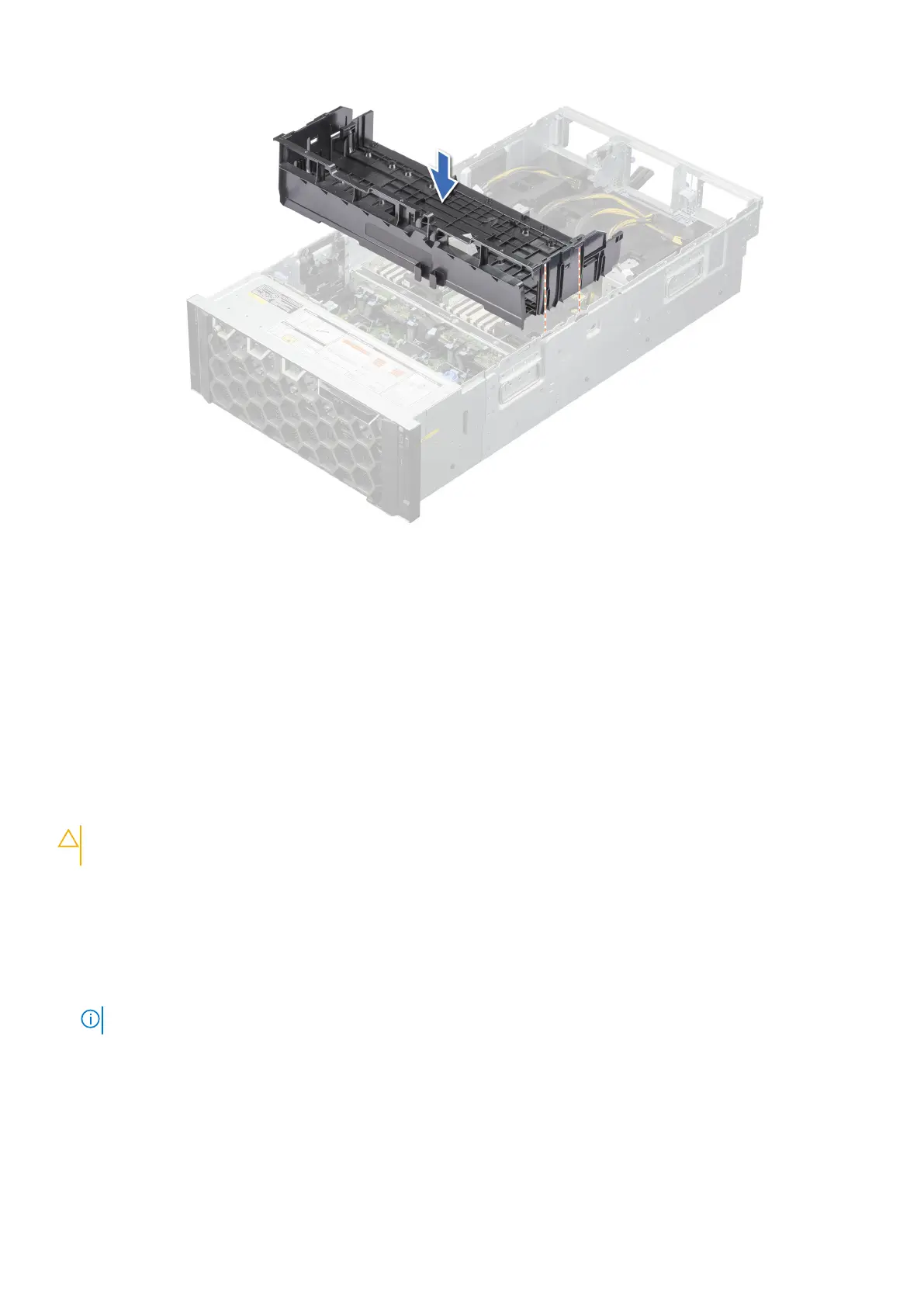
Figure 43. Installing the GPU air shroud
Next steps
1. Install the full length expansion risers.
2. Install the cooling fan cage assembly.
3. Install the air shroud top cover.
4. Install the support bar.
5. Follow the procedure listed in After working inside your system.
Removing the riser air shroud
Prerequisites
CAUTION:
Never operate your system with the air shroud removed. The system may get overheated quickly,
resulting in shutdown of the system and loss of data.
1. Follow the safety guidelines listed in the Safety instructions.
2. Follow the procedure listed in Before working inside your system.
3. Remove the support bar.
4. Remove the air shroud top cover
5. Remove the cooling fan cage assembly.
6. If required, remove the air shroud.
7. Remove the expansion card risers or remove the full length expansion card riser.
NOTE: See cable routing section for more information.
Steps
1. Holding the latches, slide the riser air shroud to the front of the system.
2. Lift the riser air shroud out of the system.
Installing and removing system components
83






 To Next Page