Print Quality Problems | 419
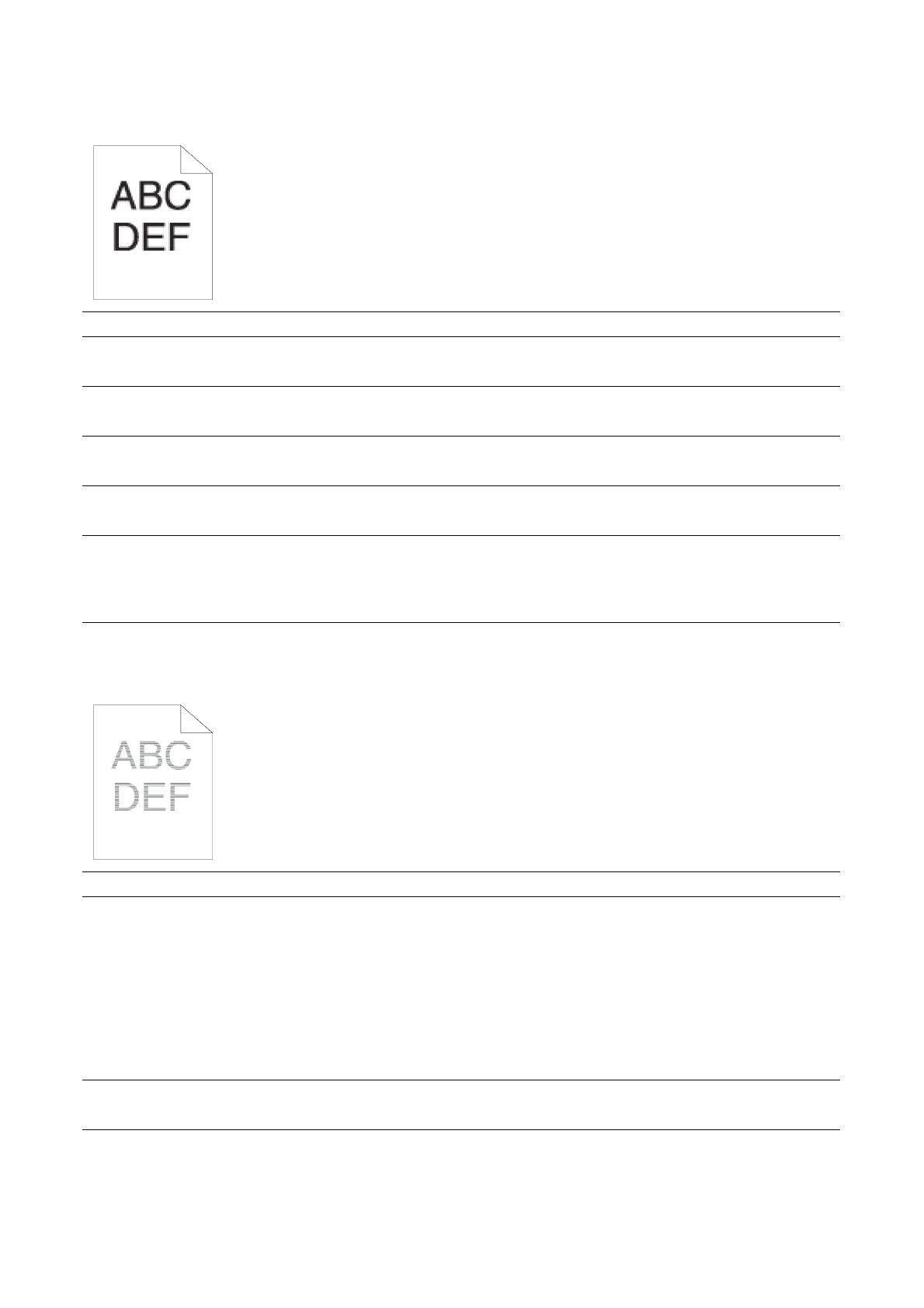
Jagged characters
Banding
Action Yes No
1Set Screen to Fineness in the printer driver.
Does this solve your problem?
The task is complete. Go to action 2.
2Set Print Mode to High Quality in the printer driver.
Does this solve your problem?
The task is complete. Go to action 3.
3Enable Bitmap Smoothing in the printer driver.
Does this solve your problem?
The task is complete. Go to action 4.
4Enable Print Page Mode in the printer driver.
Does this solve your problem?
The task is complete. Go to action 5.
5 If using a downloaded font, ensure that the font is
recommended for the printer, operating system, and
the application being used.
Does this solve your problem?
The task is complete. Contact Dell.
Action Yes No
1 Locate the cause of the problem using Device >
Support Pages > Repeating Defects.
Is the cause of the problem located?
Proceed to the
action
corresponding to the
location of the
problem:
• Drum cartridge - 2
• Fusing unit - 3
• Transfer belt unit -
4
Contact Dell.
2 Replace the drum cartridges.
Does this solve your problem?
The task is complete. Contact Dell.
3 Replace the fusing unit.
Does this solve your problem?
The task is complete. Contact Dell.












 To Next Page