444 |
TWAIN Scanner Driver
TWAIN Scanner Driver Introduction
The TWAIN Scanner driver scans document originals and transfers the scanned images
from printer over the network (USB connection not supported) to a TWAIN compatible
application.
Connecting a printer using the Device Connection Tool
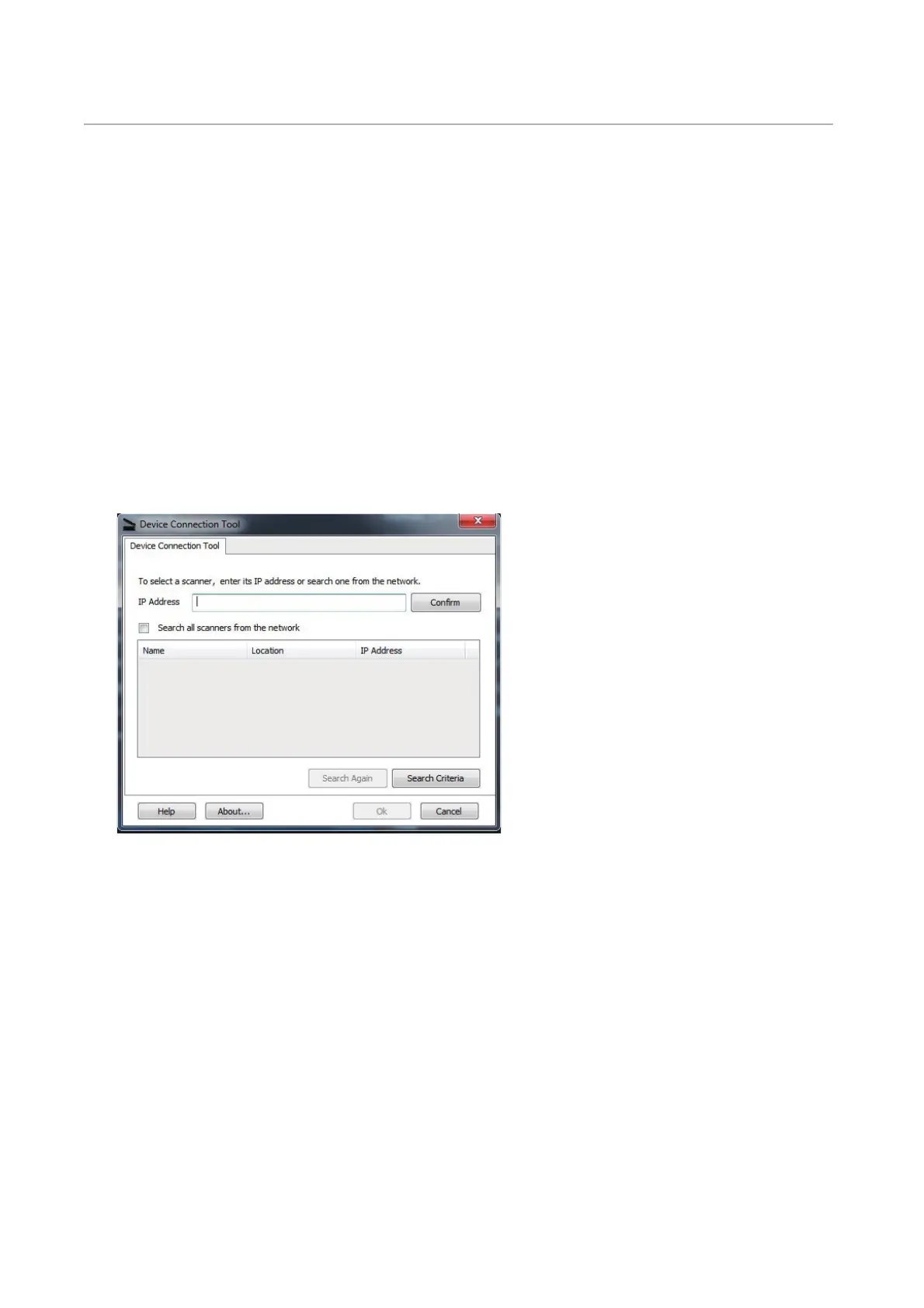
The Device Connection Tool helps an user to configure (connect) a printer for use with a
Dell TWAIN driver. It discovers supported Dell printers on a network and displays them on
a list.
Connect a printer using network search
1 Install the TWAIN driver and click Start J All Programs J Dell TWAIN driver J
Device Connection Tool.
2 Select Search all scanners from the network. The printer available in the network will
be displayed with the Name, Location, and the IP Addresses.
3 Select the desired printer from the list and click OK. Use Search Again for repeated
searches.
• Search Criteria
1 Select Search Criteria from the Device Connection Tool. The Search Criteria dialog
appears.
2 Enter the Subnet value, Search Time and SNMP Community Name, and click on the
OK button.
Fig 1. The Device Settings Tool dialog












 To Next Page