Getting Started
26 EchoNous Bladder & Vein User Guide
System notification icons
System notification icons are shown at the top left of the screen:
EchoNous System software notification.
The remote Device Manager has located the device.
Menu
Tap to go to the menu. The following menu items are available:
— Settings – provides access to all EchoNous System application and tablet system settings.
— About – displays the software version number and license keys.
Settings
To set up or change preferences or tablet system settings, tap from the Home screen and select Settings. The
following preferences can be configured:
• Exam Data Storage – tap to see storage preference.
— Local Storage – check to automatically store patients and images on the tablet internal storage.
— Remote Storage – check to automatically store patients and images to a remote server. For Remote
Server, select the type of remote server. Some options will only be displayed if the applicable license has
been purchased and installed (see Advanced device and IT setup
).
— Patient Data – select the source for patient lists (see Advanced device and IT setup
).
— Exam Patient Details – check to force users to enter patient information before starting a scan.
— Send Anonymized Data to EchoNous – check to send anonymized images to EchoNous to enable future
product improvements. Check with your institution’s data policies or legal department before enabling this
option.
— Send data over metered connection - check to allow data to be sent when connected to a metered
(cellular) connection.
• Organization – tap to update registration details, including organization name and address. These details are
transferred to EchoNous when a network connection is available.
• Printing – select the Printer Type to None, Network Printer (see Network printer setup (optional)
) or
Bluetooth Mobile Printer (see Bluetooth printer setup (optional)).
• Display – tap to see display preferences
— Show Organization and Transducer Frequency – check to display the Organization and transducer center
frequency on the ultrasound image.
— Ruler – check to display a cm ruler down the right side of the ultrasound screen.
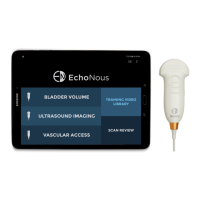
— Hide home screen Ultrasound Imaging button – check to remove the Ultrasound Imaging button from the
home screen.


 To Next Page