Getting Started
32 EchoNous Bladder & Vein User Guide
The bladder screen layouts contain the following areas:
• Patient Type – tap to change the patient type (normal, pediatric, deep, or pregnant).
• Patient Details – displays patient details for the current exam.
• Instructions – instructions of the current step required for bladder measurement.
• Instruction Video – video showing how to perform a bladder measurement.
• Done – tap to end and save the exam.
• Scan/Cancel – tap to start a bladder volume measurement or to cancel a scan in progress.
• Scan Again – tap to start another bladder volume measurement.
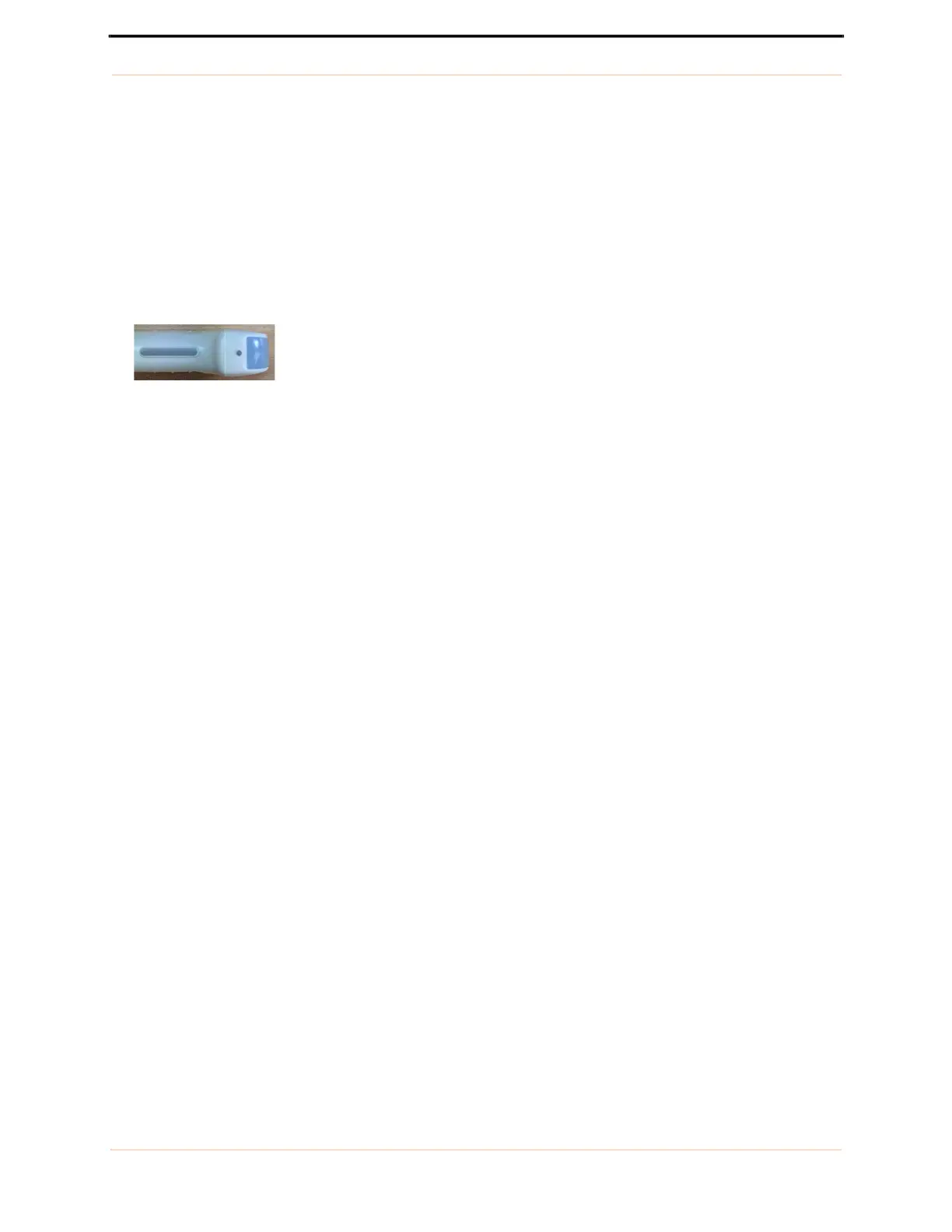
• Orientation Mark – corresponds to the orientation marker on the probe.
• Measured Volume – measured volume in milliliters.
• Image Text Annotation – displays the text annotation for the image.
• Image Date and Time – displays the date and time of the image.
• Exam Icons – are displayed depending on the context of the exam. Tap to activate the function associated
with the icon.
• Ultrasound Image – area for displaying ultrasound images.
• Bladder Outline – indicates the area where the bladder has been detected and outlined.
• Pubic Bone Indicator – indicates the area where pubic bone has been detected.
• Image Thumbnails – will be displayed for multiple images in an exam. Tap a thumbnail to view an image.
Vascular access screens
Tap Vascular Access on the Home screen to start a Vascular Access exam.
Probe orientation marker


 To Next Page