EchoNous Bladder & Vein User Guide 57
Data security
3. Tap other patient and exam check boxes as required, and then tap the Trash icon at the top right of the
screen to delete all checked exams and patients.
Alternatively, use the menu by tapping the icon. The following menu options are available:
• Use Delete patients without exams to delete any patients with no associated exams.
• Use Delete All to delete all but the open exam(s).
• Use Delete Oldest to create space on the local storage. At least 10% of the oldest exams are deleted.
Data security
Data security is embedded in the System as follows:
• The System can be locked by a PIN or password. No user will be able to access any data on the System
without access to the pin or password.
• All data saved on the System is encrypted. Where the System has been stolen, no data will be accessible
without the PIN or password.
• Secure Wi-Fi protocols are supported, enabling data to be securely saved to remote storage, with no local
storage of patient data.
• No Internet ports are open. In the event a third party is able to access the System, they will not be able to
access any data without the PIN or password.
• No third party applications are able to be installed or run on the System, preventing malware and viruses.
Setting a device password
To set a device PIN or password as follows:
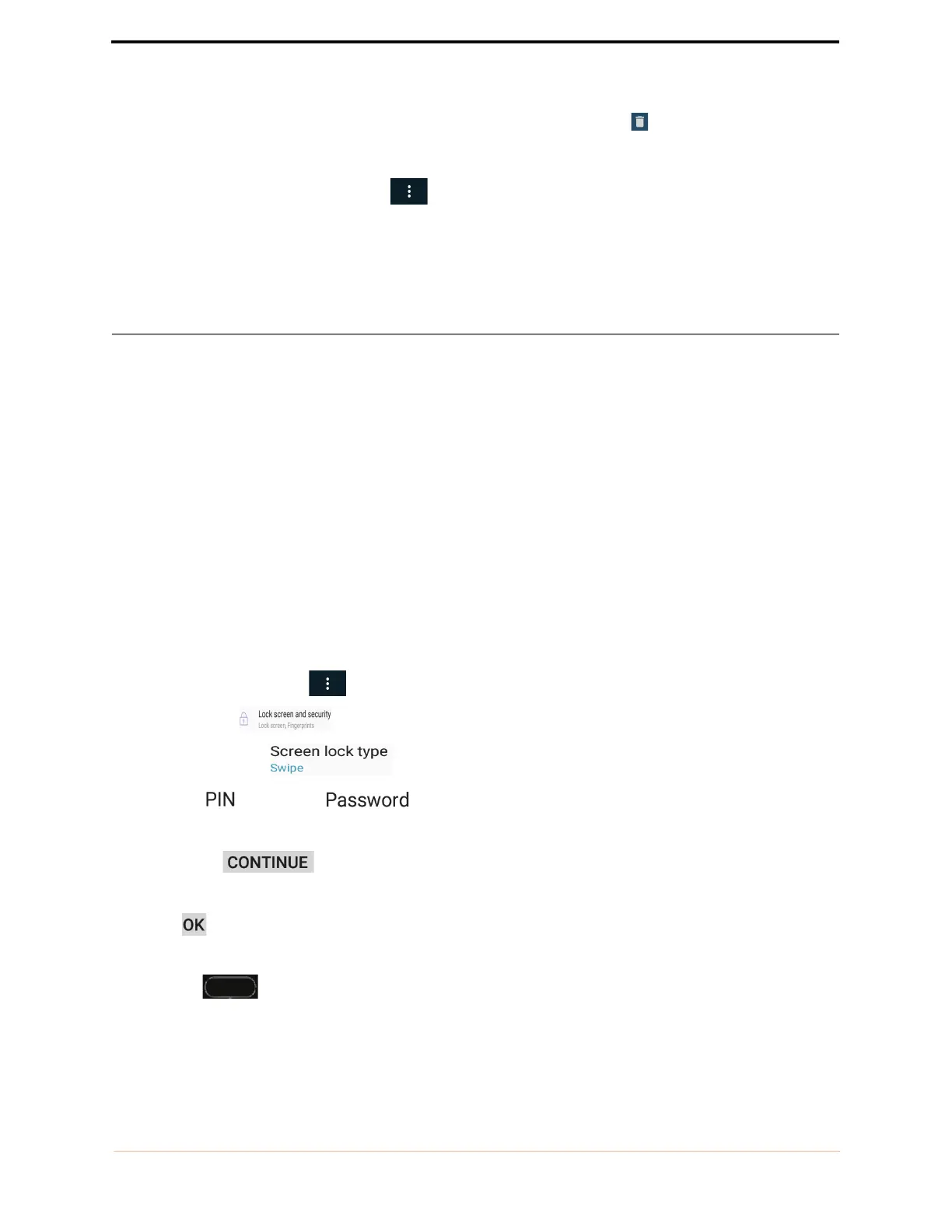
1. From the Home screen tap menu, tap Settings, and select System Settings.
2. Select Security .
3. Tap Screen lock type .
4. Select PIN or Password .
5. Enter the PIN or password.
6. Tap Continue
7. Confirm the pin or password.
8. Tap OK
9. Select your notification content preference.
10. Tap Home to return to Home Screen.


 To Next Page