Operation
II
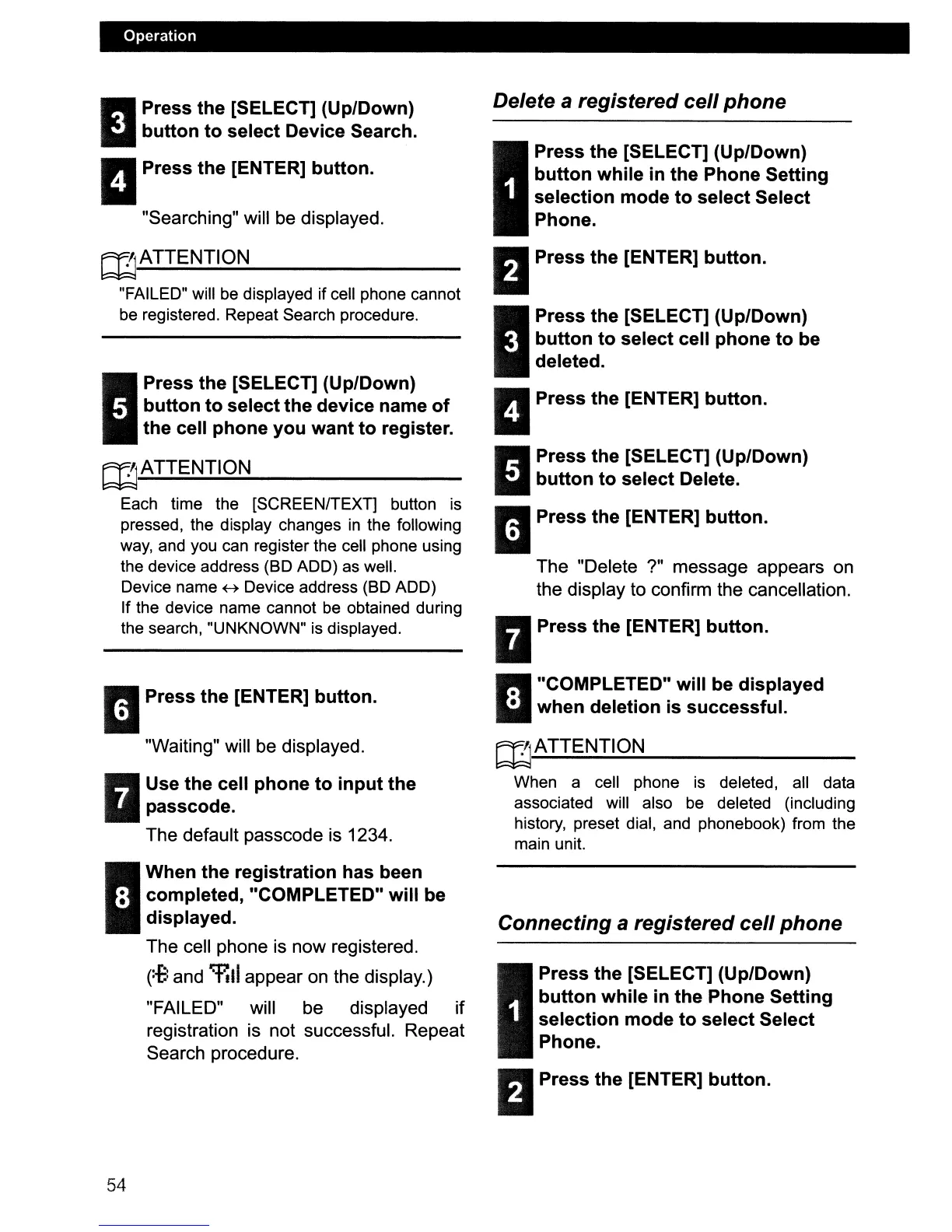
Press the [SELECT] (Up/Down)
button to select Device Search.
IIPress the [ENTER] button.
"Searching" will be displayed.
~ATTENTION
"FAILED" will
be
displayed if cell phone cannot
be
registered. Repeat Search procedure.
I
Press the [SELECT] (Up/Down)
button to select the device name
of
the cell phone you want to register.
~ATTENTION
Each time the [SCREEN/TEXT] button is
pressed, the display changes
in
the following
way,
and you can register the cell phone using
the device address (BD ADD) as well.
Device name
B Device address (BD ADD)
If the device name cannot be obtained during
the search, "UNKNOWN"
is
displayed.
IIPress the [ENTER] button.
"Waiting" will be displayed.
II
Use the cell phone to input the
passcode.
The default passcode is 1234.
I
When the registration has been
: completed, "COMPLETED" will be
displayed.
The cell phone is now registered.
(:-B
and
~II
appear on the display.)
"FAILED" will be displayed
if
registration is not successful. Repeat
Search procedure.
54
Delete a registered cell phone
I
Press the [SELECT] (Up/Down)
button while
in
the Phone Setting
selection mode to select Select
Phone.
EI
Press the [ENTER] button.
I
Press the [SELECT] (Up/Down)
button to select cell phone to be
deleted.
IIPress the [ENTER] button.
II
Press the [SELECT] (Up/Down)
iii
button to select Delete.
II
Press the [ENTER] button.
The "Delete ?" message appears on
the display to confirm the cancellation.
II
Press the [ENTER] button.
U
"COMPlETED" will be displayed
• when deletion
is
successful.
~ATTENTION
When a cell phone
is
deleted, all data
associated will also be deleted (including
history, preset dial, and phonebook) from the
main unit.
Connecting a registered cell phone
Press the [SELECT] (Up/Down)
button while in the Phone Setting
selection mode to select Select
Phone.
I Press the [ENTER] button.



 To Next Page