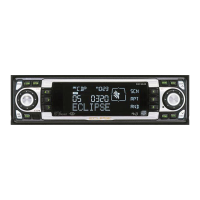
Various
Settings
Making changes with Display Adjustment Mode
This mode lets you adjust the display brightness, change the display type, etc.
Switching the Display
Adjustment Mode
I
Press the
~/MENU]
button for
more than one second.
The Menu selection mode is activated.
I!I
Press the [SELECT] (Up/Down)
II
button to select DISP.
EI
Press the [ENTER] button.
The display adjustment mode is
activated.
II
Press the [SELECT] (Up/Down)
~
button to select a setting item.
When the button
is
pressed, the
setting item changes
in
the following
order.
Bright B Illumination B DISP Type B
DISP Data B Scroll
TypeB
Bright
B'"
IIPress the [ENTER] button.
Switches among the adjustment
modes.
Switching the brightness (Bright)
Default setting
is
maximum brightness (5).
I
Press the [SELECT] (Up/Down)
button to select Bright.
BPress the [ENTER] button.
The bright setting mode is activated.
72
I
Press the [SELECT] (Right/Left)
button to adjust the brightness.
Right:
Increases the brightness level.
Left:
Decreases the brightness level.
aPress the [ENTER] button.
The selected settings will take effect.
Changing illumination color
You
can change the button illumination color
in
the following way.
I
Press the [SELECT] (Up/Down)
button to select Illumination.
BPress the [ENTER] button.
The illumination setting mode
is
activated.
I
Press the [SELECT] (Up/Down)
button.
Press the [SELECT] (Up/Down) button
to set illumination color as follows:
Blue/Red B Blue/Green B Blue/Amber
B All Red B All Green B All Amber B
Blue/Red
B'"
aPress the [ENTER] button.
The selected settings will take effect.



 To Next Page