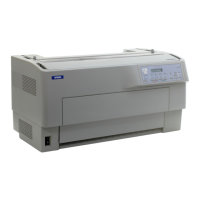
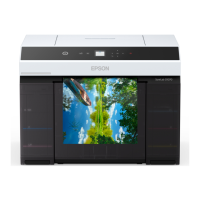
Epson DFX 9000 Revision B
Troubleshooting Troubleshooting 117
The printout appears dirty, or there is ribbon ink or
contamination on the printout.
1. Verify that the ribbon cartridge is correctly installed.
2. Check that the ribbon is in good condition: no excessive wear, has not frayed, or
come unravelled. Replace the ribbon cartridge if necessary.
3. Clean the PRINT HEAD so that it is free of ink or ribbon dust.
4. If printing on forms or paper of uneven thickness, use SelecType and adjust the
settings for Platen Gap: Manual (0-14).
5. The following adjustments affect the platen gap: the Card guide mount position
adjustment (p.227), the APTC thickness detection adjustment (p.238), and the
APTC detection position adjustment (p.241).
6. If you print on Overlapping Multipart Forms, use SelecType on the Control
Panel to change that setting to On.
7. Check and replace the (Auto Paper Thickness Control) APTC UNIT (p.169).
The printout is faint, or the printed characters have
uneven upper or lower edges.
1. Replace the Ribbon Cartridge if it appears to be worn out.
2. Use SelecType to adjust the Manual Platen Gap.
3. The following adjustments affect the platen gap: the Card guide mount position
adjustment (p.227), the APTC thickness detection adjustment (p.238), and the
APTC detection position adjustment (p.241)
4. Replace the APTC UNIT (p.169).
5. Replace the PRINT HEAD (p.152).
6. Replace the ROM BOARD (p.137).
Printing-related failure Troubleshooting procedure


 To Next Page
 Loading...