161
Troubleshooting
Check 4: Check of printer driver settings
Is the printer driver installed?
1
Open [Devices and Printers] (or [Printers]/[Printers and Faxes]).
Windows 7:
Click - [Control Panel] - [Devices and Printers], in this order.
Windows Vista/Windows Server 2008:
Click [Start] ( in Windows Vista) - [Control Panel] - [Printers], in this order.
Windows XP Professional:
Click [Start] - [Printers and Faxes], in this order.
Windows XP Home Edition/Windows Server 2003:
Click [Start] - [Control Panel] - [Printers and Faxes], in this order.
2
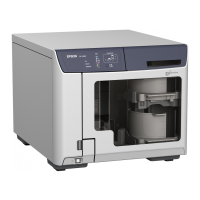
Check that this product icon (EPSON PP-100NPRN) is found in [Printers and Faxes] (or
[Printers]).
If the icon is not found, the printer driver is not installed. See “Installation” on page 26 in this guide to install
the printer driver.
Is the Print Manager status set to Pause?
If [Paused] is displayed for the product’s icon (EPSON PP-100NPRN), right-click the icon and click [Resume
Printing].
If performing all of the above checks still does not resolve the problem, the software may not be installed correctly.
Uninstall (delete) the software, and then reinstall.
See “Uninstalling the software” on page 40 in this guide for the software uninstallation procedure.
See “Installation” on page 26 in this guide for the software installation procedure.


 To Next Page
 Loading...