System Basics 49
Number of cue lists the channel appears in.
Number of cues the channel appears in.
Number of cue moves from zero.
Number of submasters that channel appears in.
Maximum channel level.
Note: Right-click on the CIU tab to limit see which channels are used with a specified cue
list.
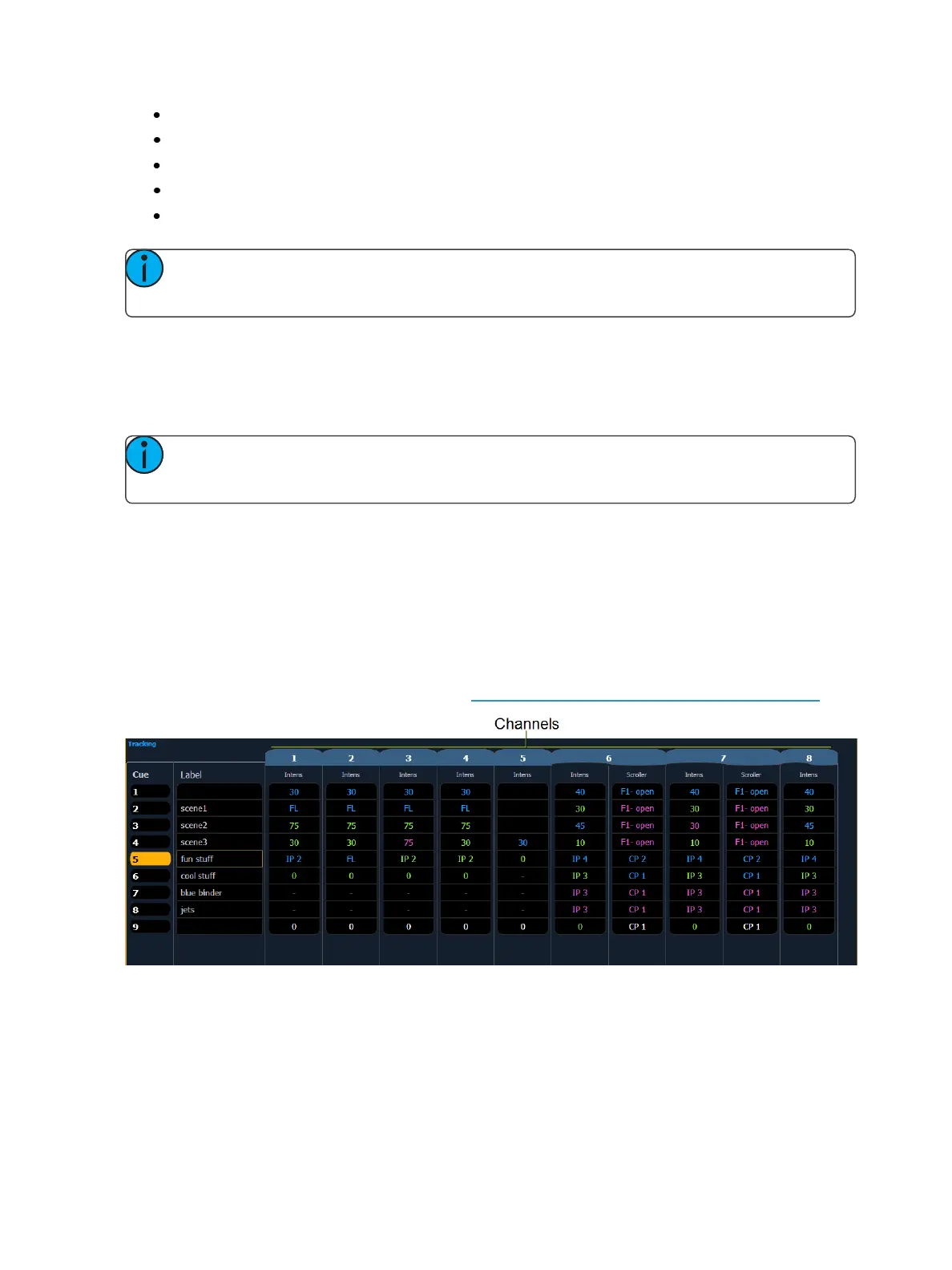
Spreadsheet (Blind Only)
Spreadsheet format is available only in blind mode. It is useful for viewing channel data and trends
for multiple cues, submasters, palettes, or presets at one time. Cues/ record targets are displayed on
the vertical axis and channel/ parameter data is visible on the horizontal axis.
Note: Since this is a blind-only view, changes made in this view are immediate and do not
require a record or update.
As with table view, spreadsheet format allows you to choose exactly which parameters you want to
view. Parameters can be expanded/ suppressed by holding [Data] and pressing the desired parameter
buttons in the CIA. Category data is not available in spreadsheet, but you may hide all parameters of
a specific category by holding [Data] and pressing the desired parameter category button.
To toggle between viewing just the intensity information and other parameters, press [Shift] &
[Format].
The label column can be hidden by checking the Suppress Target Labels option in the Live and Blind
configuration menu. For more information, see Live and Blind Configuration Menu (on page54)
Indicators in the Live/ Blind Display
Ion relies on many traditional ETC indicators which you may be familiar with, as well as some new
ones. This section identifies the graphical and colorful conventions used in Ion to indicate conditions
to you.



 To Next Page