EasyManua.ls Logo

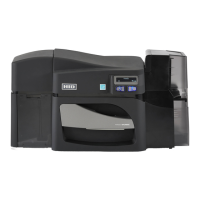
Fargo DTC4500e - User Manual

Fargo DTC4500e
90 pages
Print Icon
To Next Page IconTo Next Page
Loading...
FARGO
®
DTC4500e Card Printer
User Guide
PLT-01669, Rev. 1.1
April 2014
hidglobal.com

Table of Contents

Questions and Answers

  • S
    Steven DavisSep 12, 2025
    What does '# 106 Job Data Error' mean on my HID Printer?
    • J
      Jeffrey WillisSep 12, 2025
      If your HID Printer displays '# 106 Job Data Error', the print data sent to the printer is corrupt or has been interrupted. Check the interface cable. Select the ON/OFF button to cancel the current print job and then resend the job.
  • D
    douglas99Sep 9, 2025
    What to do if my HID Printer shows '#202 Encoder not installed'?
    • B
      Benjamin MillerSep 9, 2025
      If your HID Printer displays '#202 Encoder not installed', it means you're sending encoding data, but the printer isn't configured with this encoder type (iCLASS, Prox, Mifare, SmartCard). Ensure that no encoding data is being sent with the print job, and then reprint the card. Alternatively, install an encoding module.
  • M
    Mitchell LyonsSep 8, 2025
    What does '# 31 No Mag Module' mean on HID Printer and how do I fix it?
    • R
      Rachel AustinSep 8, 2025
      If your HID Printer shows '# 31 No Mag Module', the printer isn't configured with the encoder data type you're sending. Ensure that no encoding data is being sent with the print job, then reprint the card. Alternatively, install a magnetic encoding module.
  • D
    dtaylorSep 7, 2025
    What does '# 45 No Flip Module installed' mean on HID Printer?
    • J
      Justin DonaldsonSep 7, 2025
      If your HID Printer displays '# 45 No Flip Module installed', it means there's a request to print on the second side of the card, but no flipper module is installed. If a flipper module is present, ensure the 'Print Both Sides' option in the printer driver is set correctly. Alternatively, install a flipper module.
  • S
    Stacey DurhamAug 23, 2025
    What to do if my HID Printer displays 'Card in Printer'?
    • D
      Danielle MarshAug 23, 2025
      If your HID Printer displays '# 68 Card in Printer', it means a card is stuck in the print station or card flipping area. To resolve this, carefully clear the jam and then press the Pause button to continue.
  • J
    John RyanSep 5, 2025
    What causes '# 100 Ribbon RFID Error' on HID Printer?
    • K
      Kimberly WestSep 5, 2025
      If your HID Printer displays '# 100 Ribbon RFID Error', there is either no ribbon, or the ribbon tag information is corrupted or incorrect. Verify the printer driver settings for the correct ribbon, try a new ribbon, and continue. Press the ON/OFF button to cancel.
  • K
    katherine51Sep 4, 2025
    What does '# 109 # 113 Ribbon Release Error' mean on my HID Printer?
    • S
      Sydney RobersonSep 4, 2025
      If your HID Printer shows '# 109 # 113 Ribbon Release Error', it means the printer can't locate the next ribbon panel to release the ribbon from the card. First, make sure the ribbon isn't stuck to the card. If it isn't, try replacing the ribbon or recalibrating the ribbon sensor. If the ribbon is broken, tape it back onto the take-up core and manually advance to the next panel. Press the Pause button to continue.
  • A
    afischerSep 3, 2025
    What to do if my HID Printer says '# 25 Ribbon not Installed'?
    • M
      Michael DelgadoSep 3, 2025
      If your HID Printer displays '# 25 Ribbon not Installed', it means there is no ribbon installed in the printer. To solve this, install a ribbon and retry.
  • L
    Lisa MoralesSep 2, 2025
    How to fix '# 82 Mag Jam' error on HID Printer?
    • J
      Jessica LynnSep 2, 2025
      If your HID Printer is displaying '# 82 Mag Jam', it indicates that a card is jammed in the magnetic station. To resolve this, clear any cards from the magnetic station using the buttons to move the card out, then press the Pause button to continue.
  • F
    Felicia MartinezAug 31, 2025
    How do I fix a '# 97 Ribbon Search Error' on my HID Printer?
    • M
      Matthew PatrickSep 1, 2025
      If your HID Printer shows '# 97 Ribbon Search Error', the printer can't find the next panel correctly, possibly due to jams or breaks. Try these steps: recalibrate the ribbon sensor, check for and clear any jams or breaks. If the ribbon is broken, try taping it back onto the take-up core. If these steps don't work, replace the ribbon. Press the Pause button to continue or the ON/OFF button to cancel.

Summary

Specifications

Regulatory Compliance

Details compliance with UL, CSA, FCC, CE, and environmental standards.

Agency Listings

Lists specific agency standards for emissions, immunity, and safety.

Country-Specific Compliance

Compliance statements for United States, Canada, Taiwan, Japan, and Korea.

Safety Messages

General safety warnings and critical instructions for safe operation across different regions.

Technical and Functional Specifications

Technical Specifications

Details print method, resolution, colors, and ribbon options.

Printer Components

Details print ribbons, types, counts, and blank card specifications.

Setup and Installation Procedures

Printer Placement and Environment

Guidelines for selecting an optimal location and managing moisture.

Unpacking and Inspection

Instructions for unpacking, checking accessories, and inspecting for damage.

Installing Ribbon and Loading Cards

Steps for installing ribbon cartridges and loading cards into the input hopper.

Card Size Selection

How to select the card size (CR-79 or CR-80) using the printer and driver.

Printer Power Connection

Step-by-step instructions for connecting and powering on the printer.

Print Driver Installation and Preferences

Driver Installation Instructions

Provides steps for installing the printer driver and utility programs.

Printing Preferences - Card Settings

Options for defining card size, orientation, and accessing utilities via the Card tab.

Printer Configuration (Toolbox)

Configuring optional features, event monitoring, and languages.

Printer Maintenance Tools

Tools for calibrating laminator/ribbon, and cleaning the printer.

Safety and Cleaning Procedures

Safety warnings, cleaning kits, printhead, rollers, and exterior cleaning.

Advanced Settings

Adjusting internal printer settings and understanding advanced options.

Device Options Tab

Settings for supplies, dual-sided printing, and other print options.

Fluorescent Panels

Information on fluorescent dye color and creating custom fluorescent images.

Image Color Tab

Adjusting image quality, heat, sharpness, contrast, and balance.

Image Calibrate Tab

Controlling printable area position relative to the card.

Magnetic Encoding Tab

Options for controlling magnetic stripe encoding and track data.

Lamination Tab

Controls for positioning, speed, side, and type of lamination.

Overlay; Print Area Tab

Controlling where overlay and print areas appear on the card.

K Panel Resin

Controls for printing the resin black (K) panel and related options.

Defined Area

Using K Panel Resin or Overlay/Print Area tabs to define specific print areas.

Printer Info

Viewing installed media information like ribbon type, card count, serial number.

System Overview - Troubleshooting

Sequence of Operations

Detailed step-by-step process of printer operations.

Troubleshooting

Printer Error Handling

Explains printer buttons, messages, and error identification.

Error Message Troubleshooting Table

Detailed table of error messages, causes, and solutions for common issues.

Printer Tools and Status

Explains status icons, tools, and additional printer specific functions.

Firmware Upgrades

Upgrade Information

Step-by-step guide to updating the printer firmware using Workbench.

Technical Support

Reading Serial Numbers

How to interpret the serial number to determine the printer's manufacturing date.

Fargo DTC4500e Specifications

General IconGeneral
Print TechnologyDye-Sublimation / Resin Thermal Transfer
Resolution300 dpi
Supported Card SizesCR-80, CR-79 adhesive back
Memory32 MB RAM
Operating System SupportedWindows 7, 8, 10, Server 2008, 2012, 2016
Print SpeedUp to 225 cards per hour (YMCKO)
Card Capacity100 cards
ConnectivityUSB 2.0, Ethernet
Print CapabilitySingle-sided or dual-sided printing
Power Requirements100-240V AC, 50/60Hz
Operating Humidity20-80% RH
Card Thickness9 mil to 40 mil
Operating Temperature65° F to 90° F / 18° C to 32° C

Related product manuals