EasyManua.ls Logo

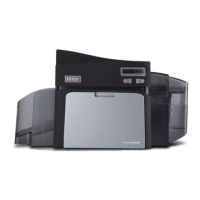
Fargo DTC4500e - User Manual

Fargo DTC4500e
90 pages
Print Icon
To Next Page IconTo Next Page
Loading...
FARGO
®
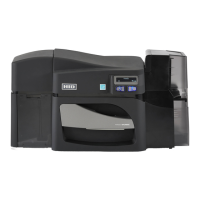
DTC4500e Card Printer
User Guide
PLT-01669, Rev. 1.1
April 2014
hidglobal.com

Table of Contents

Questions and Answers

  • S
    Sarah BrownAug 30, 2025
    What causes '# 44 Flipper Jam/ Home Error' on HID Printer and how to fix it?
    • T
      Tammy GeorgeAug 30, 2025
      If your HID Printer displays '# 44 Flipper Jam/ Home Error', a card is jammed in the flipper table, or the flipper didn't position correctly. Here’s how to solve it: 1. Clear any jammed cards from the flipper table using the buttons to move the card out, then resume printing. 2. Ensure the flipper table is level when the printer is powered on. If it's at an angle, open the card output door and manually level it, then cycle the printer power to reset. 3. If the problem persists, reset the printer and retry. If the issue continues, call for technical assistance.
  • M
    Mary MccarthyAug 29, 2025
    How to resolve '# 93 Wrong Ribbon' error on HID Printer?
    • A
      Andrea MillerAug 29, 2025
      If your HID Printer displays '# 93 Wrong Ribbon', the installed print ribbon doesn't match the ribbon type selected in the printer driver. To fix it, either change the installed print ribbon to match the driver settings, or adjust the ribbon type selected in the printer driver to match the installed ribbon. Press the Pause button to continue or the ON/OFF button to cancel.
  • C
    Christopher WatsonAug 28, 2025
    What causes a 'Multiple Feed' error on my HID Printer and how to resolve it?
    • F
      fsmithAug 28, 2025
      If your HID Printer displays '# 70 Multiple Feed', it means multiple cards were fed into the printer at once. To fix this: * Verify the card thickness setting matches the actual card thickness. * Check for card slippage and run the printer cleaning routine if necessary. * Ensure the cleaning roller is properly installed on the ribbon cartridge. * Make sure the cards aren't sticking together. After checking, press the Pause button to continue.
  • C
    ccampbellAug 27, 2025
    What does '# 99 Ribbon Error' mean on my HID Printer and how to fix it?
    • C
      Cassandra ParkerAug 27, 2025
      If your HID Printer shows '# 99 Ribbon Error', this indicates the print ribbon has either broken or jammed. If the ribbon is jammed, carefully clear the jam. If the ribbon is broken, attempt a temporary fix by taping the ribbon back onto the take-up core. After addressing the issue, press the Pause button to continue or the ON/OFF button to cancel.
  • M
    Megan SmithAug 27, 2025
    How to fix HID Printer when it is unable to feed cards?
    • J
      Jane RussellAug 27, 2025
      If your HID Printer is unable to feed cards (error # 81), here’s what to check: * Make sure the card thickness setting matches your cards. * Ensure the cleaning roller is correctly installed on the ribbon cartridge. * Check for card slippage and, if needed, run the printer cleaning routine. * Verify your cards are within the accepted size range. * Confirm the cards aren't sticking together. After checking these, press the Pause button to continue.
  • A
    Alison DunlapAug 25, 2025
    What to do if my HID Printer says 'Ribbon Out'?
    • G
      gutierrezanthonyAug 26, 2025
      If your HID Printer shows '# 91 Ribbon Out', it means the print ribbon has run out. To solve this, install a new ribbon and press the Pause button to continue printing, or press the ON/OFF button to cancel the job.
  • B
    Brittany FischerAug 25, 2025
    What does '# 110 Card Jam/Align error' mean on HID Printer?
    • L
      Lauren RomeroAug 25, 2025
      If your HID Printer displays '# 110 Card Jam/Align error', it means a card is jammed in the print station or card flipping area. To fix this, clear the jam and press the Pause button to continue.

Summary

Specifications

Regulatory Compliance

Details compliance with UL, CSA, FCC, CE, and environmental standards.

Agency Listings

Lists specific agency standards for emissions, immunity, and safety.

Country-Specific Compliance

Compliance statements for United States, Canada, Taiwan, Japan, and Korea.

Safety Messages

General safety warnings and critical instructions for safe operation across different regions.

Technical and Functional Specifications

Technical Specifications

Details print method, resolution, colors, and ribbon options.

Printer Components

Details print ribbons, types, counts, and blank card specifications.

Setup and Installation Procedures

Printer Placement and Environment

Guidelines for selecting an optimal location and managing moisture.

Unpacking and Inspection

Instructions for unpacking, checking accessories, and inspecting for damage.

Installing Ribbon and Loading Cards

Steps for installing ribbon cartridges and loading cards into the input hopper.

Card Size Selection

How to select the card size (CR-79 or CR-80) using the printer and driver.

Printer Power Connection

Step-by-step instructions for connecting and powering on the printer.

Print Driver Installation and Preferences

Driver Installation Instructions

Provides steps for installing the printer driver and utility programs.

Printing Preferences - Card Settings

Options for defining card size, orientation, and accessing utilities via the Card tab.

Printer Configuration (Toolbox)

Configuring optional features, event monitoring, and languages.

Printer Maintenance Tools

Tools for calibrating laminator/ribbon, and cleaning the printer.

Safety and Cleaning Procedures

Safety warnings, cleaning kits, printhead, rollers, and exterior cleaning.

Advanced Settings

Adjusting internal printer settings and understanding advanced options.

Device Options Tab

Settings for supplies, dual-sided printing, and other print options.

Fluorescent Panels

Information on fluorescent dye color and creating custom fluorescent images.

Image Color Tab

Adjusting image quality, heat, sharpness, contrast, and balance.

Image Calibrate Tab

Controlling printable area position relative to the card.

Magnetic Encoding Tab

Options for controlling magnetic stripe encoding and track data.

Lamination Tab

Controls for positioning, speed, side, and type of lamination.

Overlay; Print Area Tab

Controlling where overlay and print areas appear on the card.

K Panel Resin

Controls for printing the resin black (K) panel and related options.

Defined Area

Using K Panel Resin or Overlay/Print Area tabs to define specific print areas.

Printer Info

Viewing installed media information like ribbon type, card count, serial number.

System Overview - Troubleshooting

Sequence of Operations

Detailed step-by-step process of printer operations.

Troubleshooting

Printer Error Handling

Explains printer buttons, messages, and error identification.

Error Message Troubleshooting Table

Detailed table of error messages, causes, and solutions for common issues.

Printer Tools and Status

Explains status icons, tools, and additional printer specific functions.

Firmware Upgrades

Upgrade Information

Step-by-step guide to updating the printer firmware using Workbench.

Technical Support

Reading Serial Numbers

How to interpret the serial number to determine the printer's manufacturing date.

Fargo DTC4500e Specifications

General IconGeneral
Print TechnologyDye-Sublimation / Resin Thermal Transfer
Resolution300 dpi
Supported Card SizesCR-80, CR-79 adhesive back
Memory32 MB RAM
Operating System SupportedWindows 7, 8, 10, Server 2008, 2012, 2016
Print SpeedUp to 225 cards per hour (YMCKO)
Card Capacity100 cards
ConnectivityUSB 2.0, Ethernet
Print CapabilitySingle-sided or dual-sided printing
Power Requirements100-240V AC, 50/60Hz
Operating Humidity20-80% RH
Card Thickness9 mil to 40 mil
Operating Temperature65° F to 90° F / 18° C to 32° C

Related product manuals