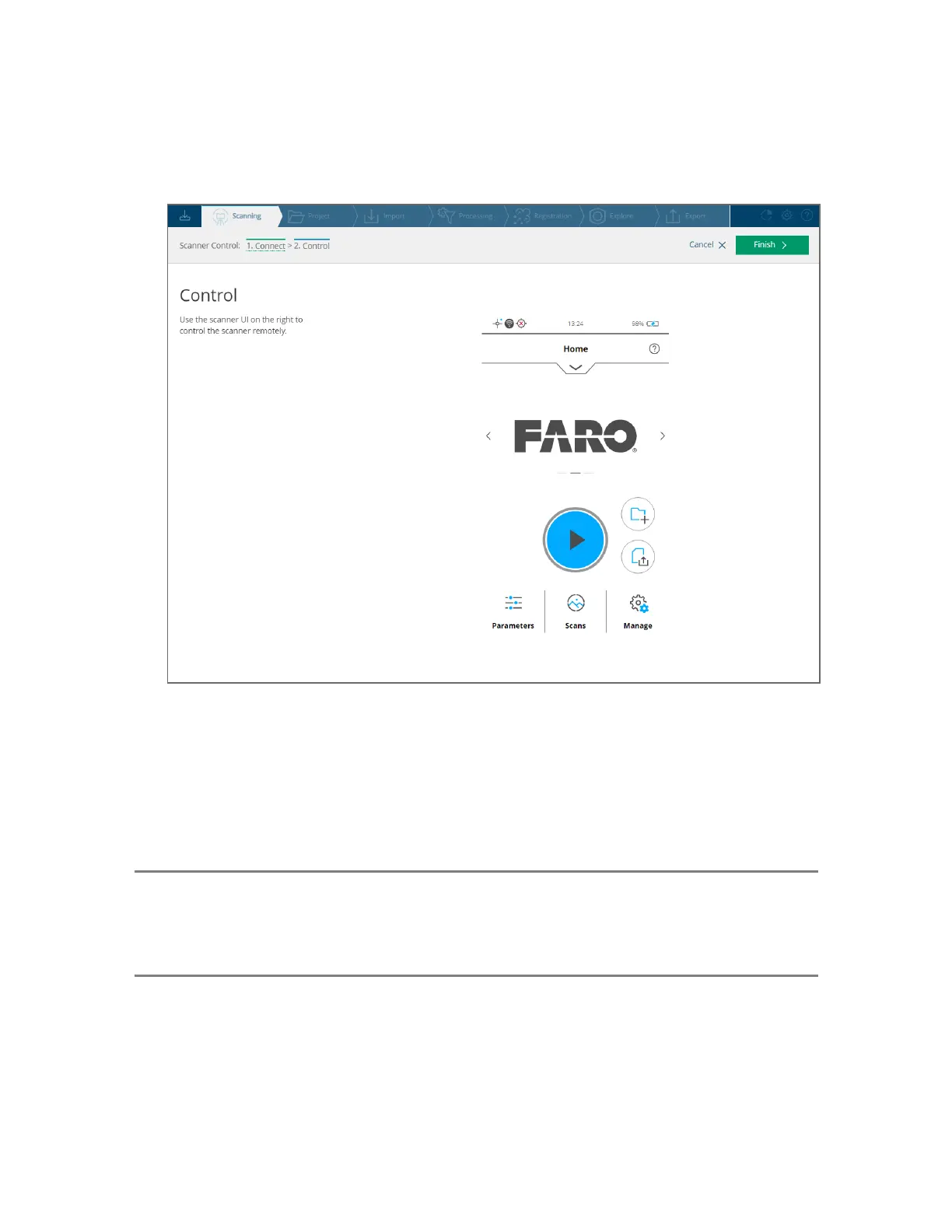
4. SCENE starts the Scanner Control task, then displays the scanner user interface. You can control
the scanner remotely through this HTML interface.
Figure 7-4 Finish or Cancel task
5. Click Finish or Cancel to close the scanner user interface, scanner control task, and disconnect from
the scanner.
On-Site Registration
NOTE: This legacy method is not the recommended method for on-site registration. FARO
recommends that you use FARO Stream, a phone app that provides a real-time view of the scan
and a scan registration feature. See https://play.google.com/store/apps/details?id=com.faro.flow
to download the app
The on-site registration feature enables you to process and register scans while on-site. The scanner must
be connected to a computer running SCENE, because processing and registration of the scans are
performed in SCENE. Note that on-site registration of the FARO Focus Premium Laser Scanner requires
SCENE version 2022, or higher.
After the initial setup, you can perform on-site registration in one of the following ways:
FARO
®
Focus Premium Laser Scanner User Manual
Chapter 7: Special Scanning Modes
FARO Focus Premium (March 2022) Page107of157



 To Next Page