5 Tools
148
Tools
5
Copy Service Settings
In [Copy Service Settings], you can make settings relating to the copy feature. The
following shows the reference section for each item.
Copy Tab - Features Allocation................................................................................................148
Preset Buttons ...........................................................................................................................149
Copy Defaults ...........................................................................................................................149
Copy Control.............................................................................................................................153
Original Size Defaults...............................................................................................................155
Reduce/Enlarge Presets.............................................................................................................156
Custom Colors...........................................................................................................................156
Annotations - Create Comments...............................................................................................156
1
On the [Tools] screen, select [System Settings].
For the method of displaying the [Tools] screen, refer to "System Settings Procedure" (P.104).
2
Select [Copy Service Settings].
3
Select the item to be set or changed.
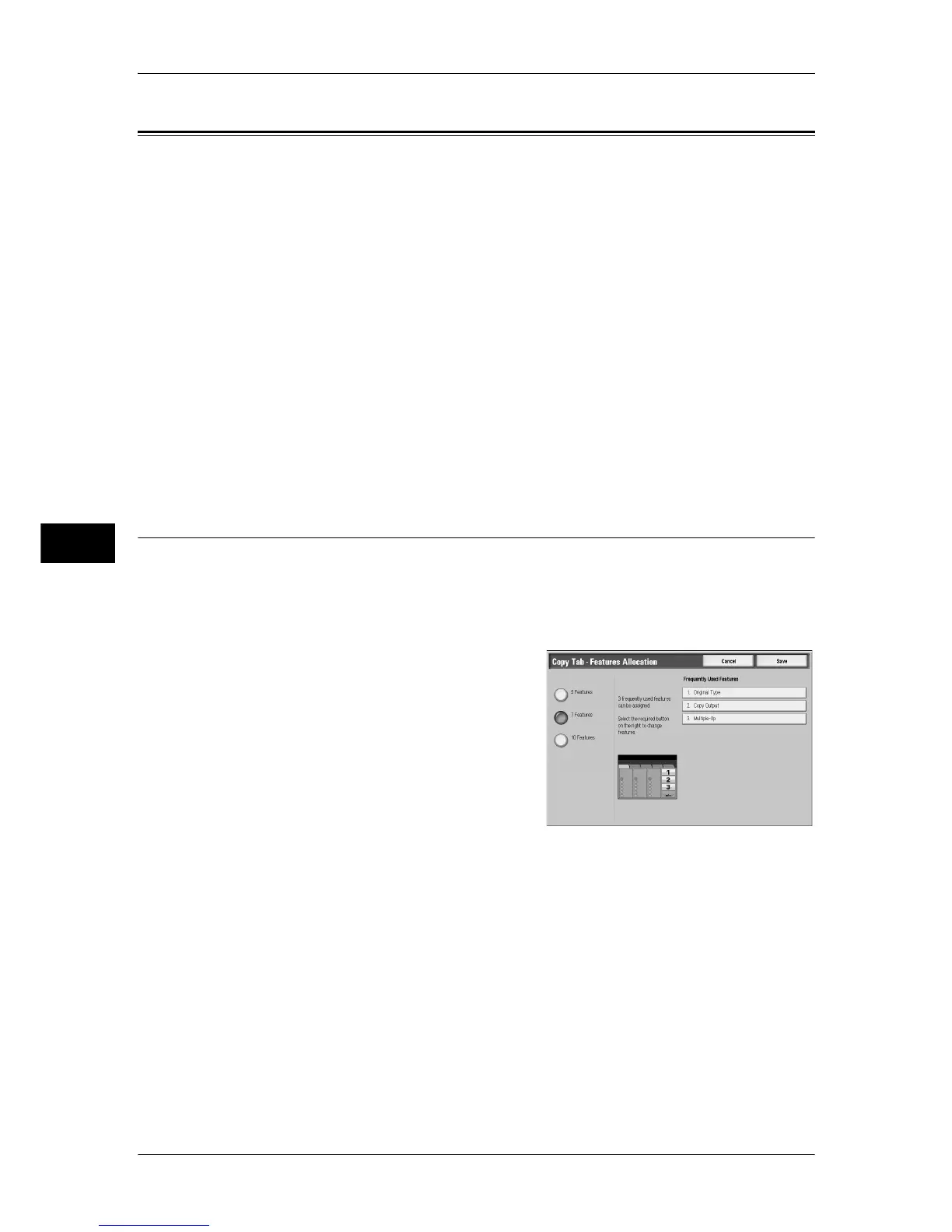
Copy Tab - Features Allocation
You can change the paper tray buttons and copy magnification buttons shown on the
[Copy] screen. This setting allows you to easily select the paper trays and copy
magnification you frequently use.
You can change the features shown on the [Copy] screen. By setting the most
commonly used features, you can avoid extra operations such as selecting tabs.
1
Select the number of features displayed on
the [Copy] screen.
2
From the buttons appearing on the right side
of the screen, select the position where you
want to allocate a feature.
Note • The position of each button on the right
side corresponds to the position on the
[Copy] screen.
5 Features
Following features are shown on the screen:
[Output Color], [Reduce/Enlarge], [Paper Supply], [2 Sided Copying], and [Copy Output].
Features and positions to be shown cannot be changed.
7 Features
Allows you to set the features appearing in the fourth column from the left of the [Copy]
screen.
Note • [Reduce/Enlarge] and [Paper Supply] cannot be specified.
10 Features
Allows you to set the features appearing in the third and fourth columns from the left of the
[Copy] screen. [Reduce/Enlarge] and [Paper Supply] cannot be specified.



 To Next Page
 Loading...