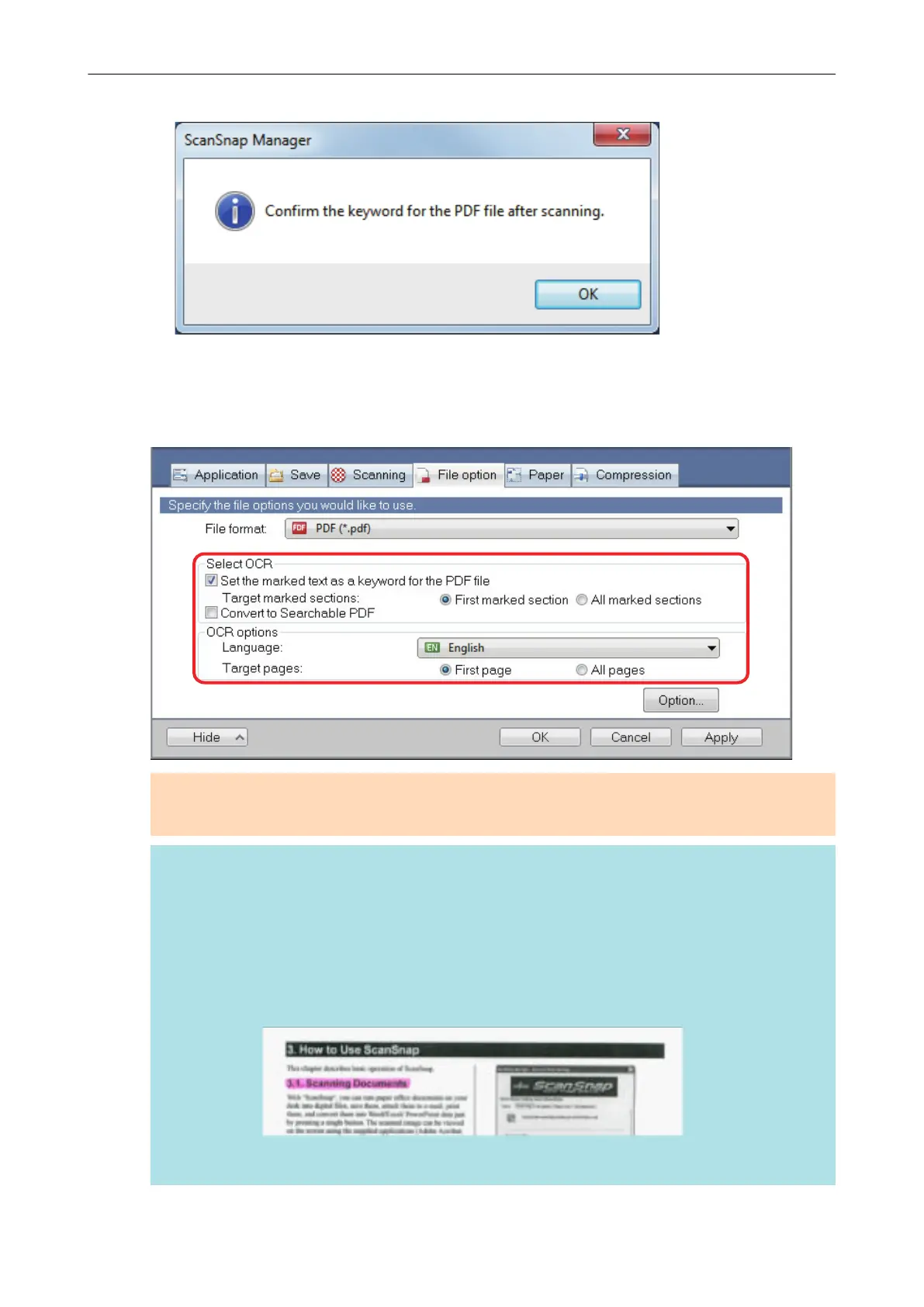
a The following message appears.
3. Click the [OK] button to close the message.
4. Specify [Select OCR] and [OCR options].
ATTENTION
Select [All marked sections] when the text orientation of your document is vertical.
HINT
[First marked section] that can be set in [Select OCR] is used as follows:
l Select this button to set a character string such as a title of a document as a keyword for the
PDF file.
Example:
When only the title of a document is marked, the marked character string is set
as a keyword for the PDF file, and the PDF file becomes searchable by the title
character string.
l When multiple marked sections exist in line, the marked character string closest to the top of
the document is set as a keyword.
Setting Keywords in PDF Files
117















 To Next Page