EasyManua.ls Logo

Furuno GP-39 - User Manual

Furuno GP-39
97 pages
Print Icon
To Next Page IconTo Next Page
Loading...
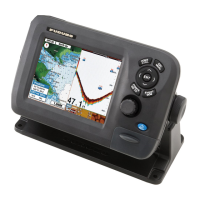
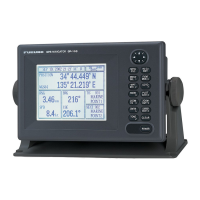
GP-39
OPERATOR'S MANUAL
www.furuno.com
GPS Navigator
Model

Table of Contents

Other manuals for Furuno GP-39

Questions and Answers

  • C
    carsonstevenAug 16, 2025
    What to do if Furuno GPS position is not fixed within 90 seconds?
    • C
      Cassidy AndersonAug 16, 2025
      If your Furuno GPS position isn't fixed within 90 seconds, first ensure the antenna connector is securely fastened. Then, check the number of satellites on the Satellite Monitor display. If you see two or fewer satellites, check for any obstructions between the antenna unit and the satellites.
  • T
    tmillerAug 19, 2025
    Why is my Furuno GPS position wrong?
    • C
      Christian MckinneyAug 19, 2025
      If the position displayed on your Furuno GPS is wrong, verify that the correct geodetic chart system is selected on the GPS Setting screen. You can also enter a position offset on the GPS Setting screen to correct the displayed position.
  • W
    wesleyfernandezAug 22, 2025
    What to do if Furuno GP-39 position is wrong?
    • T
      Tammy MillerAug 22, 2025
      If your Furuno GPS position is wrong, verify that the correct geodetic chart system is selected on the GPS Setting screen. You can also enter a position offset on the GPS Setting screen.
  • R
    Robin ReevesAug 25, 2025
    Why is the bearing wrong on my Furuno GPS?
    • F
      floresdaisyAug 25, 2025
      If the bearing displayed on your Furuno GPS is wrong, check the Magnetic Variation setting on the Plotter Setup screen.
  • O
    orichmondAug 27, 2025
    How to troubleshoot Furuno GPS when it doesn't turn on?
    • R
      rachelrhodesAug 27, 2025
      If you cannot turn on the power to your Furuno GPS, check that the power cable is firmly fastened. Also, inspect the power cable and connector for any damage. Finally, check the battery to ensure it's providing the proper voltage output.
  • M
    Michael HeathAug 30, 2025
    What to do if no picture appears on Furuno GPS?
    • T
      Teresa AdamsAug 31, 2025
      If no picture appears on your Furuno GPS, press the /BRILL key several times to adjust the brilliance.
  • S
    sandersbenjaminSep 2, 2025
    Why do Loran C/Decca TDs not appear on my Furuno GPS?
    • H
      hawkinsthomasSep 2, 2025
      If Loran C/Decca TDs do not appear on your Furuno GPS, check the Loran C/Decca chain data on the Pos/TD Setup screen.
  • C
    Cody PageSep 6, 2025
    What to do if Loran C/Decca TDs are wrong on Furuno GPS?
    • W
      William OrozcoSep 6, 2025
      If the Loran C/Decca TDs are wrong on your Furuno GPS, enter the TD offset on the Pos/TD Setup screen.
  • J
    Jordan SchneiderSep 9, 2025
    What to do if Furuno GPS has no response when a key is pressed?
    • G
      groseSep 9, 2025
      If there is no response when a key is pressed on your Furuno GPS, turn the power off and on. If there is still no response, ask your dealer.
  • M
    Mark MurphySep 12, 2025
    How to fix Furuno GP-39 GPS when it won't turn on?
    • B
      Brett SmithSep 12, 2025
      If your Furuno GPS isn't turning on, check that the power cable is firmly fastened and inspect the power cable and connector for any damage. Also, check the battery for proper voltage output and inspect the fuse to see if it has blown. If the fuse has blown, determine the reason before replacing it. If it blows again after replacement, contact your dealer for advice.

Summary

1. OPERATIONAL OVERVIEW

1.1 Controls

Describes the function of each key on the GP-39 unit, including the cursorpad, MENU, ENT/CNTR, DISP, GO TO, and MARK/MOB keys.

1.2 How to Turn Power On;Off

Explains the procedure for turning the unit on and off, and details the status indications for GPS position fixing.

1.5 Menu Overview

Provides an overview of the menu system, explaining how to navigate and change settings using the MENU and ENT/CNTR keys.

1.6 How to Enter the MOB Mark

Describes how to record a Man Overboard (MOB) position using the MARK/MOB key and set it as a destination.

2. PLOTTER DISPLAY OVERVIEW

3. WAYPOINTS

3.1 How to Enter Waypoints

Explains various methods for entering waypoints: cursor, own ship position, through list, and automatic entry.

3.3 How to Edit Waypoints

Explains how to edit waypoint details such as position, name, mark shape, and comment on the plotter or via the list.

3.5 How to Erase Waypoints

Covers how to erase individual or all waypoints, noting restrictions on erasing the current destination.

4. ROUTES

4.1 How to Create Routes

Explains how to create and store routes, which consist of a sequence of waypoints for navigation.

4.2 How to Edit Routes

Details how to edit existing routes, including replacing, deleting, or inserting waypoints.

4.3 How to Erase a Route

Covers procedures for erasing routes individually or collectively from the route list.

5. DESTINATION

5.1 How to Set Destination by Cursor Position

Explains how to set a quick point destination on the plotter display by moving the cursor and pressing GO TO.

5.2 How to Set Destination by Waypoint

Guides on setting a waypoint as a destination using either the cursor on the plotter or selecting from the waypoint list.

5.3 How to Set Route as Destination

Details how to set an entire route as the destination, selecting forward or reverse direction.

6. ALARMS

8. MAINTENANCE, TROUBLESHOOTING

8.2 Troubleshooting

Offers simple troubleshooting steps for common issues like power, display, position fixing, and data errors.

9. INSTALLATION

9.3 Installation of Antenna Unit

Provides guidance on selecting a suitable location and mounting the antenna unit to ensure optimal GPS signal reception.

Furuno GP-39 Specifications

General IconGeneral
Display TypeLCD
Display Size4.3 inches
Position Accuracy3 meters
Waterproof RatingIPX7
Power Supply12-24 VDC
Weight0.7 kg 1.5 lb
Display Resolution480 x 272 pixels
Update Rate1 second
Accuracy3 meters
Differential GPS SupportWAAS
GPS Channels12 channels
Accuracy (WAAS)3 meters
LanguagesEnglish, French, Spanish, German, Italian
Channels12 channels

Related product manuals