4. ROUTES
4-3
4.2 How to Edit Routes
You can edit the route created.
Note: When the route that is selected is set as route navigation, the message "Route
is set as a destination. Are you sure?" appears.
4.2.1 How to replace a waypoint in a route
1. Press the MENU key twice to show the main menu.
2. Select [Routes], and press the ENT/CNTR key.
3. Select [Alpha] or [Distance], and press the ENT/CNTR key to show the route list.
4. Select the route to edit, and press the ENT/CNTR key.
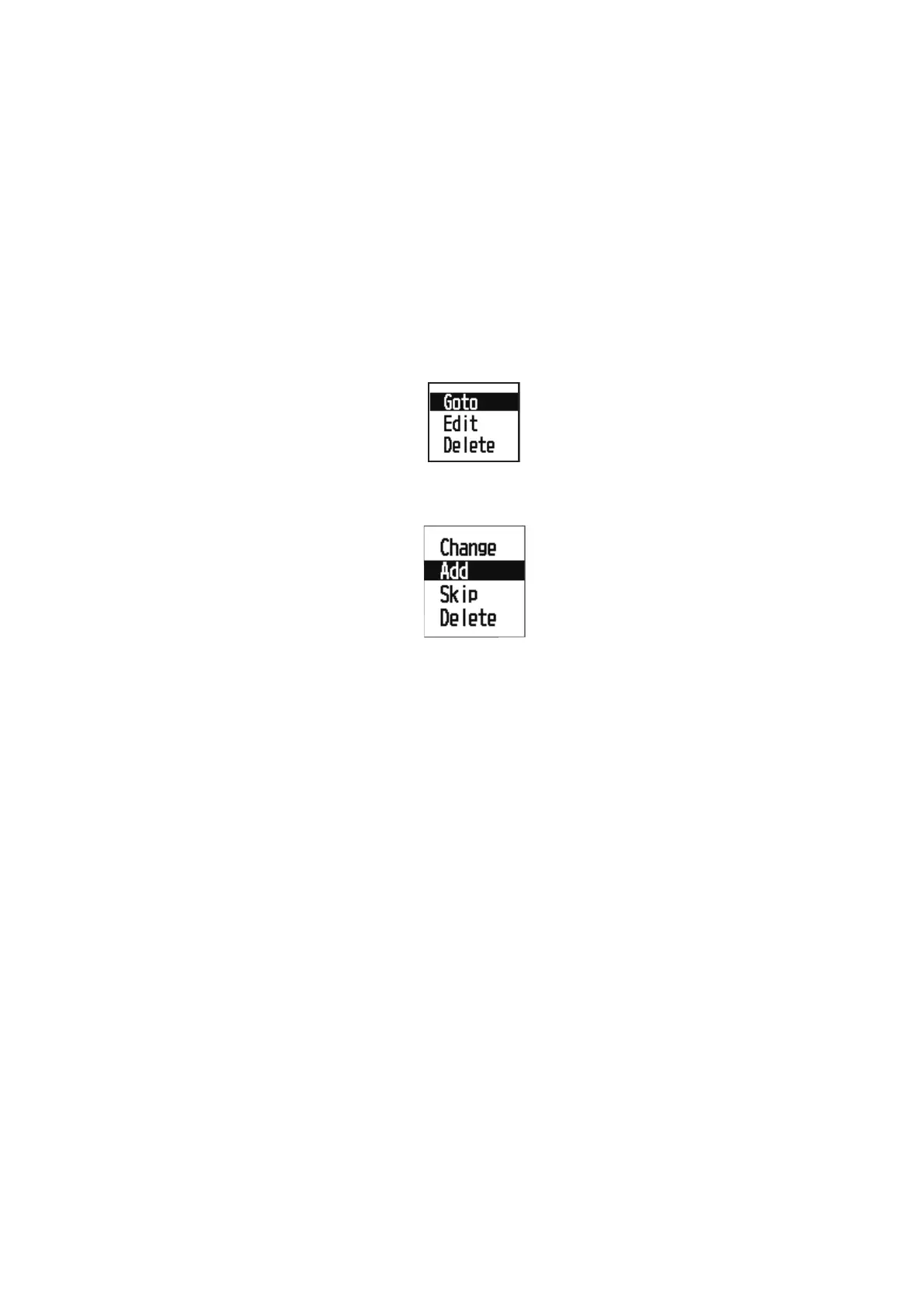
5. Select [Edit], and press the ENT/CNTR key to show the route list.
6. Select the waypoint to replace, and press the ENT/CNTR key.
7. Select [Change], and press the ENT/CNTR key.
8. Select [Alpha] or [Distance], and press the ENT/CNTR key to show the waypoint
list.
9. Select the new waypoint, and press the ENT/CNTR key.
10. Press the MENU key several times to close the menu.
4.2.2 How to delete a waypoint from a route
1. Press the MENU key twice to show the main menu.
2. Select [Routes], and press the ENT/CNTR key.
3. Select [Alpha] or [Distance], and press the ENT/CNTR key to show the route list.
4. Select the route to edit, and press the ENT/CNTR key.
5. Select [Edit], and press the ENT/CNTR key to show the route information.
6. Select the waypoint to delete from the route, and press the ENT/CNTR key.
7. Select [Delete], and press the ENT/CNTR key.
8. Press the MENU key several times to close the menu.



 To Next Page