2. PLOTTER DISPLAY OVERVIEW
2-4
2.6 How to Change Track Color
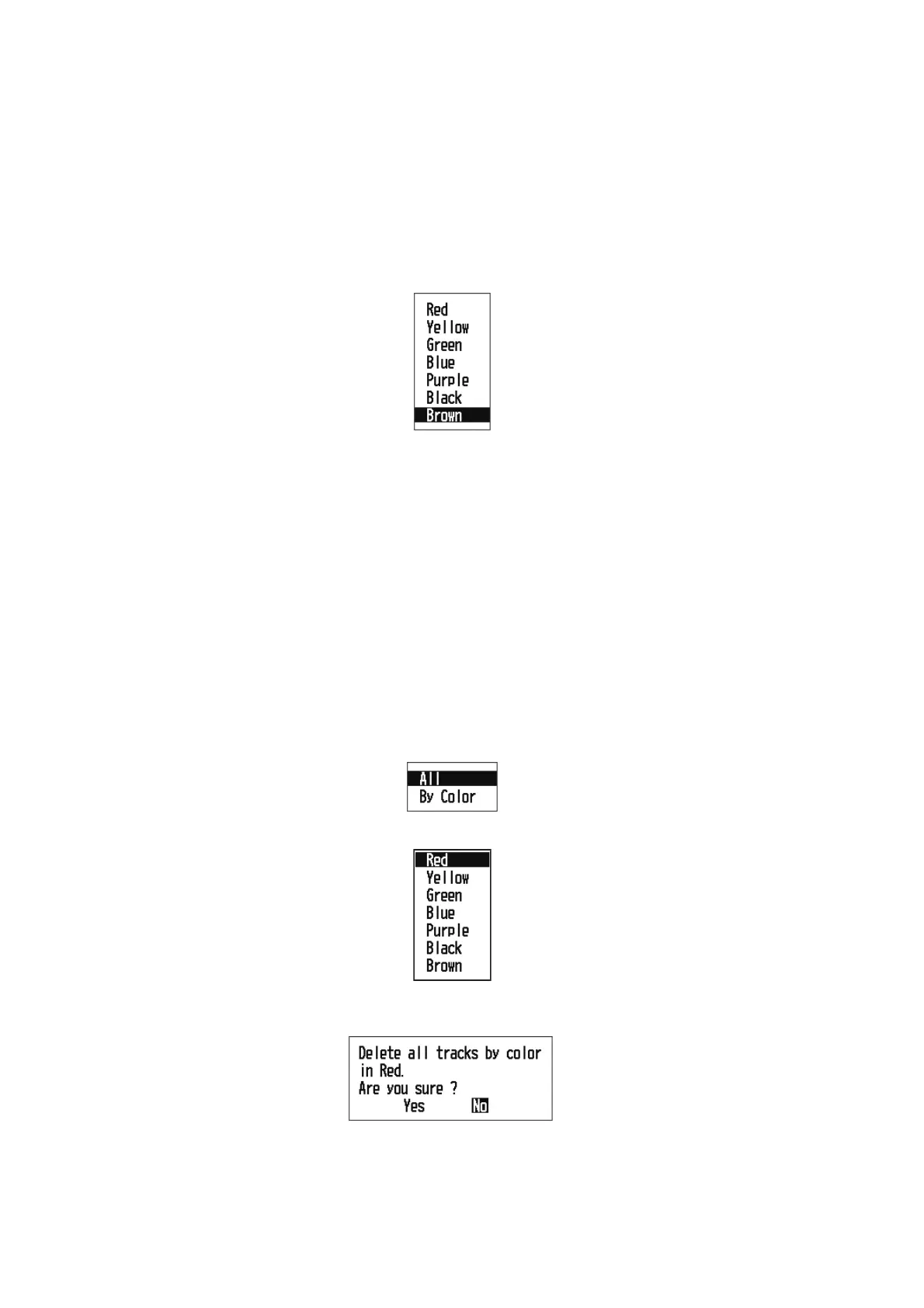
You can select the color for the tracks among red, yellow, green, blue, purple, black
and brown. It is useful to change the color to distinguish tracks at different times of a
day, for example.
1. Press the MENU key twice to show the main menu.
2. Select [Tracks], and press the ENT/CNTR key.
3. Select [Color], and press the ENT/CNTR key.
4. Select the color to use for the track, and press the ENT/CNTR key.
5. Press the MENU key twice to close the menu.
2.7 How to Erase Track
The tracks can be erased collectively or by color. The tracks cannot be restored once
erased, therefore be absolutely sure you want to erase the tracks.
2.7.1 How to erase track by color
1. Press the MENU key twice to show the main menu.
2. Select [Tracks], and press the ENT/CNTR key.
3. Select [Delete], and press the ENT/CNTR key.
4. Select [By Color], and press the ENT/CNTR key.
5. Select the track color to erase, and press the ENT/CNTR key.
The window shown below appears.
6. Press to select [Yes], and press the ENT/CNTR key.
The tracks with the color selected at step 5 are erased.
Note: To cancel, select [No] at this step.
7. Press the MENU key twice to close the menu.



 To Next Page