3. WAYPOINTS
3-3
13. To change the comment, select [Comment] and press the ENT/CNTR key.
14. Enter the comment, and press the ENT/CNTR key.
15. Press the MENU key to register the new waypoint into the list.
16. To register other waypoints, repeat steps 4 through 14.
17. Press the MENU key several times to close the menu.
3.1.4 How to enter waypoints automatically
Waypoints can be entered automatically when your course changes by a specified de-
gree. This function is useful for following the recorded waypoints on an outward voy-
age in reverse when you return home. To set the criteria for automatic entering of
waypoints, do the following:
1. Press the MENU key twice to show the main menu.
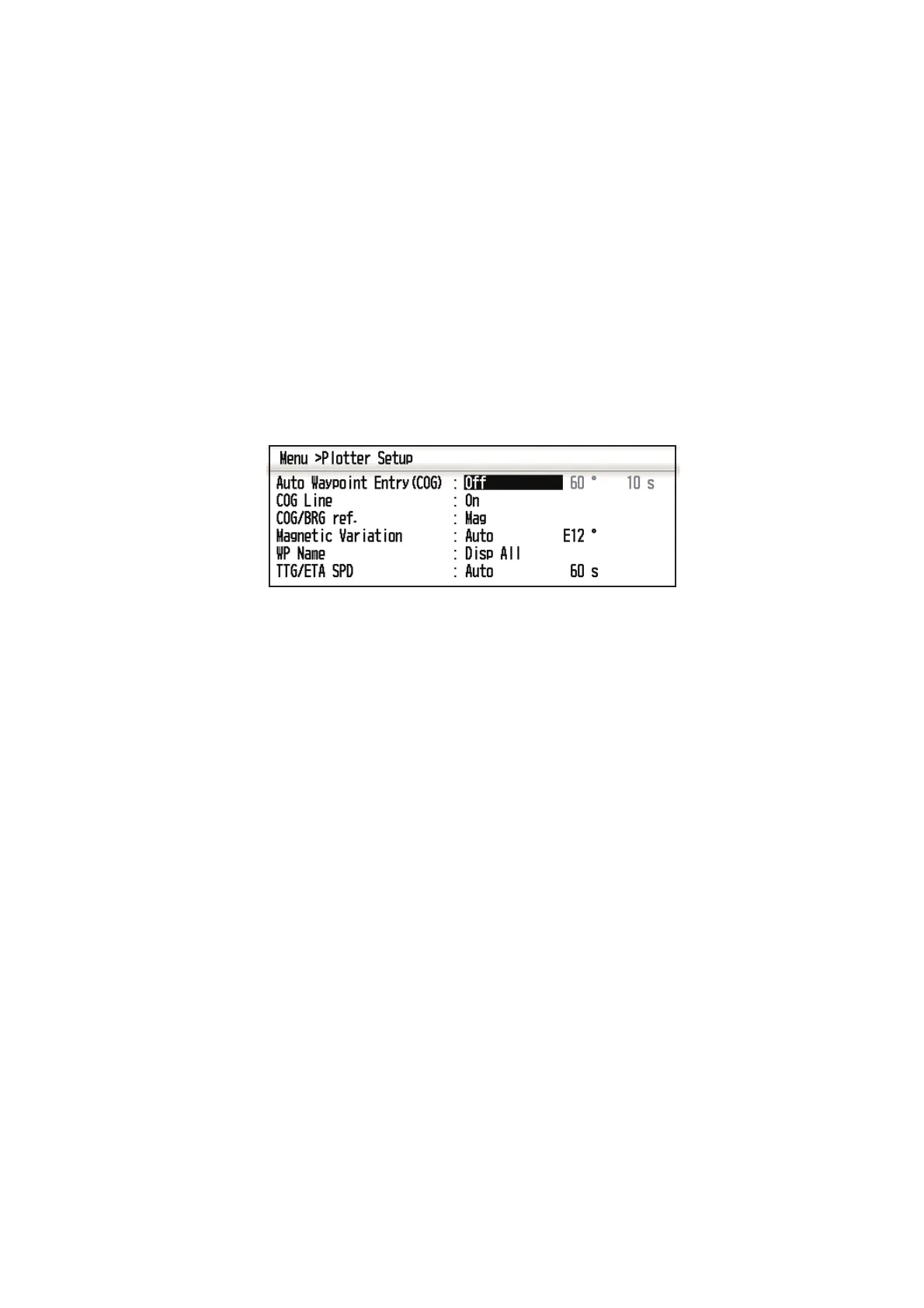
2. Select [Plotter Setup], and press the ENT/CNTR key.
3. Select [Auto Waypoint Entry (COG)], and press the ENT/CNTR key.
4. Select [On], and press the ENT/CNTR key.
5. Press to select the degree setting, and press the ENT/CNTR key.
6. Enter the degree, and press the ENT/CNTR key (setting range: 15 to 150°).
7. Press to select the seconds setting, and press the ENT/CNTR key.
8. Enter the seconds, and press the ENT/CNTR key (setting range: 1 to 60 seconds).
9. Press the MENU key twice to close the menu.



 To Next Page