4. ROUTES
4-5
7. Select [Skip], and press the ENT/CNTR key to show “X” next to the waypoint se-
lected at step 6.
8. Press the MENU key several times to close the menu.
Note: To restore a waypoint to a route, select [Skip Off] at step 7, and press the ENT/
CNTR key.
4.3 How to Erase a Route
You can erase routes individually or collectively.
4.3.1 How to erase a route through the route list
Note: The route used as route navigation can not be erased.
1. Press the MENU key twice to show the main menu.
2. Select [Routes], and press the ENT/CNTR key.
3. Select [Alpha] or [Distance], and press the ENT/CNTR key to show the route list.
4. Select the route to erase, and press the ENT/CNTR key.
5. Select [Delete], and press the ENT/CNTR key to erase the route selected at step
4.
6. Press the MENU key several times to close the menu.
4.3.2 How to erase all routes
1. Press the MENU key twice to show the main menu.
2. Select [Delete], and press the ENT/CNTR key.
3. Select [All Routes], and press the ENT/CNTR key.
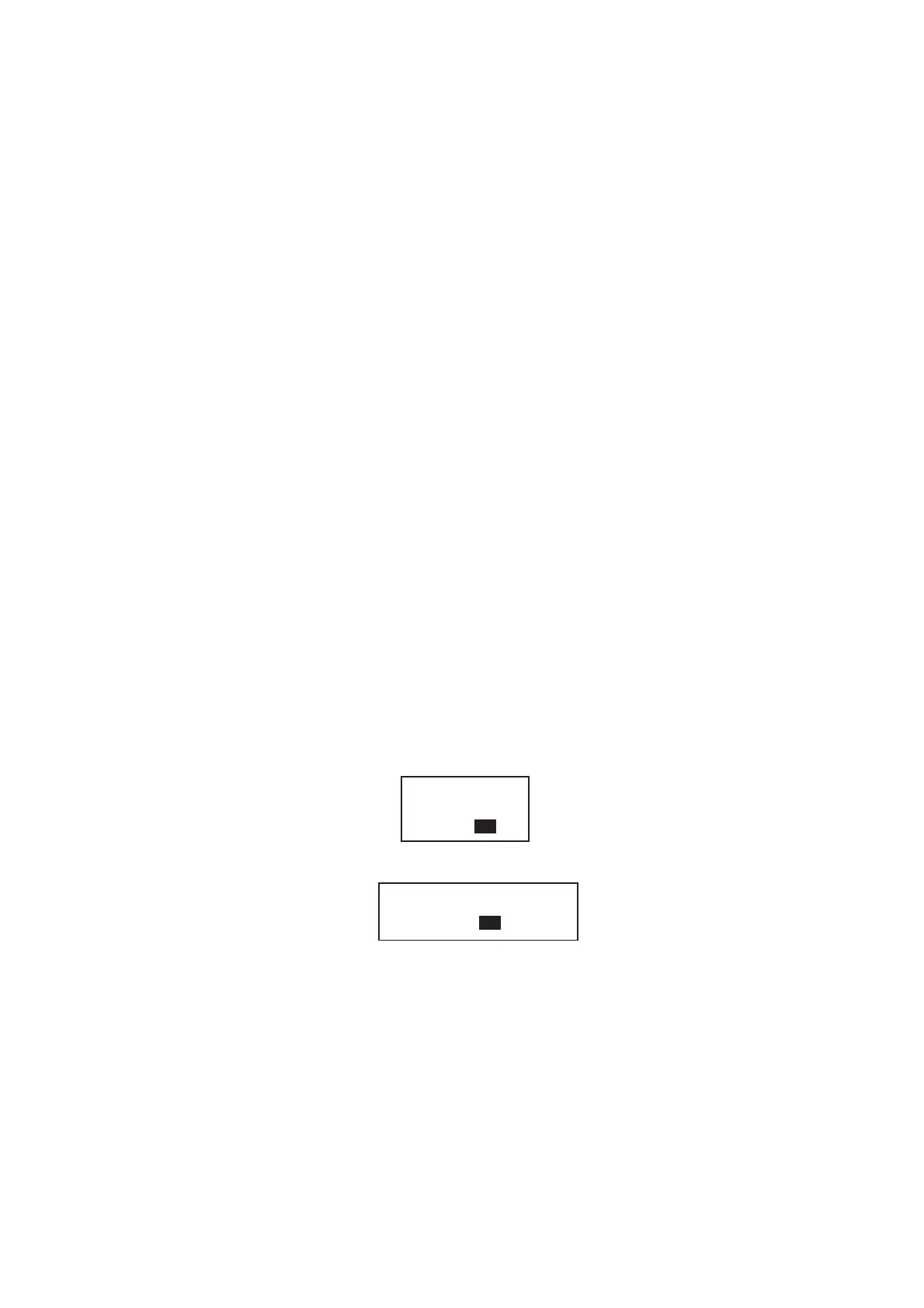
4. Select [Delete], and press the ENT/CNTR key to show the following message.
5. Select [Yes], and press the ENT/CNTR key to erase all routes.
Note: To cancel, select [No].
6. Press the MENU key twice to close the menu.
Delete all routes.
Are you sure?
Yes No
Route is set as destination.
Are you sure to delete all routes?
Yes No
When no route is set as destination
When a route is set as destination



 To Next Page