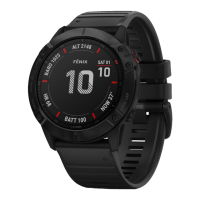
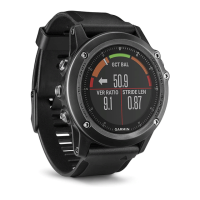
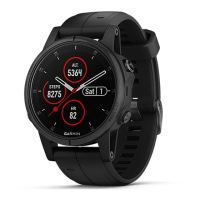
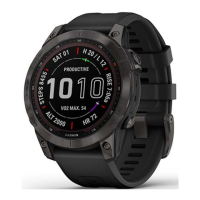
Customizing the Watch Face
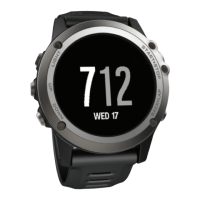
You can customize the watch face information and appearance, or activate an installed Connect IQ
™
watch face
(Connect IQ Features, page93).
1
From the watch face, hold .
2 Select Watch Face.
3
Press or to preview the watch face options.
4 Select Add New to create a custom digital or analog watch face.
5
Scroll to a watch face, press , and select .
6 Select an option:
NOTE: Not all options are available for all watch faces.
• To activate the watch face, select Apply.
• To change the style of the watch face to digital or analog, select Styles.
• To change the data that appears on the watch face, select Data.
• To add or change an accent color for the watch face, select Accent Color.
• To change the color of the data that appears on the watch face, select Data Color.
• To remove the watch face, select Delete.
Apps and Activities
Your watch includes a variety of preloaded apps and activities.
Apps: Apps provide interactive features for your watch, such as viewing saved locations or checking the
weather forecast (Apps, page5).
Activities: Your watch comes preloaded with indoor and outdoor activity apps, including running, cycling,
strength training, golfing, and more (Activities, page16). When you start an activity, the watch displays and
records sensor data, which you can save and share with the Garmin Connect
™
community.
For more information about activity tracking and fitness metric accuracy, go to garmin.com/ataccuracy.
Connect IQ Apps: You can add features to your watch by installing apps from the Connect IQ app (Connect IQ
Features, page93).
4 Apps and Activities







 To Next Page