Customizing the Controls Menu
You can add, remove, and change the order of the shortcut menu options in the controls menu (Controls,
page51).
1
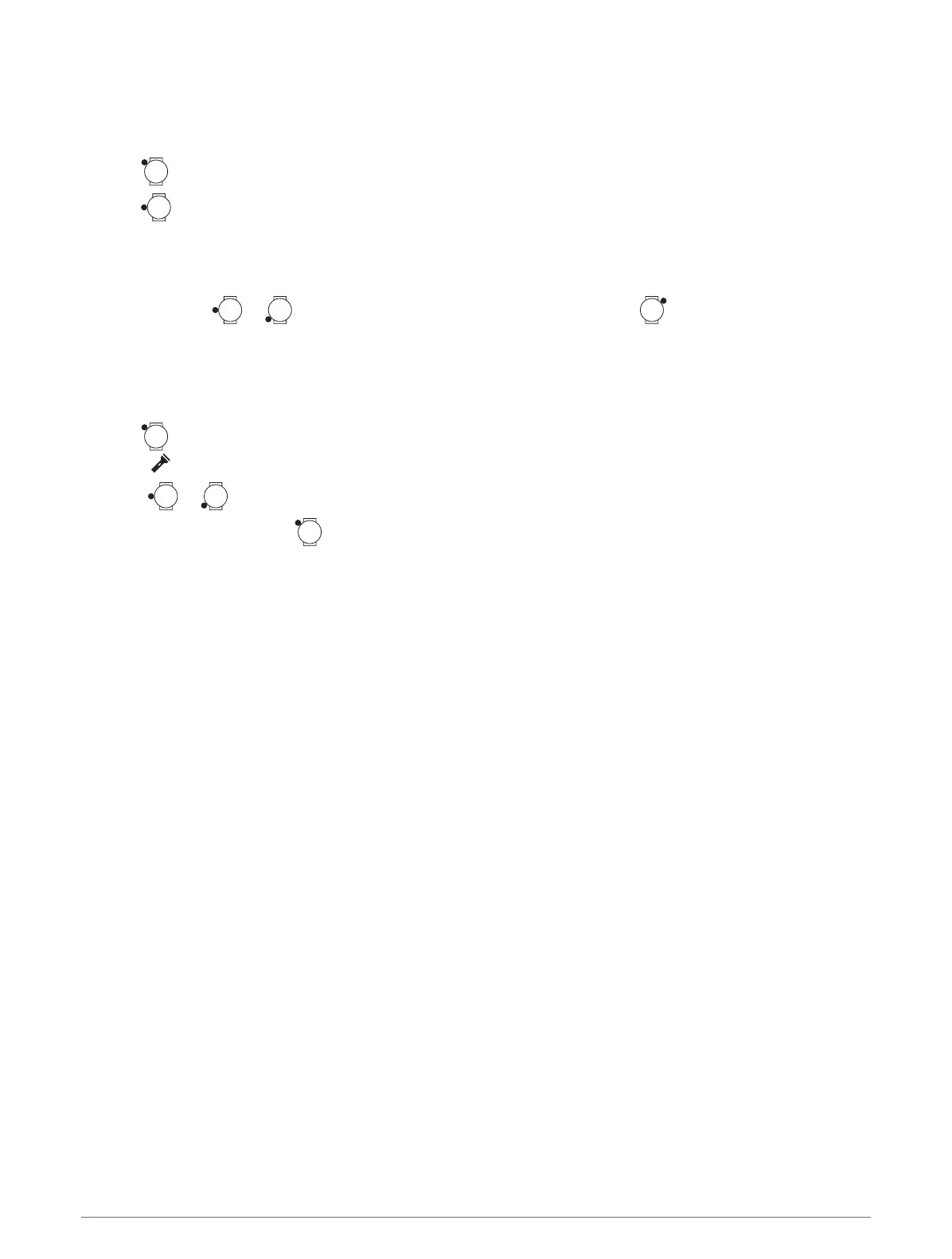
Hold to open the controls menu.
2
Hold .
3
Select an option:
• To add a control to the menu, select Add Controls, and select a control to add.
•
To change the location of a shortcut in the controls menu, select Reorder Controls, select a control to
move, press or to move the control to a new position, and press to select the new location.
• To remove shortcut from the controls menu, select Remove Controls, and select a control to remove.
Using the Flashlight Screen
Using the flashlight can reduce battery life. You can reduce the brightness to extend the life of the battery.
1
Hold .
2 Select .
3
Press or to adjust the brightness and color.
TIP: You can quickly press twice to turn on the flashlight at this setting in the future.
Glances
Your watch comes preloaded with glances that provide quick information (Viewing Glances, page57). Some
glances require a Bluetooth connection to a compatible phone.
Some glances are not visible by default. You can add them to the glances list manually (Customizing the
Glances List, page58).
54 Glances







 To Next Page