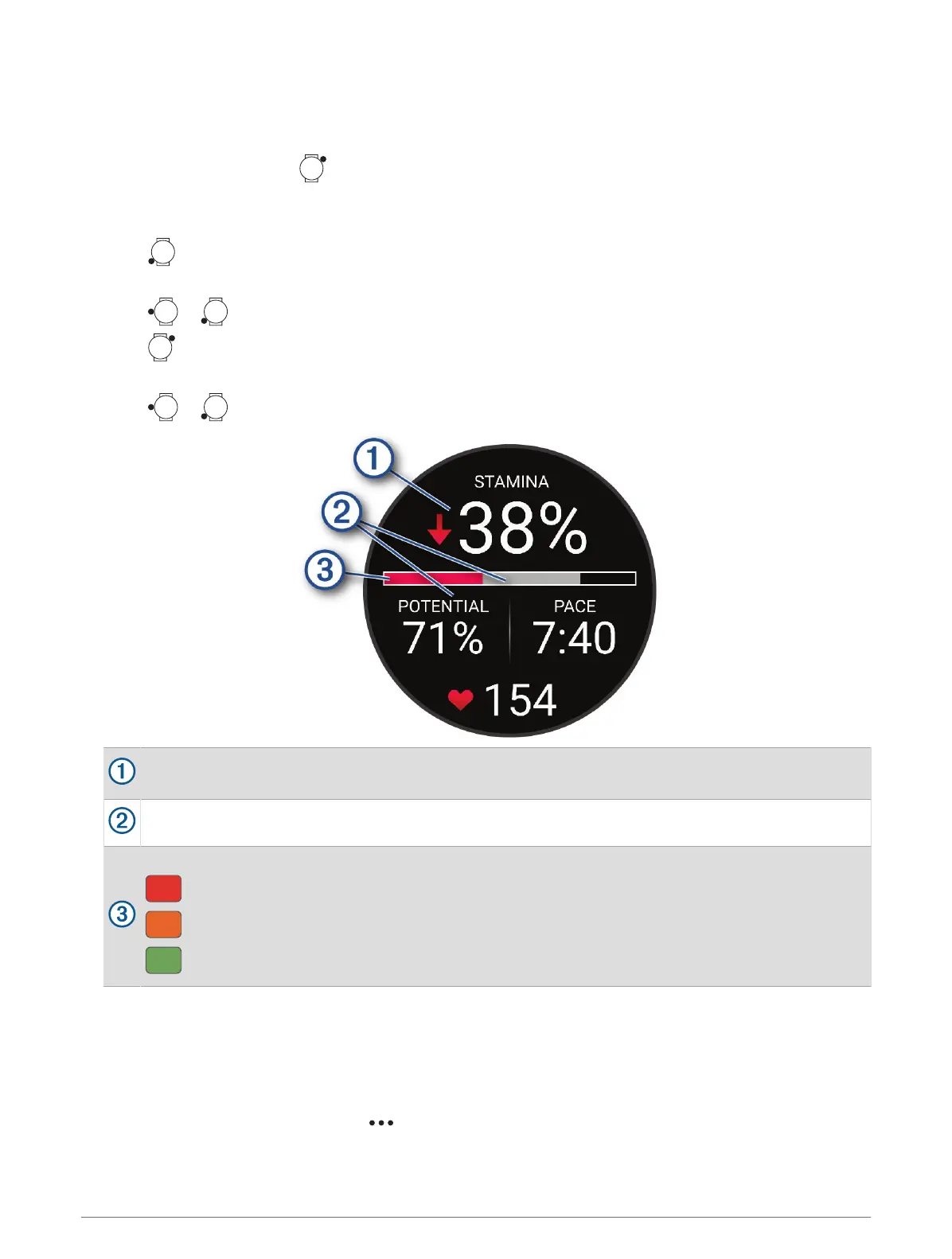
Viewing Your Real-Time Stamina
Your watch can provide real-time stamina estimates based on your heart rate data and VO2 max. estimate
(About VO2 Max. Estimates, page60).
1
From the watch face, press .
2 Select Activities.
3 Select a run or bike activity.
4
Press .
5 Select Activity Options > Data Screens > Add New > Stamina.
6
Press or to change the location of the data screen (optional).
7
Press to edit the primary stamina data field (optional).
8 Start your activity (Starting an Activity, page17).
9
Press or to scroll to the data screen.
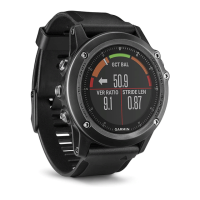
Primary stamina data field. Shows your current stamina percentage, distance remaining, or time
remaining.
Potential stamina.
Current stamina.
Red: Stamina is depleting.
Orange: Stamina is steady.
Green: Stamina is recharging.
Viewing Your Power Curve
Before you can view your power curve, you must record a ride that's at least one hour long using a power meter
in the last 90 days (Pairing Your Wireless Sensors, page84).
You can create workouts in your Garmin Connect account. The power curve displays your sustained power
output over time. You can view your power curve for the previous month, three months, or twelve months.
1 From the Garmin Connect app, select .
2 Select Performance Stats > Power Curve.
Glances 65







 To Next Page