Display and Brightness Settings
From the watch face, hold , and select Watch Settings > Display & Brightness.
Brightness: Sets the brightness level of the screen.
Always On Display: Sets the watch face data to remain visible and turn down the brightness and background.
This option impacts the battery and display life (About the AMOLED Display, page123).
Text Size: Adjusts the size of the text on the screen.
Red Shift: Turns the screen to shades of red, green, or orange so that you can use the watch in low light
conditions and help preserve your night vision.
Gesture: Turns on the screen when you raise and turn your arm to look at your wrist.
Timeout: Sets the length of time before the screen turns off.
Touch: Enables the touchscreen. You can select Map Only to enable the touchscreen only on the map screen.
Touch Lock: Locks the touchscreen after the screen turns off. When this setting is enabled, you can swipe down
to unlock the touchscreen.
Connectivity
Connectivity features are available for your watch when you pair with your compatible phone (Pairing
Your Phone, page87). Additional features are available when you connect your watch to a Wi‑Fi network
(Connecting to a Wi‑Fi Network, page89).
Sensors and Accessories
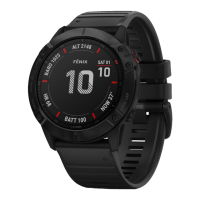
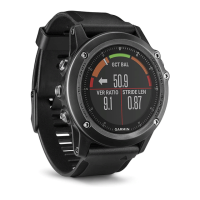
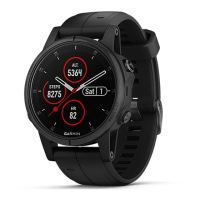
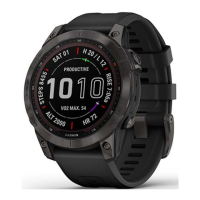
The fēnix watch has several internal sensors, and you can pair additional wireless sensors for your activities.
Wireless Sensors
Your watch can be paired and used with wireless sensors using ANT+ or Bluetooth technology (Pairing
Your Wireless Sensors, page84). After the devices are paired, you can customize the optional data fields
(Customizing the Data Screens, page44). If your watch was packaged with a sensor, they are already paired.
For information about specific Garmin sensor compatibility, purchasing, or to view the owner's manual, go to
buy.garmin.com for that sensor.
82 Display and Brightness Settings







 To Next Page