Cleaning the Watch
CAUTION
Some users may experience skin irritation after prolonged use of the watch, especially if the user has sensitive
skin or allergies. If you notice any skin irritation, remove the watch and give your skin time to heal. To help
prevent skin irritation, ensure the watch is clean and dry, and do not overtighten the watch on your wrist.
NOTICE
Even small amounts of sweat or moisture can cause corrosion of the electrical contacts when connected to a
charger. Corrosion can prevent charging and data transfer.
TIP: For more information, go to garmin.com/fitandcare.
1 Rinse with water, or use a damp lint-free cloth.
2 Allow the watch to dry completely.
Changing the QuickFit
®
Bands
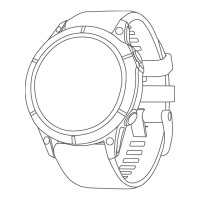
1 Slide the latch on the QuickFit band, and remove the band from the watch.
2 Align the new band with the watch.
3 Press the band into place.
NOTE: Make sure the band is secure. The latch should close over the watch pin.
4 Repeat steps 1 through 3 to change the other band.
Troubleshooting
Product Updates
Your device automatically checks for updates when connected to Bluetooth or Wi‑Fi. You can manually check
for updates from the system settings (System Settings, page119). On your computer, install Garmin Express
(www.garmin.com/express). On your phone, install the Garmin Connect app.
This provides easy access to these services for Garmin devices:
• Software updates
• Map updates
• Course updates
• Data uploads to Garmin Connect
• Product registration
Troubleshooting 125







 To Next Page