YoucanuseaUSBcabletoconnectthecameraandcopy
{transmit}photostoacomputer,printerorotherdevice.
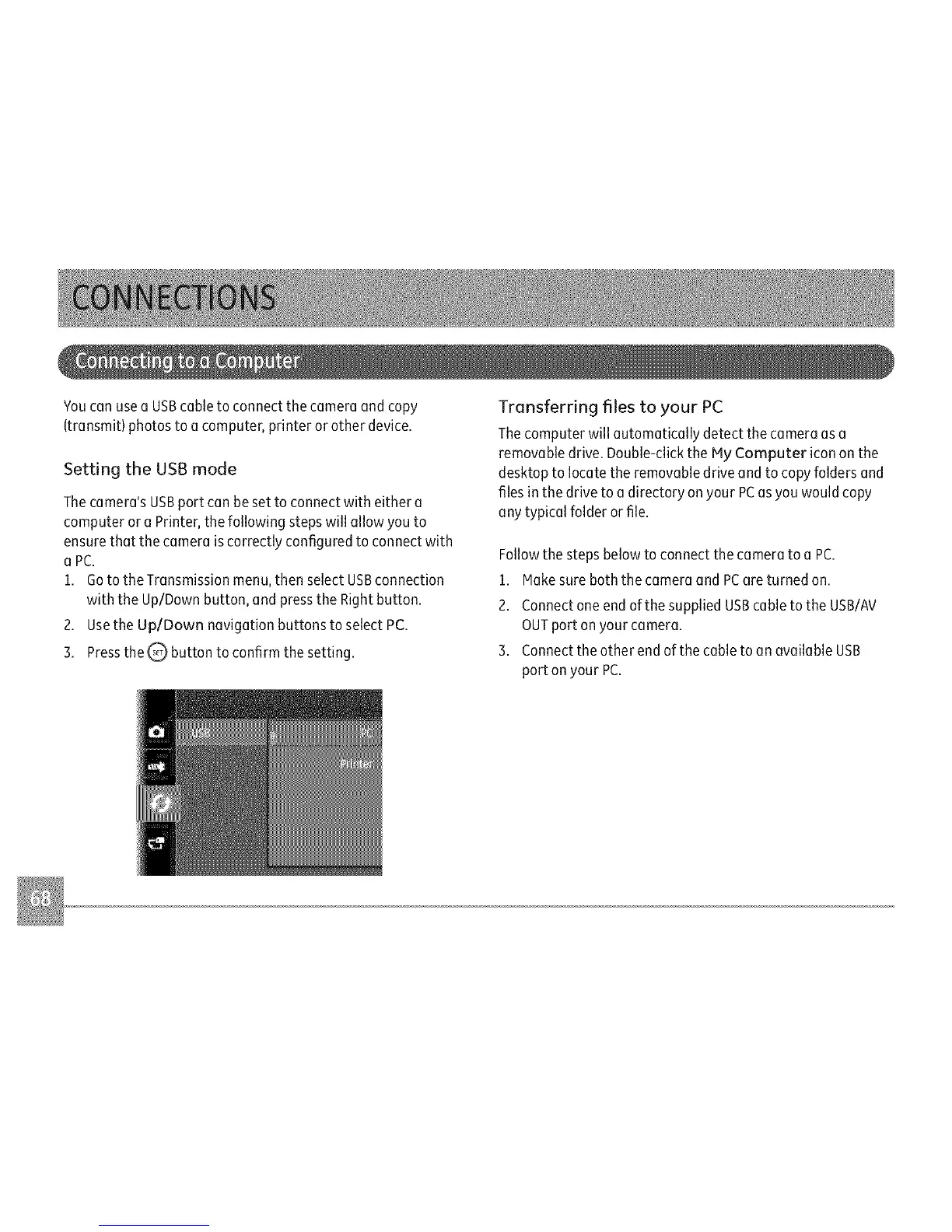
SettingtheUSBmode
Thecamera'sUSBportcanbesettoconnectwitheithera
computeroraPrinter,thefollowingstepswillallowyouto
ensurethatthecameraiscorrectlyconfiguredtoconnectwith
aPC.
1.GototheTransmissionmenu,thenselectUSBconnection
withtheUp/Downbutton,andpresstheRightbutton.
2.UsetheUp/DownnavigationbuttonstoselectPC.
3.Pressthe,Qbuttontoconfirmthesetting.
Transferringfilestoyour PC
Thecomputer will automatically detect the camera as a
removable drive. Double-clickthe My Computer icon on the
desktop to locate the removable drive and to copyfolders and
files in the drive to a directory on your PCasyou would copy
any typical folder orfile.
Followthe steps below to connect the camera to a PC.
1. Hakesure both the camera and PCareturned on.
2. Connectone end of the supplied USBcable to the USB/AV
OUTport on your camera.
3. Connecttheother end of the cable to an available USB
port on your PC.


 To Next Page