page | 45
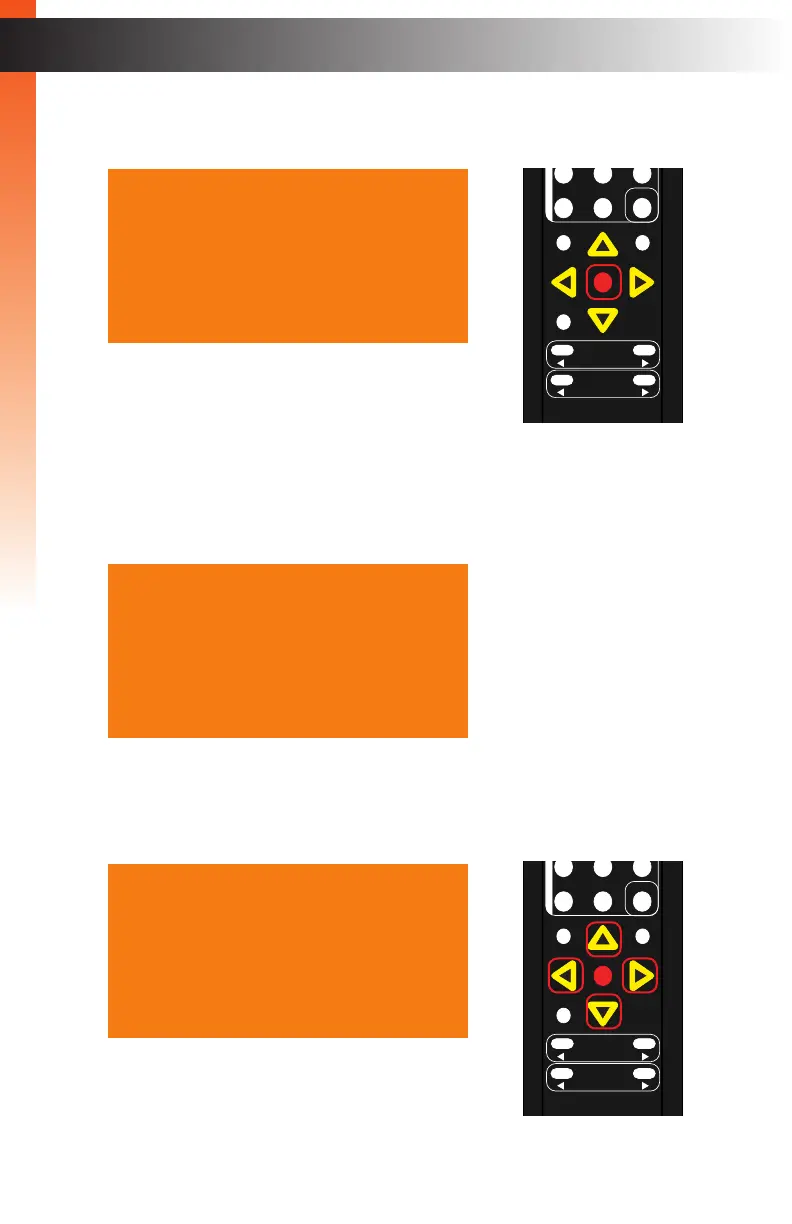
3. Press the OK button to display the VGA Settings. The Auto Size option will be
highlighted.
4. Press the ▲ or ▼ buttons to highlight the V Position option.
5. Press the OK button, again, to activate the V Position option.
6. The current vertical position value will highlighted in red.
7. Press the ▲, ▼, ◄, or ► buttons to set the desired phase setting.
The range is: 0 - 100. Increasing the value will move the image, up, vertically.
OK
Resolution
Menu
Exit
L/R 1
Int
VGA
HDMI
Off On
DP DVI
Comp Mask
Optical Coaxial
L/R 2 Mute
Info
Vol -
Vol +
Aspect Ratio
Audio
Auto Size
Phase 040
V Position 000
H Position 050
Under/Over Scan Off
Aspect Ratio Source
HDCP
Send HPD Pulse ---
Back
VGA Settings
Auto Size
Phase 040
V Position 000
H Position 050
Under/Over Scan Off
Aspect Ratio Source
HDCP
Send HPD Pulse ---
Back
VGA Settings
Auto Size
Phase 040
V Position 005
H Position 050
Under/Over Scan Off
Aspect Ratio Source
HDCP
Send HPD Pulse ---
Back
VGA Settings
OK
Resolution
Menu
Exit
L/R 1
Int
VGA
HDMI
Off On
DP DVI
Comp Mask
Optical Coaxial
L/R 2 Mute
Info
Vol -
Vol +
Aspect Ratio
Audio
Basic OperationBasic Operation
Menu System



 To Next Page