+$%&
1
HP
PrecisionScan Pro
User’s Guide
10
Using the HP ScanJet
scanner
Book Contents Index
➮
➮
Start the scanning software
There are three ways to start the scanning software:
■
push the
Scan
button on the scanner
■
use the Windows
Start
menu
■
launch the scanning software from another program
using TWAIN (page
11
)
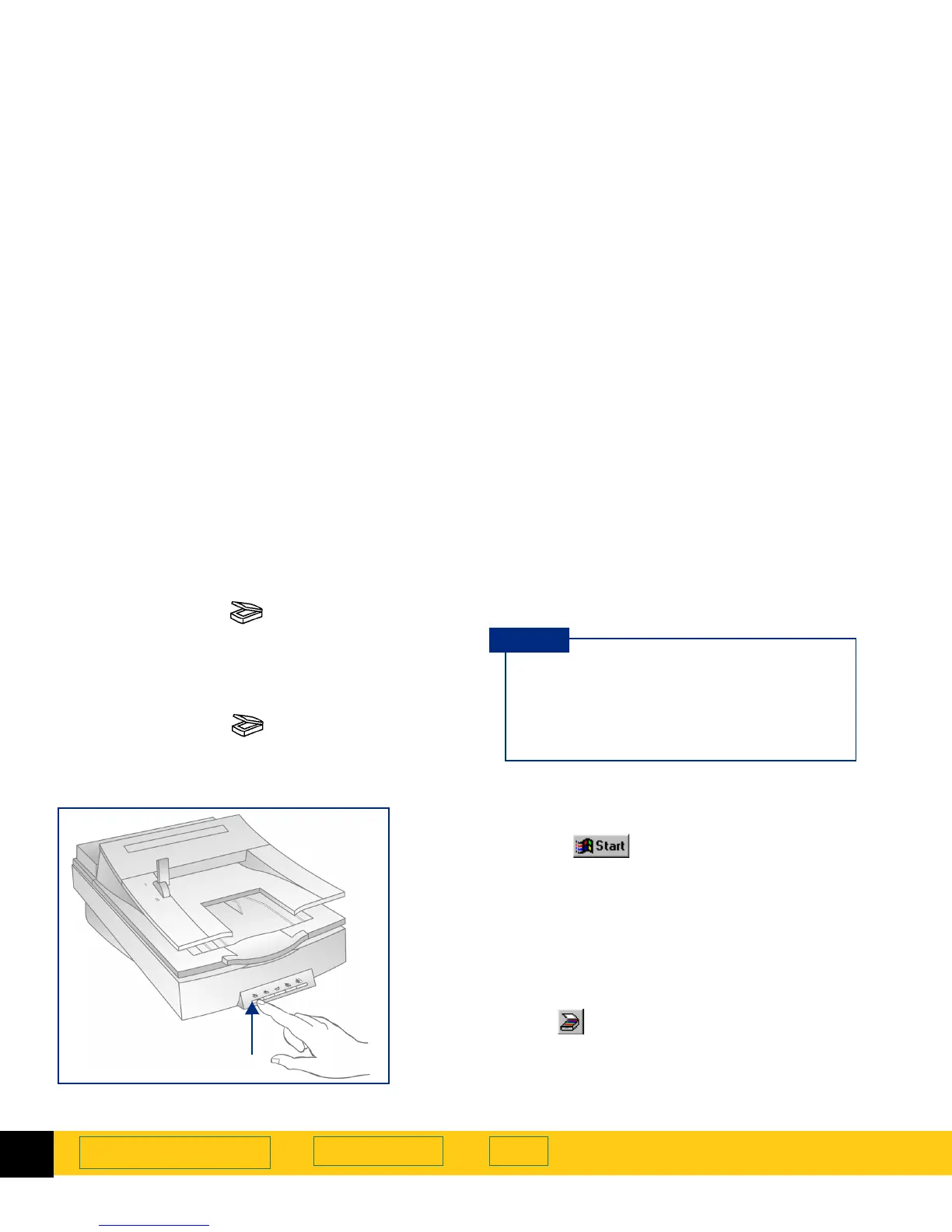
Pushing the button on the scanner
1
Push the
Scan
button on the scanner once.
After the scanning software window appears, the
scanner automatically performs a
Preview
scan and
displays the preview image.
The
Scan
button is below the lid on the front of the
scanner.
Using the Windows Start menu
1
Select , the Windows
Start
button.
The Windows
Start
menu appears.
2
From the
Start
menu, choose
Programs
, then choose
HP ScanJet Software:HP PrecisionScan Pro
.
When the scanning software window appears, the
scanner
does not
automatically perform a
Preview
scan.
3
To start a
Preview
scan:
■
click , the
Preview
button in the scanning software
window toolbar, or
■
from the
Scan
menu, select
Preview
, or
■
press
Ctrl+R
.
Scan
button
You may need to use the
HP ScanJet Button
Manager
to configure the
Scan
button to set
HP PrecisionScan Pro
as the default software
to launch when the
Scan
button is pushed
(see page
12
).
TIP








 To Next Page