+$%&
3
HP
PrecisionScan Pro
User’s Guide
65
Scanning pictures
Book Contents Index
➮
➮
Set the output dimensions
To get the best quality image, determine in advance the
physical dimensions you want for the image and set
those dimensions with the
Dimensions
tool in the
scanning software. For example, if the original is
smaller than the size you need the image to be in
another program, resize it now. Resizing an image in
the destination program can cause the image to
become fuzzy or jagged.
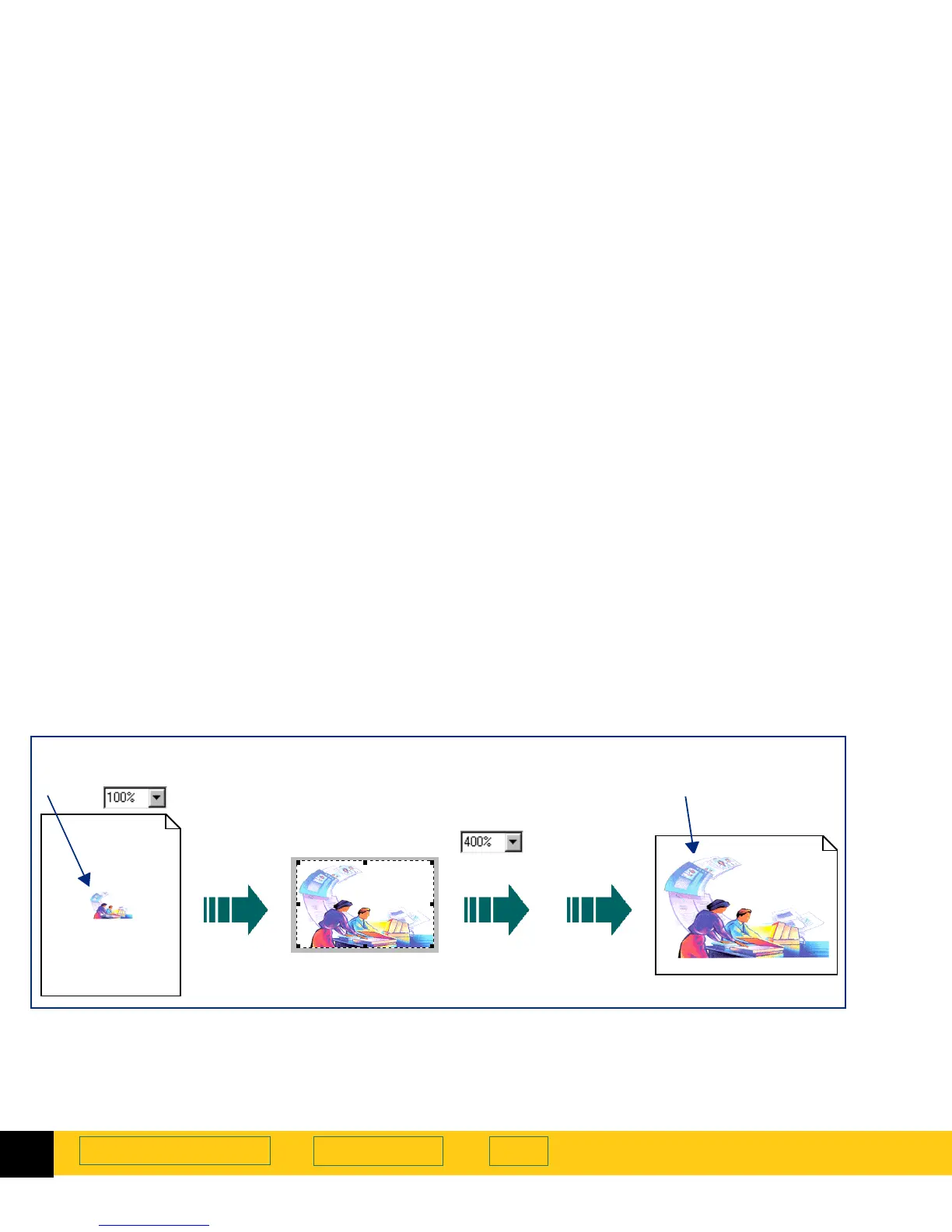
The usual procedure for setting output dimensions
follows this order:
1
Choose the units of measurement you want to work
with (page
66
).
2
Create a selection area (page
58
) and adjust the size
of the selection area (page
62
).
3
Adjust the output dimensions (page
67
).
Original picture
400% Scaled image
Create a selection
area
Set output
dimensions
by scaling
Print,
save,
copy, or
drag-and-
drop
➊➌
Set units
➋
Scale








 To Next Page