+$%&
6
HP
PrecisionScan Pro
User’s Guide
104
Saving scanned images
Book Contents Index
➮
➮
Print the image
1
Click , the
Print
button in the toolbar, or
from the
Scan
menu, select
Print
,
or, press
Ctrl+P
.
The
Print
dialog box appears.
2
Fill out the options in the
Print
dialog box.
3
Click
OK
.
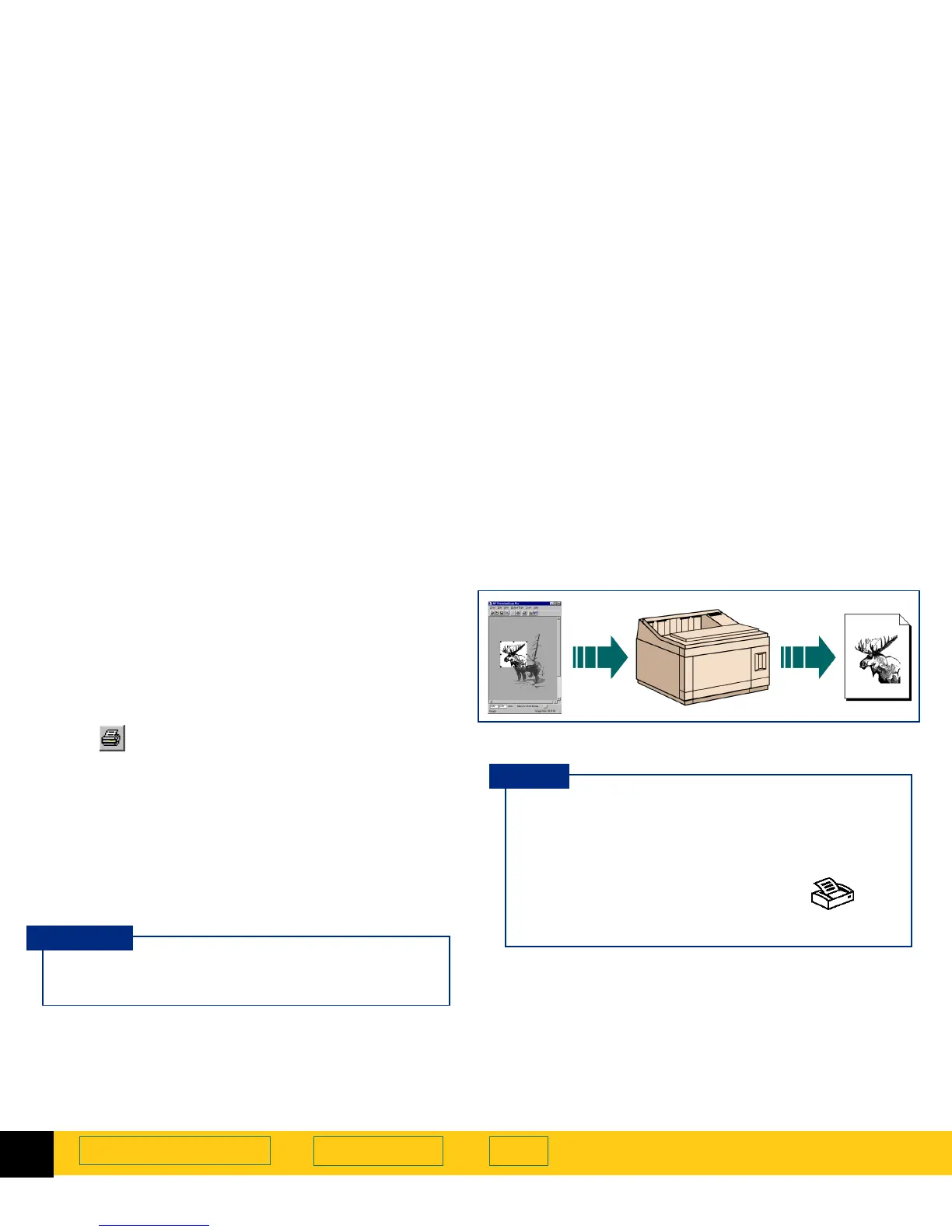
A final scan of the image is performed.
The image is sent to the printer.
When you print a copy of the image in the selection
area you will be able to see the size and quality of
the printed image.
Use the
Print
command to send a copy of the image
to a printer.
The
Print
command is unavailable for vector line
art, text, and text & image Output Types.
NOTE
■
If no selection area has been drawn, the entire
area of the scanner glass is printed.
■
Be sure to keep the original in the same place on
the scanner glass until the final scan of the image
is completed.
■
You can also press the copy button on the
front of the scanner to send a scanned image to
your printer.
TIP








 To Next Page